Club Settings
Note
This page describes the current Settings screen (updated February 2026). Some screenshots may lag behind minor UI changes.
Overview
Club Settings (shown as Settings in the club sidebar) is where officers configure club information, email features, and the meeting schedule defaults used when creating meetings.
How to Access
- Sign in as a club officer
- Open your club workspace (use Find a Club at
/app/clubs/findif needed) - Navigate to Settings in the sidebar
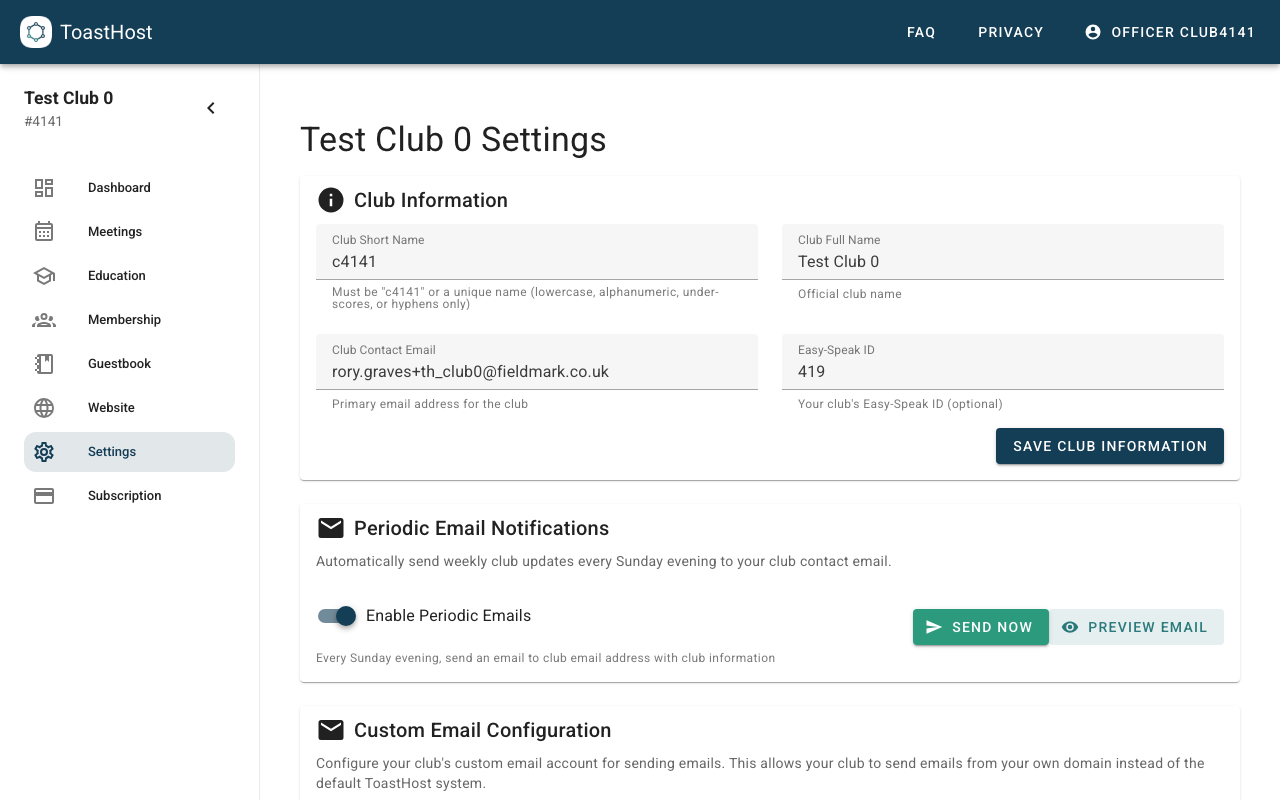
Club Information
This section controls the core identifiers and contact details for your club:
- Club Short Name: the URL slug for your club workspace (for example
/app/club/your-club-short-name). This must be unique. - Club Full Name: the official club name.
- Club Contact Email: the primary email address used for club notifications (including periodic emails).
- Easy-Speak ID: if your club uses EasySpeak, enter the numeric EasySpeak club ID shown in EasySpeak under This Club -> Club Directory near the bottom of the page. ToastHost uses this to associate EasySpeak history with your club for the EasySpeak Import workflow.
Warning
Club Full Name, Club Contact Email, and Easy-Speak ID are refreshed from Toastmasters International/TMData via the scheduled TMDataRefresh.
If you change them in ToastHost, they may be overwritten on the next sync.
To permanently correct them, update them in Toastmasters International (or the upstream system that feeds TMData).
Note
Club number, charter date, and district/division/area hierarchy are not edited here. They come from TMData sync.
Periodic Email Notifications
Enable weekly emails sent to your club contact email:
- Enable Periodic Emails: turns periodic emails on/off.
- Preview Email: opens a preview so you can verify content and formatting.
- Send Now: triggers a one-off send for testing.
ToastHost sends these weekly updates every Sunday evening.
Custom Email Configuration
If you want ToastHost to send from your own email/domain instead of the default email system, configure your email account here.
You will typically provide:
- Email Address
- Email Password (for Gmail with 2FA, use an app-specific password)
- IMAP Server (for example
imap.gmail.com) - SMTP Server (for example
smtp.gmail.com) - SMTP Port (for example 587 for TLS, 465 for SSL)
Use Test and Enable Custom Email to verify the settings before enabling.
Meeting Schedule Configuration
This section configures your club’s recurring meeting schedule (timezone, patterns, and exclusions). ToastHost uses this to suggest a default date and time when creating a meeting.
Configure:
- Timezone
- Meeting patterns: week numbers (1st–5th), day of week, start time, and duration
- Excluded dates: dates to skip (holidays, breaks, etc.)
You can always override the suggested date/time when creating an individual meeting.
Meeting & Voting Configuration
Use this section to control how ToastHost keeps agenda assignments aligned with meeting-time voting and feedback.
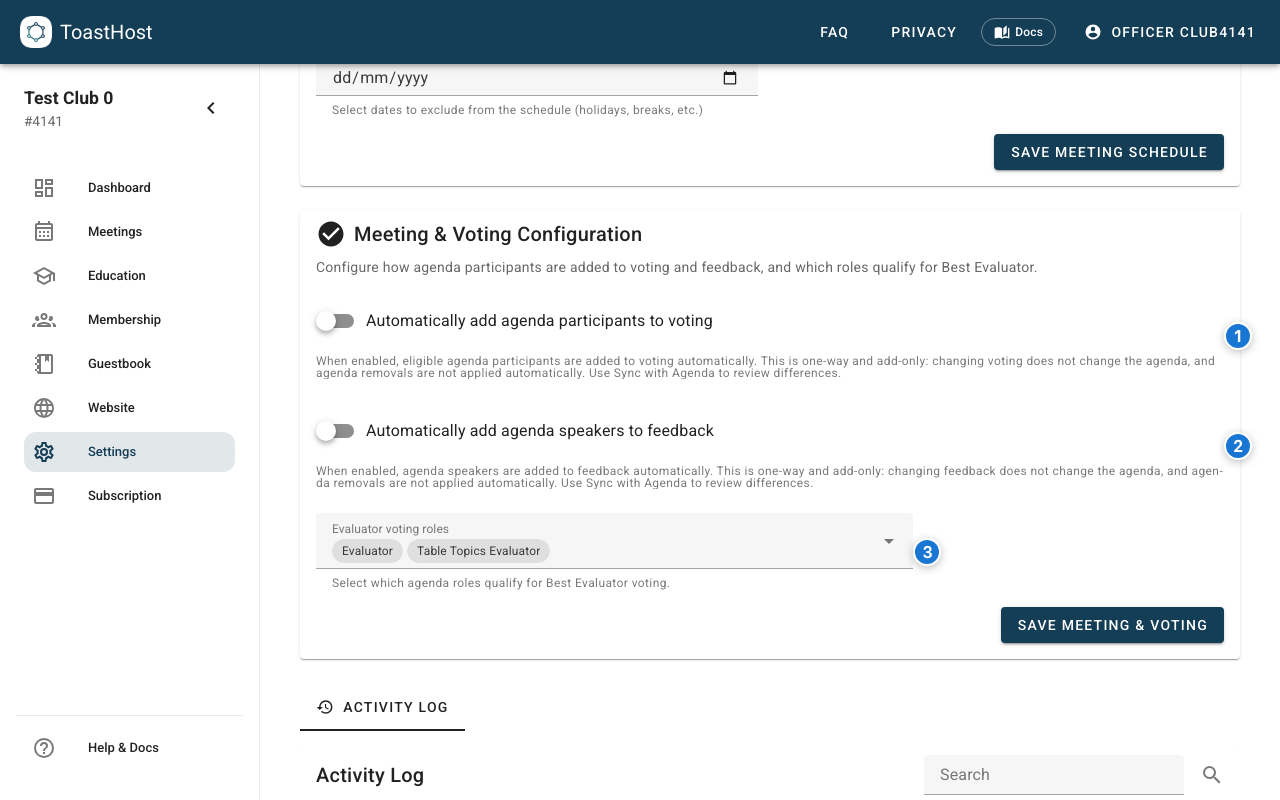
Callouts in the screenshot:
- Turn on automatic agenda add for voting candidates.
- Turn on automatic agenda add for speaker feedback subjects.
- Choose which agenda roles qualify for Best Evaluator voting.
Key options:
- Automatically add agenda participants to voting: When enabled, eligible agenda participants are added to voting automatically after agenda changes are saved. This is one-way and add-only: changing voting never changes the agenda, and removing someone from the agenda does not remove them from voting automatically. Officers use the Sync with Agenda button in the meeting page to review and apply differences when needed.
- Automatically add agenda speakers to feedback: When enabled, agenda speakers are added to feedback automatically after agenda changes are saved. This is one-way and add-only: changing feedback never changes the agenda, and removing someone from the agenda does not remove them from feedback automatically. Officers use the Sync with Agenda button in the meeting page to review and apply differences when needed.
- Evaluator voting roles: Controls which agenda roles count as eligible Best Evaluator candidates when using Add from Agenda or automatic add during meetings. By default, Evaluator and Table Topics Evaluator are selected. Add or remove roles here to change which agenda participants appear as Best Evaluator candidates.
See Running Meetings for the live-meeting workflow, including how the Add from Agenda button and Sync with Agenda button work in both automatic add and manual modes.
Common Questions
Who can change club settings?
Only users with officer permissions (typically President, VP Education, or designated admins).