Managing COT Events
Create the training events officers register for, and publish them when they're ready.
Open the round
From COT Training, open the round you're working on in the Club Officer Training rounds table. On the round page, select the Events tab.
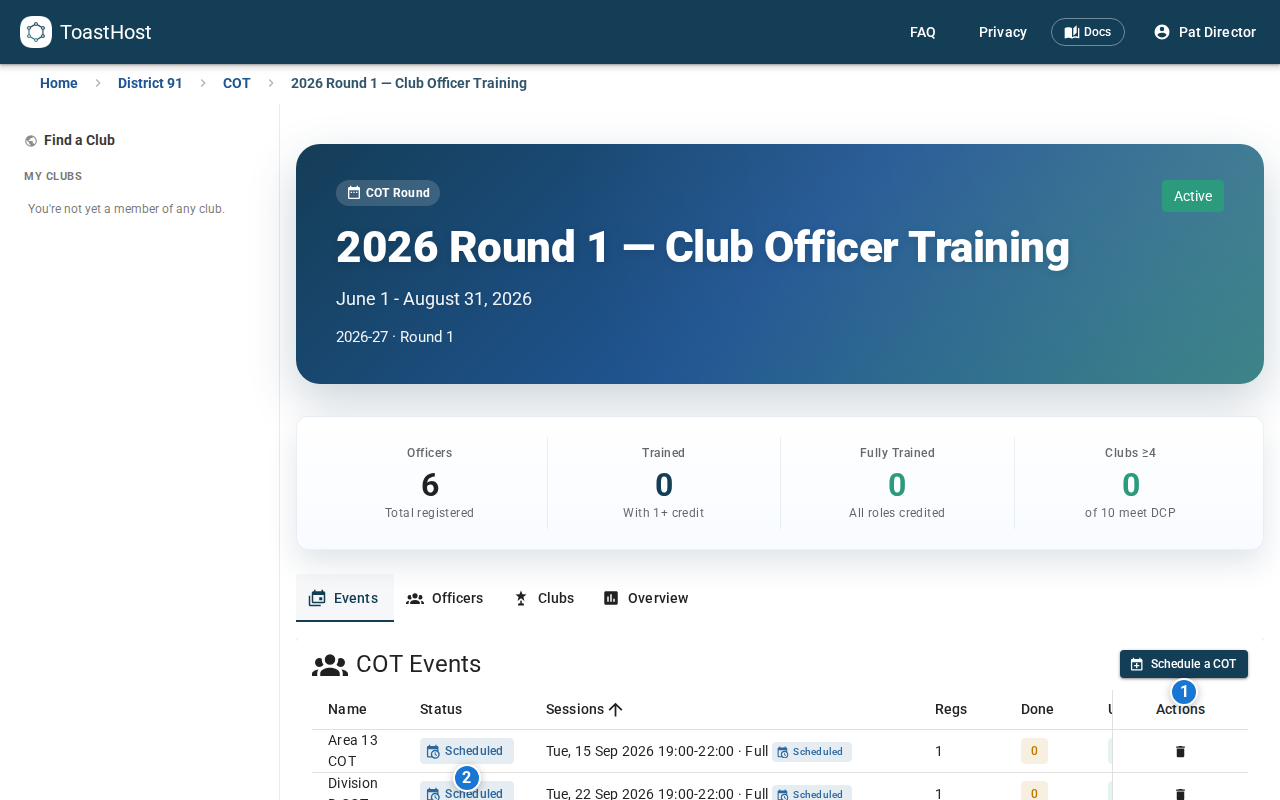
On the Events tab:
- Click Schedule a COT to create a new training event.
- Each event shows its status — Draft or Live.
Draft events are hidden from officers; publish them when they're ready (see below).
Create an event
Click Schedule a COT to open the event dialog.
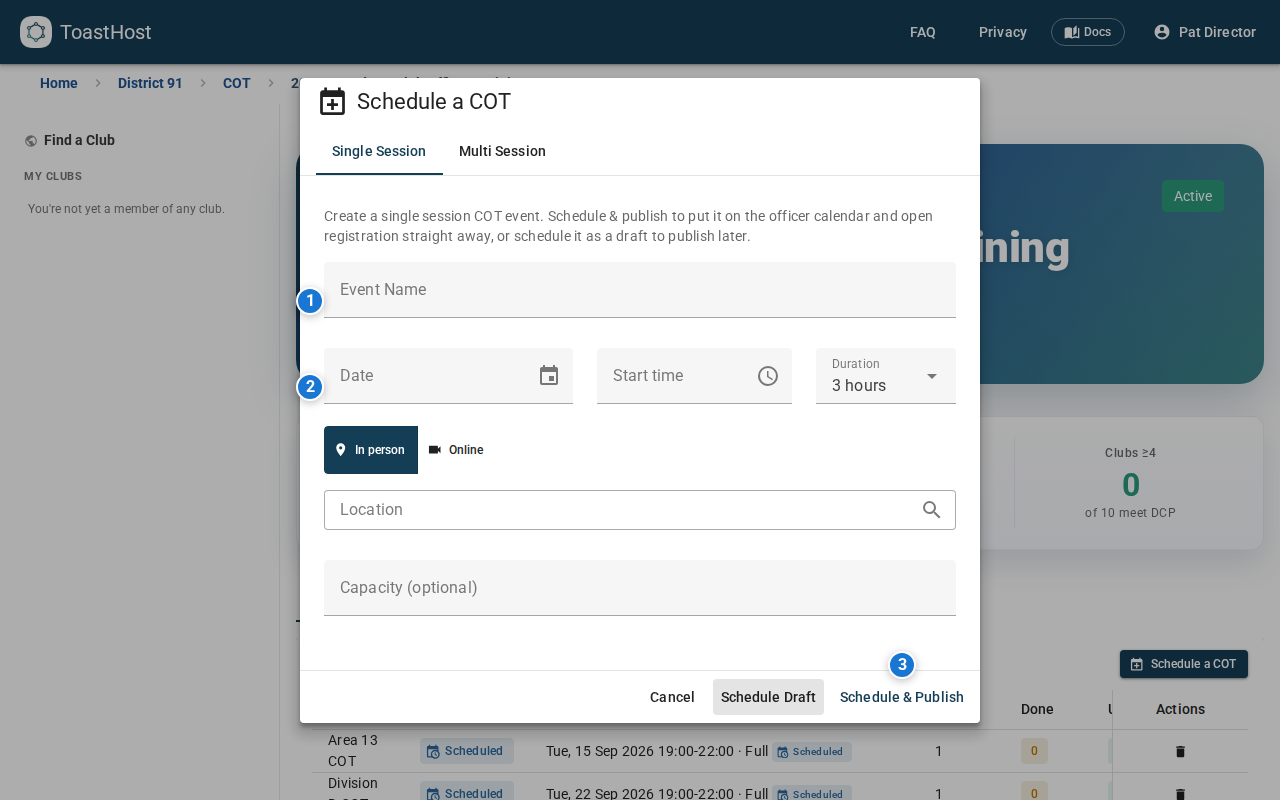
- Session name — what officers will see, usually the area, division, or format running it (e.g. "Area 13 COT", "Division D COT").
- Date, start time, duration, and location or online link — the session details. Use the Single session / Multi session tabs if the event runs across several sittings.
- Schedule & publish to make it live immediately, or Schedule draft to keep it hidden until later.
This quick action creates a Full Session (Part 1 + Role Specific + Part 2 in one sitting). To split the training into separate Part 1 / Role Specific / Part 2 sittings, add sessions and set each one's type — see Session types.
Publish a draft
Draft events are invisible to officers. When an event is ready, use the Publish action on its row in the Events tab. It then appears on the district training calendar and opens for registration.
Registration window
If you set a registration open/close date, officers can only register within that window even while the event is published.
Edit or stop registrations
- Edit an event to change its details or add sessions.
- To stop new registrations while keeping the event visible, set its registration close date (see the note above). There is no separate close action.
- Cancel by removing the event — notify registered officers first.