EasySpeak Import
Overview
Import your club's historical EasySpeak meeting data into ToastHost so officers and members can see past speeches, roles, and Pathways progress in the current Education tools.
Before You Start
- Set your club's Easy-Speak ID in Club Settings. ToastHost uses this to associate imported EasySpeak data with your club.
- ToastHost must already have your club's EasySpeak meeting history loaded. When import data is available and your club's subscription is active (a free trial counts), officers and club managers see an EasySpeak Import Available banner on the club home page and in Education.
- Only club officers, club managers and admins can review mappings, browse the imported meetings and run the import.
If you do not see the banner after setting the Easy-Speak ID, contact your ToastHost administrator or support team to confirm that your EasySpeak history has been loaded.
Cancelled subscriptions
If your club's subscription has been cancelled, the banner does not appear, but you can still run the import. Open /app/club/your-club-short-name/easyspeak-import directly, using your club's short name. Your club's history may include members who now belong to other clubs, and the import keeps their records.
Open The Import Review
- Sign in as a club officer or club manager.
- Open your club's home page, or Education in your club workspace.
- In the EasySpeak Import Available banner, click View Import Status.
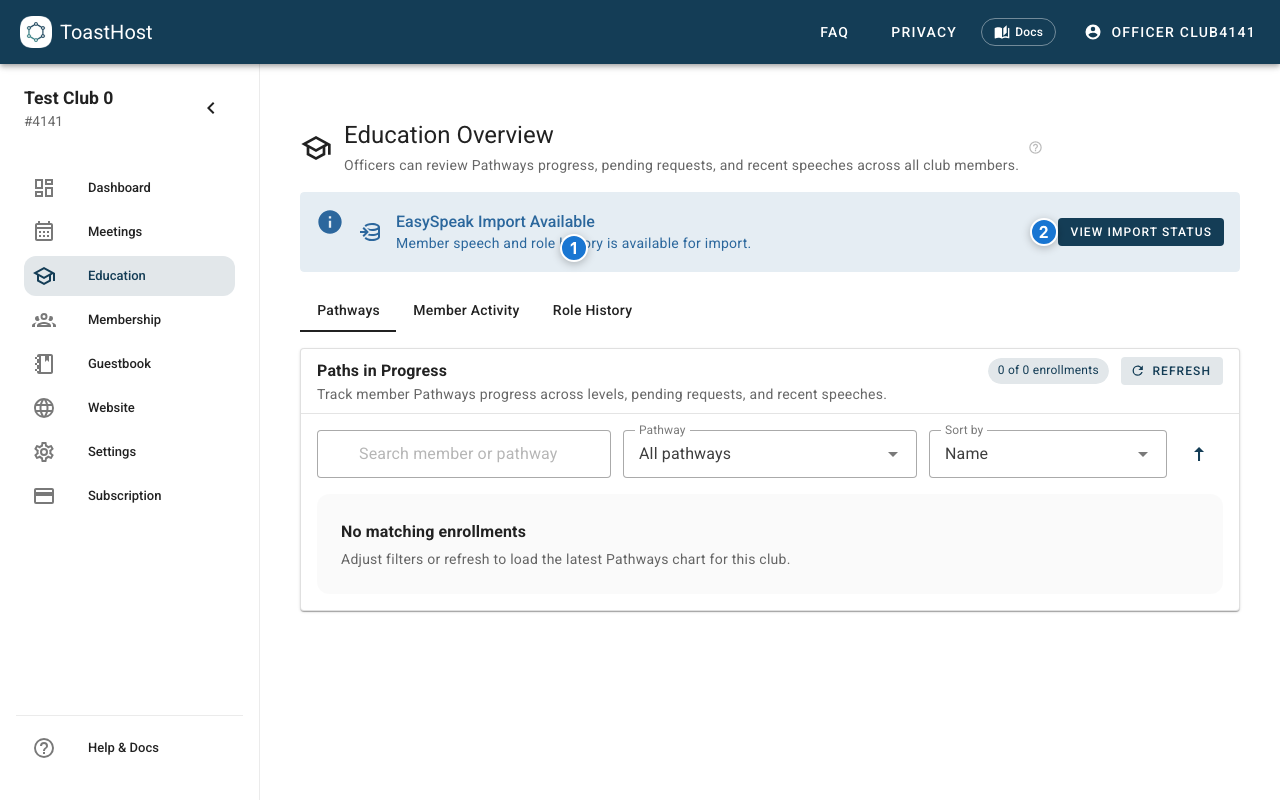
Callouts in the screenshot:
- This banner appears when ToastHost has EasySpeak history ready for officer review and your club's subscription is active.
- Click View Import Status to open the mapping review page.
Once there is nothing left to review or import, the banner goes away. Education then shows a short EasySpeak history line in its place. Click Review mappings on that line to open the review page again, for example to check who a person was matched to. Click Browse meetings to see the meetings themselves, as described in Browse meetings.
Review User Mappings
The review page lists every EasySpeak person from your club's history in one list. People still waiting for a decision come first, then everyone else in name order.
Each row shows:
- EasySpeak user: the person's name and username in EasySpeak.
- Activity: how many of your club's past meetings they attended or held a role in, and the date of the most recent one.
- ToastHost user: the member ToastHost suggests, or the member already chosen.
- Status: Pending, Confirmed, Skipped or Deleted account.
A pending row also shows how closely the names matched: Exact, Similar or Guess. Check Similar and Guess rows carefully before you confirm them. A row with no match label has no suggestion, so choose a member yourself or skip the row.
The page saves progress automatically, so you can leave and come back later.
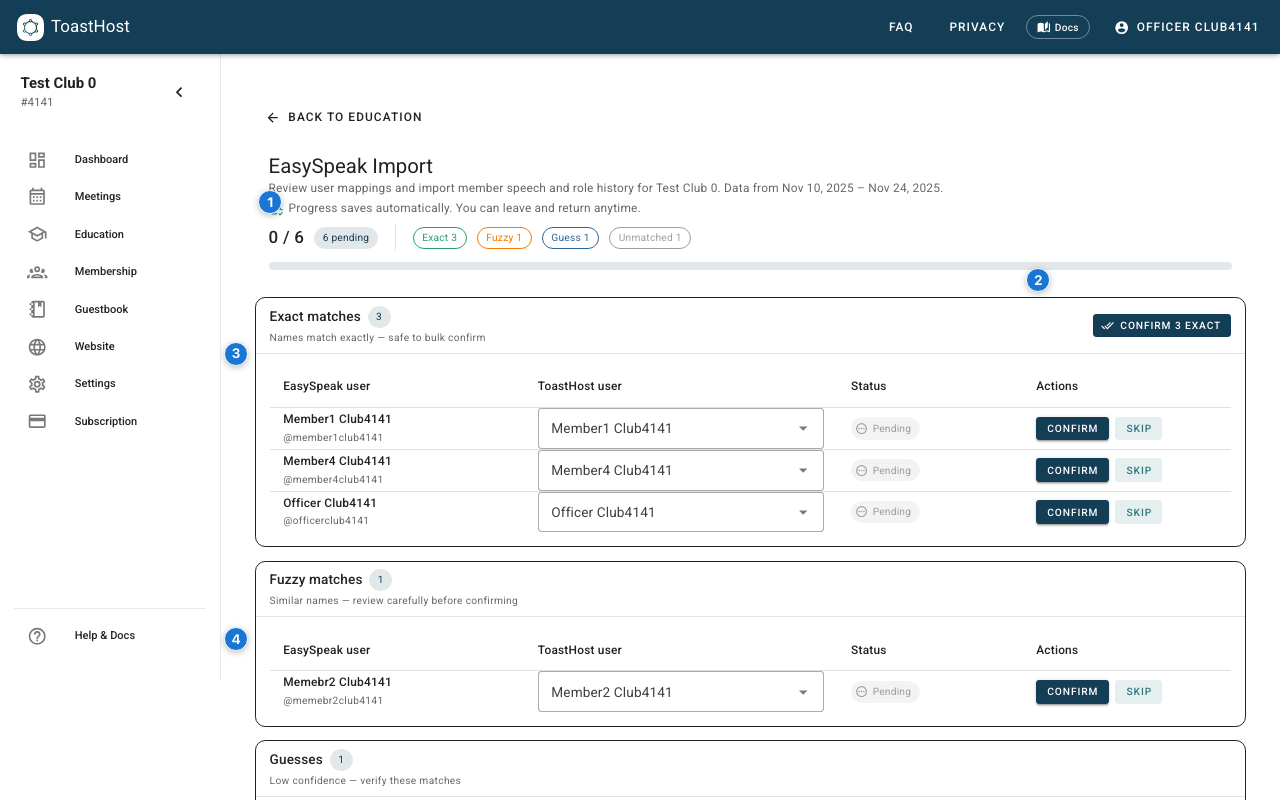
Callouts in the screenshot:
- The summary shows how many people you have reviewed, and how many are still pending.
- The filters narrow the list by status. Each filter shows how many people it holds.
- Confirm n exact confirms every pending exact match in one step.
- Each row is one EasySpeak person, with their activity, the suggested member and the actions.
Find people with the filters and search
Click a filter to show only the people in it:
- All: everyone.
- Pending: people still waiting for you to confirm or skip them.
- Confirmed: people linked to a ToastHost member.
- Confirmed elsewhere: confirmed people whose link was made from another club's review.
- Skipped: people you chose not to link.
- Deleted account: people whose EasySpeak account was deleted.
Type in Search by name to find someone by their EasySpeak name, EasySpeak username or ToastHost name. The search works inside the filter you picked, so Pending with a name shows only pending people with that name.
Use Sort to change the order: - Pending first: people waiting for a decision, then everyone else by name. This is the order the page opens in. - Last meeting, newest first: the people who came most recently at the top. People with no meetings go to the bottom. - Name: everyone by EasySpeak name.
Pending with Last meeting, newest first shows the undecided people who came most recently, which are usually the easiest to recognise.
Confirmed in another club
A confirmed link applies to every club on the same EasySpeak site. If someone was a member of two clubs, the first club to confirm them decides who they are for both.
- Confirmed in club name means another club made the link.
- Confirmed with no club named means one of three things: your club made the link, a ToastHost administrator made it, or it was made before ToastHost started recording the club. Where the row also shows by name, that is the person who made it.
Only a ToastHost administrator can change a confirmed link. If a link looks wrong, click Flag for review to ask an administrator to check it. Click Skip in this club if your club should not credit that person at all.
Deleted EasySpeak accounts
When someone asks EasySpeak to delete their account, EasySpeak keeps their meeting history under the name "Forgotten User". The review page shows these rows as Deleted EasySpeak account with the EasySpeak account number and their activity.
You cannot link a deleted account to a member, so these rows have no member list and no Confirm or Skip buttons. A few deleted accounts were linked to a member before ToastHost stopped allowing it. Those rows stay Confirmed and still show Skip in this club and Flag for review. Deleted accounts do not count as pending, and they do not stop you from importing. The Ready to Import panel shows how many records belong to deleted accounts. Those records are not imported.
Review tips
- Click Confirm n exact first, then work through the Similar and Guess rows.
- Use Skip when the EasySpeak person should not be linked to any ToastHost member.
- You can import before every person is decided. ToastHost imports the history of the people you have confirmed. When you confirm someone later, run the import again to bring in their history.
Browse meetings
The meetings page lists every EasySpeak meeting ToastHost holds for your club, newest first. Use it to check who was at a meeting before you decide who someone is.
To open it, click Browse meetings beside the title of the review page. Once nothing is left to review, you can also click Browse meetings on the EasySpeak history line in Education.
Each meeting shows:
- Date, Meeting number and Theme, as EasySpeak recorded them.
- People: how many people held a role in the meeting or attended it.
- Status: Imported once the meeting's history is in ToastHost, otherwise Not yet imported. A meeting still to come also shows Upcoming.
- Open in EasySpeak: opens the meeting's agenda on the EasySpeak website in a new tab.
Click the arrow at the end of a row to see who was at that meeting. Each person shows their roles, the ToastHost member they are linked to, and their status on the review page: Pending, Confirmed, Skipped or Deleted account. Someone who is not in the review list shows Not in the review list.
See one person's meetings
On the review page, a person's meeting count in the Activity column is a link. Click it to open a panel on the right listing the meetings that person attended or held a role in, with the roles they held. Each meeting has a link to open it in EasySpeak.
Click See all meetings in the panel to open the meetings page showing only that person. Their name appears above the list. Click the x on the name to show every meeting again.
The meetings page and the panel only show information. Nothing you do there changes a person's link or imports anything.
Finalize The Import
When ToastHost has EasySpeak meetings or records left to import, the Ready to Import panel becomes actionable. People still pending do not block the import. Their history waits until you confirm them.
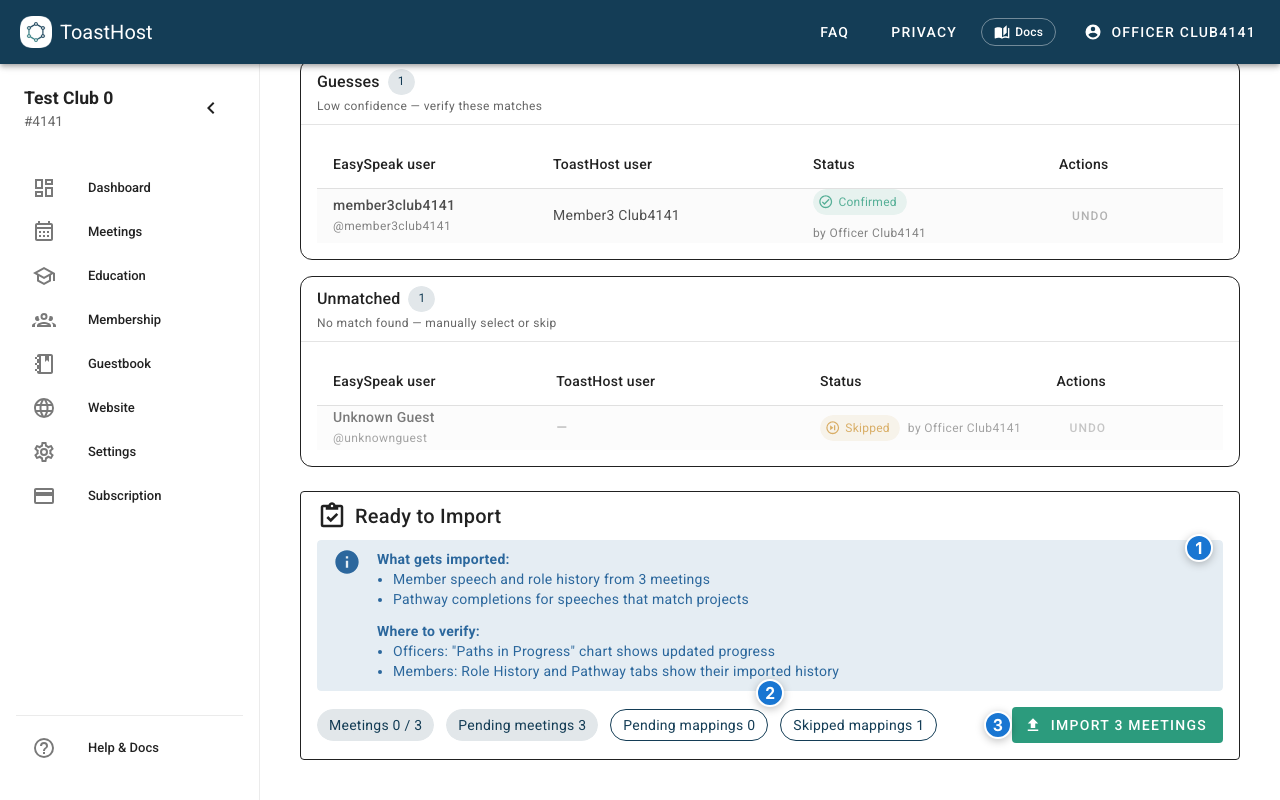
Callouts in the screenshot:
- This panel summarizes what will be imported and where to verify the results afterward.
- The status chips show meeting and mapping counts, including how many meetings are still pending import.
- Import n meetings becomes available while there is something left to import.
What Gets Imported
- Historical speech records and speech titles
- Historical role assignments and participation history
- Pathway completions for speeches that match known projects
- Pathway enrollments or enrollment updates when imported completions require them
If ToastHost cannot match some pathway names, the import can still complete and show a warning list for follow-up review.
Verify The Results
After the import finishes, verify the results in these officer views:
- Pathways Chart to confirm refreshed club-wide progress
- Role History to confirm imported roles and last-completed dates
- Member Activity to spot-check participation history
It is worth checking a few members who had both speeches and roles in EasySpeak, plus any members who appeared in the import warnings.
Common Questions
Do officers upload an EasySpeak file here?
No. This page is for reviewing and finalizing EasySpeak data that has already been loaded into ToastHost.
Can I leave the page before finishing?
Yes. Mapping review progress saves automatically.
Why is the import button disabled?
Because there is nothing left to import. Pending people do not stop you from importing, and you can leave them for later. Their history waits until you confirm them. When you do, the button becomes available again so you can import it.
Only pending people need a decision: Confirm or Skip each one when you are ready. Deleted EasySpeak accounts are never pending. You cannot confirm or skip them, and they need no decision.
Related Topics
- Club Settings
- Role History
- Member Activity
- Pathways Chart
- Data Import for membership CSV imports from Toastmasters Club Central