Registering for Officer Training
Sign up for a Club Officer Training (COT) session your district has published.
Before you start
A COT is made up of Part 1, a Role Specific part, and Part 2 — sometimes combined into one Full Session. See what training involves for what you need to attend to complete your role.
Step 1: Find a session and register
From the Officer Training panel on your home page, open your district to browse its training calendar. Each published session shows its date, format, and a Register button.
- Click Register on the session you want — this takes you straight to the registration form.
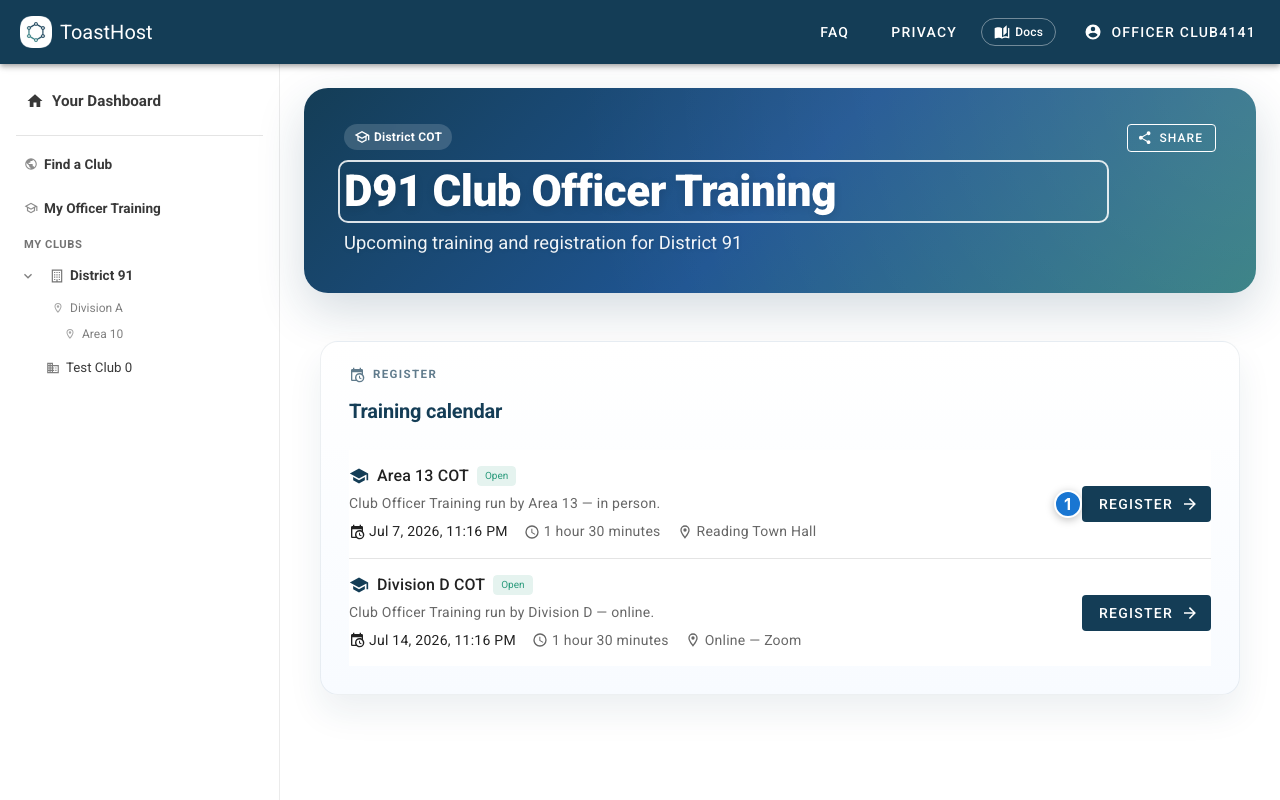
Step 2: Complete the form
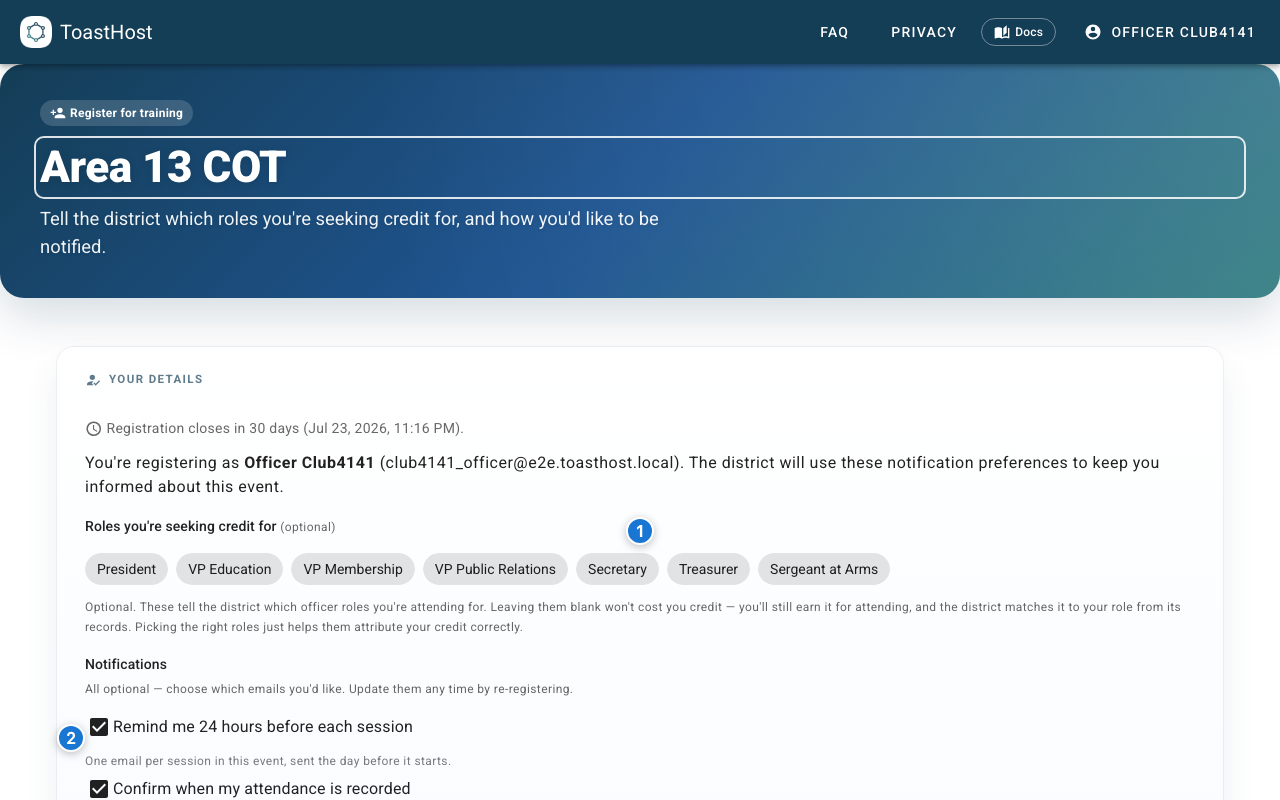
- Pick the officer role(s) you're seeking credit for — this is optional. You still earn credit for attending; choosing roles just helps the district attribute it correctly.
- Set your preferences — whether to receive reminders and have your attendance recorded.
Then click Register to submit.
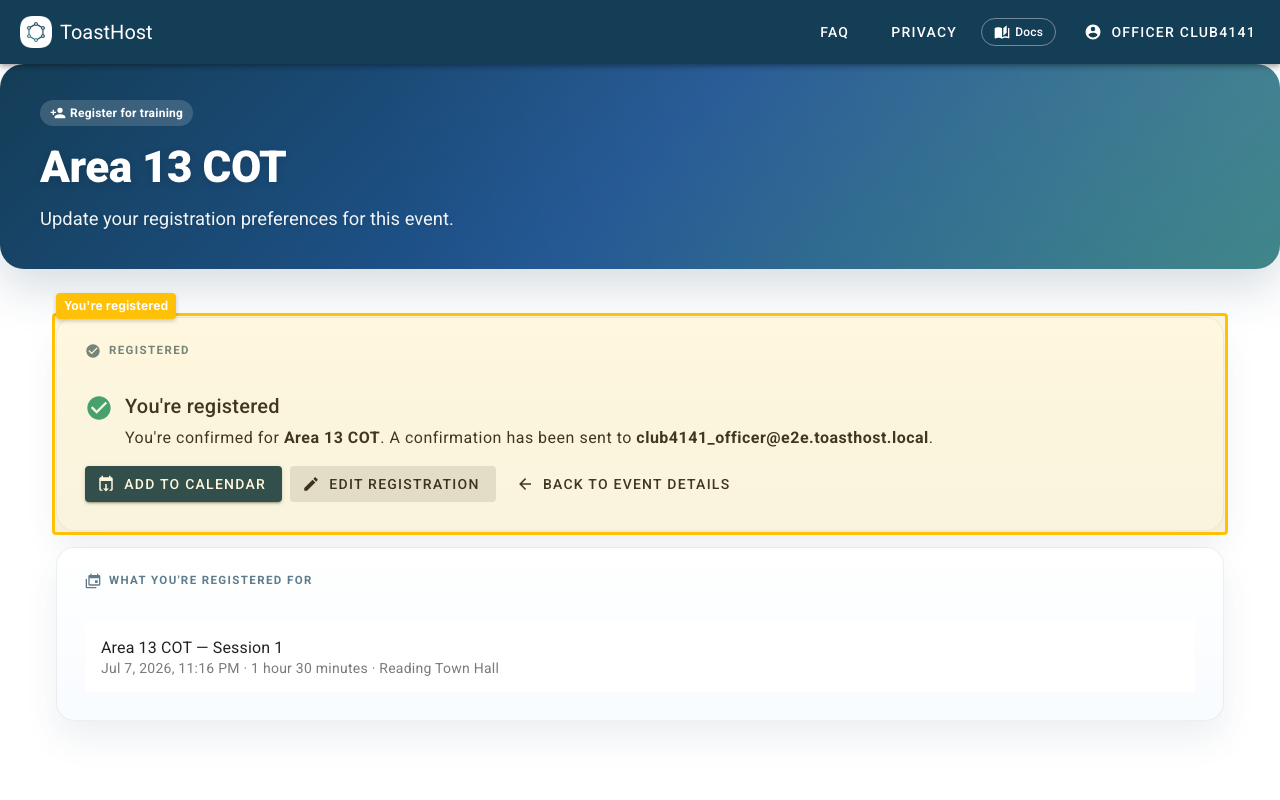
Step 3: You're registered
A confirmation appears with the roles you selected and the session schedule. From here you can add the session to your calendar or edit your registration.
If the session is full
The button reads Join the waitlist instead of Register. You'll be given a waitlist position and notified if a place opens up.
Open a session for full details
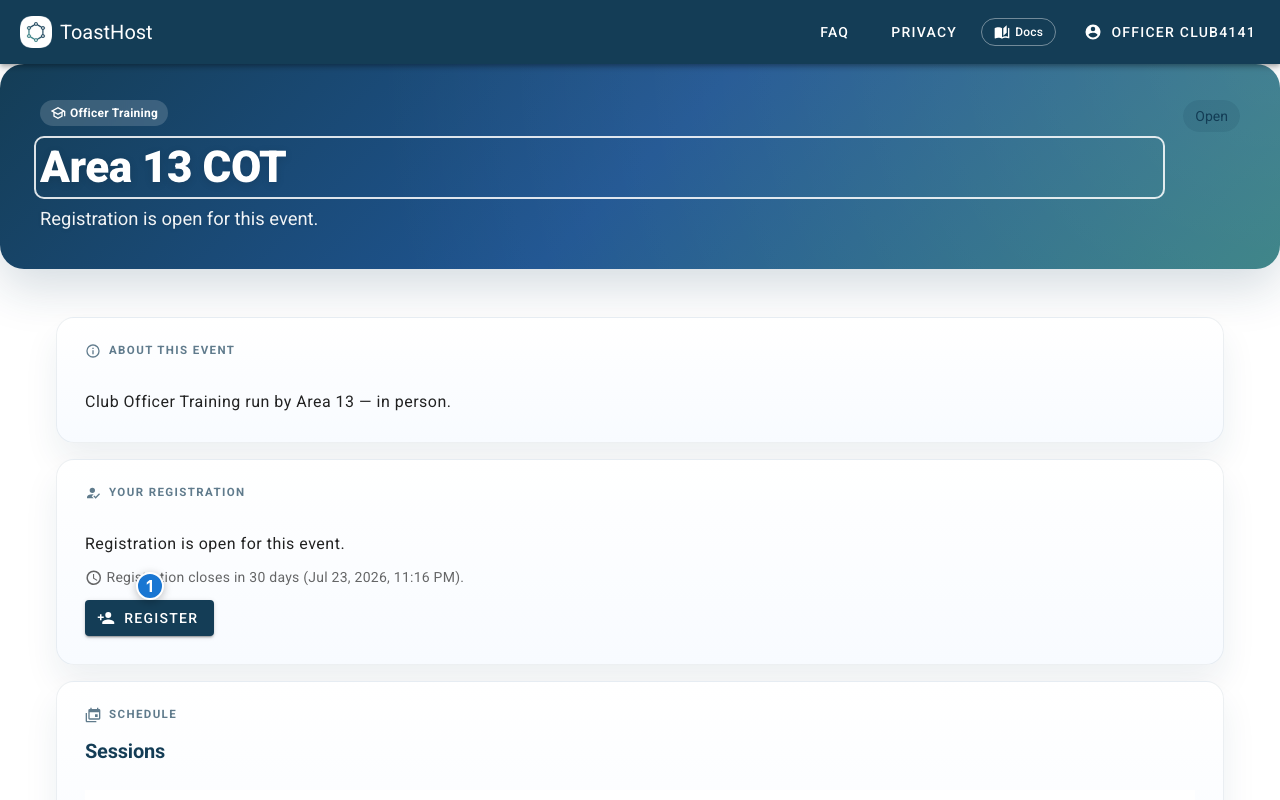
You can also open a session — from your dashboard or by selecting it — to see its full schedule and location or joining link. The session page has its own Register button, so it's another way to sign up.
Managing your registration
- Your registrations appear under Upcoming training in the Officer Training panel on your home page.
- To cancel, open the session and click Cancel registration, then confirm.
- To change your role selection or preferences, open the session and click Edit registration.