Role Proposal
Documentation in progress
This page is being expanded with additional screenshots and step-by-step guidance.
Overview
A role proposal is an invitation from a club officer to take a specific role at a specific meeting. It's the opposite of Role Signup — instead of you requesting a role, an officer has asked you to take one.
When an officer proposes a role to you:
- You get an email from ToastHost titled "Will you take [Role]?"
- The email has an Accept / Decline link — no login required
- You can also respond in the app if you're on the meeting page
- After you respond, you can still change your mind (Accepted ↔ Declined) until the proposal expires
Proposals carry an expiry set by the officer (typically 24–72 hours, capped at 4 hours before the meeting). If you don't respond before it expires, the slot reopens and the officer is notified.
Respond from the email
Step 1: Open the email
The email comes from your club and looks like this:
- Subject: "Will you take [Role] at [Meeting Date]?"
- Body: the meeting name, the role, who proposed it, and a deadline
Click the Review and respond to this proposal link in the email.
Step 2: Accept or Decline
The link opens a single-page screen with everything you need to decide:
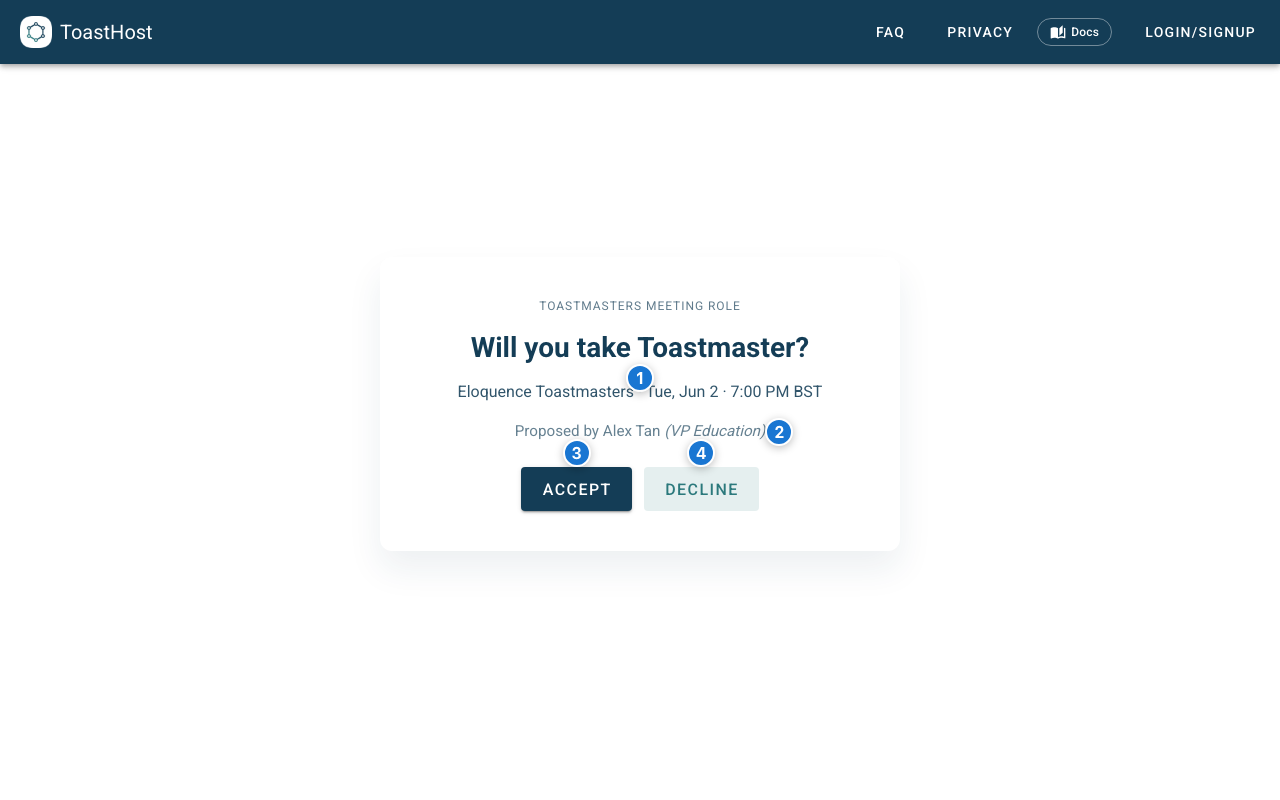
Callouts in the screenshot:
- Role title and meeting context — what you're being asked to do, when, and at which club
- Proposer — the officer who sent the proposal (and their club role)
- Accept — takes the role; you're added to the agenda immediately
- Decline — passes on this one; the officer is notified
No login required
The link contains a one-time token, so you can respond from any device without signing in. Don't forward the email — anyone with the link can respond on your behalf.
Step 3: Confirm and head to the meeting
After you accept, a success screen confirms you're in and offers a quick link back to the meeting page.
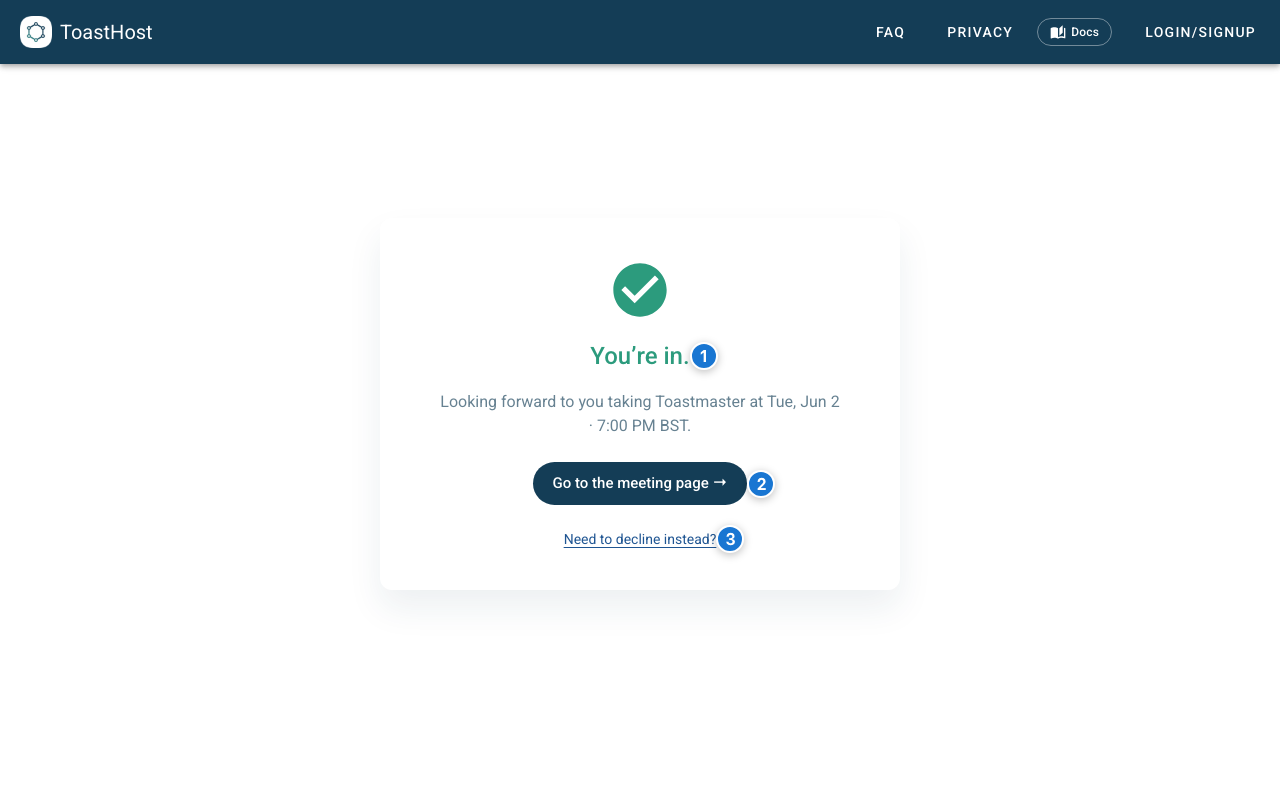
Callouts in the screenshot:
- You're in confirmation message
- Go to the meeting page → — opens the meeting so you can see your name on the agenda
- Need to decline instead? — undo link if you clicked Accept by mistake
Respond in the app
If you happen to be on the meeting page when you get the proposal (or any time before it expires), you can respond inline without going back to your email.
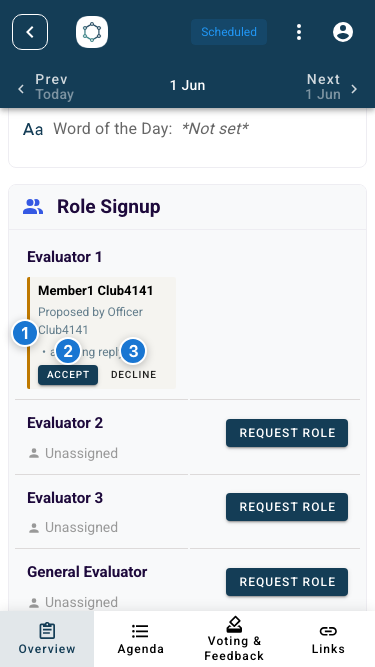
Callouts in the screenshot:
- Pending proposal indicator on the role slot, showing who proposed it
- Accept — same effect as accepting via the email link
- Decline — same effect as declining via the email link
The in-app response and the email-link response do the same thing — pick whichever is more convenient.
Change your response
You can flip your answer (Accepted ↔ Declined) at any time before the proposal expires:
- Open the same email link again
- Look for Need to decline instead? (if you accepted) or On second thought, accept? (if you declined)
- Click it
You can't change the response after the proposal is Withdrawn by the officer or after it has Expired — at that point contact your club officer directly.
Common Questions
What happens if I don't respond?
The proposal expires automatically when the officer's deadline passes. The slot reopens for someone else, and the officer is notified.
Can I respond without a ToastHost account?
Yes. The email link contains a one-time token that lets you accept or decline without signing in.
What if I lose the email?
Ask the officer who proposed the role — they can resend the proposal notification from their side.
What's the difference between a proposal and a role request?
- You request a role via Role Signup when you want to volunteer
- An officer proposes a role when they specifically want you to take it
Both end up the same way (you appear on the agenda), but the starting point is different.
Can I accept and then back out?
Yes, while the proposal is still active — see Change your response. Once the proposal expires or the officer withdraws it, the response is locked in. If you need to back out after that, contact your club officer.
Related Topics
- Role Signup (request roles yourself)
- Attending Meetings
- Role Proposal (officer view)
- Your Dashboard