Controlling Your Visibility
ToastHost lets you decide how much of your name and email address other people can see. You set this once in your profile, and it applies everywhere your details appear: club rosters, public club pages, meeting agendas, and more.
Who sees what: the two audience tiers
Everyone who looks at your details falls into one of a few groups. You control two of them:
- The public — anyone visiting a club's public website, or a visitor who isn't a member of your club.
- Fellow club members — other members of a club you belong to.
You choose a separate setting for each tier, so you can show your fellow members more than you show the general public.
Officers of your club always see your full details
Your club's officers run the club, so they always see your full name and email regardless of these settings — they need to be able to contact you. The same is true for you: you always see your own real details. These settings only change what the public and fellow club members see.
Name formats
Your name can be shown in one of two ways:
| Format | Example | What it shows |
|---|---|---|
| Full name | Fred Bloggs |
Your full first and last name. |
| Shortened | Fred B* |
Your first name and the initial of your last name. |
Email formats
Your email address can be shown in one of three ways:
| Format | Example | What it shows |
|---|---|---|
| Full address | fred.bloggs@foo.com |
Your complete email address. |
| Masked | f*.b*@f*.com |
Enough to hint at your address without revealing it. |
| Hidden | (nothing) | Your email is not shown at all. |
The default settings
If you never change anything, ToastHost uses privacy-friendly defaults:
| What | The public sees | Fellow club members see |
|---|---|---|
| Name | Shortened (Fred B*) |
Full name (Fred Bloggs) |
| Hidden | Masked (f*.b*@f*.com) |
So out of the box, your surname and email are protected from the general public, while your fellow club members can recognise you by name.
Club members always see at least as much as the public
You can't show the general public more than you show your own club members. If you open up a tier to the public, the member tier opens to match. This keeps the settings sensible and is enforced automatically when you save.
Changing your settings
Open your profile (click your name or avatar, then Profile) and find the Name & Email Privacy card.
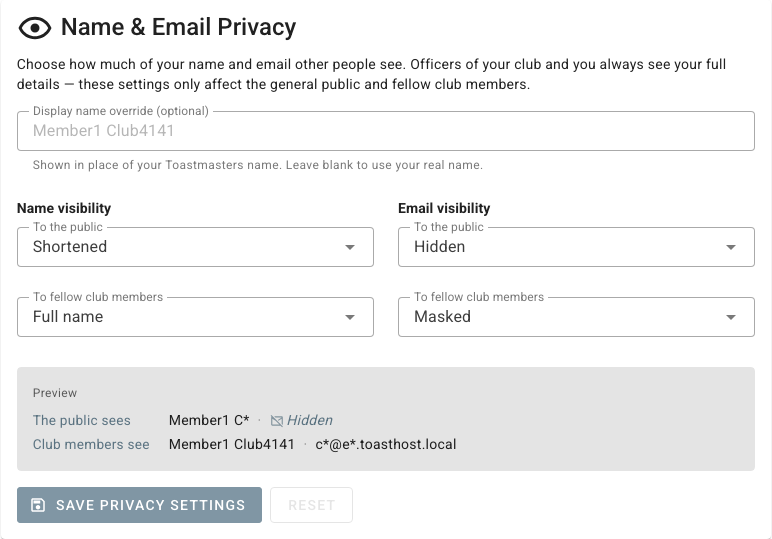
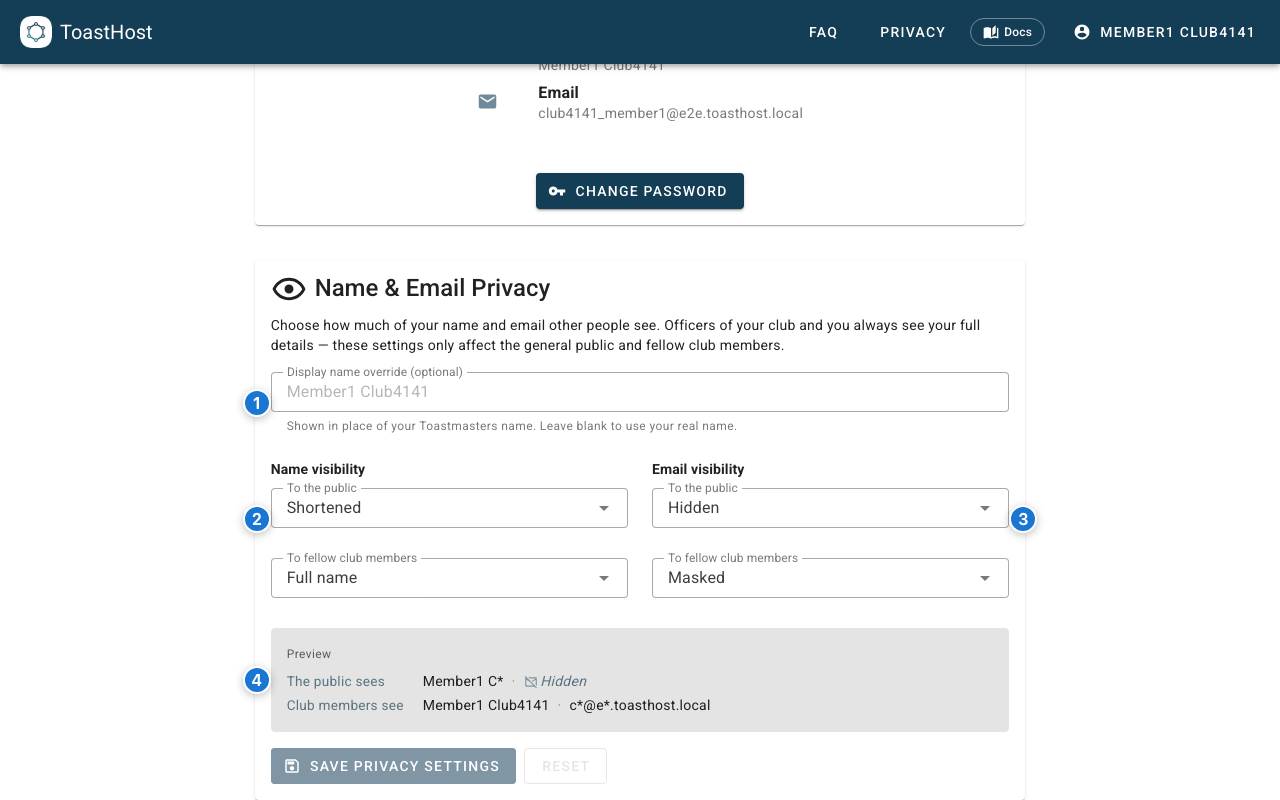
- Display name override — optionally replace the name synced from Toastmasters International with a name of your choosing (see below).
- Name visibility — choose the format shown to the public and to fellow club members.
- Email visibility — choose the format shown to the public and to fellow club members.
- Preview — see exactly what the public and your fellow members will see as you adjust the settings.
When you're happy, click Save privacy settings. Use Reset to discard unsaved changes.
Setting a display-name override
Your name in ToastHost comes from Toastmasters International. If you'd rather be shown under a different name — a preferred name, a nickname, or a different spelling — type it into the Display name override field.
- The override replaces your full name everywhere your name is displayed.
- The shortened format is derived from it too: an override of
DJ Fredshows asDJ F*in the shortened form. - It's a display name, not a disguise. Your club's officers still see your Toastmasters name alongside the override so they can match you to club records.
- The override never affects sign-in, membership matching, or data imported from Toastmasters International.
Leave the field blank to go back to using your Toastmasters name.