Registering a Club
Overview
Every chartered and prospective Toastmasters club already exists in ToastHost's worldwide directory, sourced directly from Toastmasters International. You don't fill in a club from scratch. Instead, you find your club in the directory and activate it, which unlocks it for your officers to manage.
Activation is confirmed against your club's official Toastmasters International management email, so only someone who can sign in with that address can activate the club.
Prerequisites
- A ToastHost account created with your club's Toastmasters International management email address (create one here if you haven't already). This is the email Toastmasters International holds as the club contact.
- Your club's name or Toastmasters International club number, to search for it.
Why the management email?
ToastHost pulls club details from Toastmasters International automatically. Matching your login against the club's registered management email is how ToastHost verifies you're authorised to manage the club, so there's no separate approval step.
How to Activate Your Club
Step 1: Open Find a Club
After signing in, go to your home page and click Find Club (in the "My Clubs" section, or the Find a Club button if you're not yet in any club). You can also open the Find & activate your club button on the Find a Club landing page.
Step 2: Search for Your Club
On the Search tab, type your club's name or number. ToastHost searches the full worldwide directory of Toastmasters clubs.
Each result shows a status:
- Active on ToastHost - the club is already set up. See Finding a Club to request access.
- Prospective - the club is being formed at Toastmasters International and isn't chartered yet.
- Not yet activated - the club exists at Toastmasters International but hasn't been set up on ToastHost. This is the one you activate.
Step 3: Activate
Select the Not yet activated status next to your club to open the activation panel.
- If you're signed in with your club's management email, click Activate Club. ToastHost sets up the club using its Toastmasters International details.
- If you're not signed in, or signed in with a different address, you'll be prompted to log in first with the club's registered management email.
Nothing to fill in
Club name, number, district, division, and area all come from Toastmasters International, so there's no form to complete. If your club is pre-charter or its details are incomplete, that's fine - you can update everything later in your club configuration.
Step 4: Access Your Club
Once activated, you're taken straight to your new club's home page. From then on, the club appears under My Clubs on your home page every time you sign in.
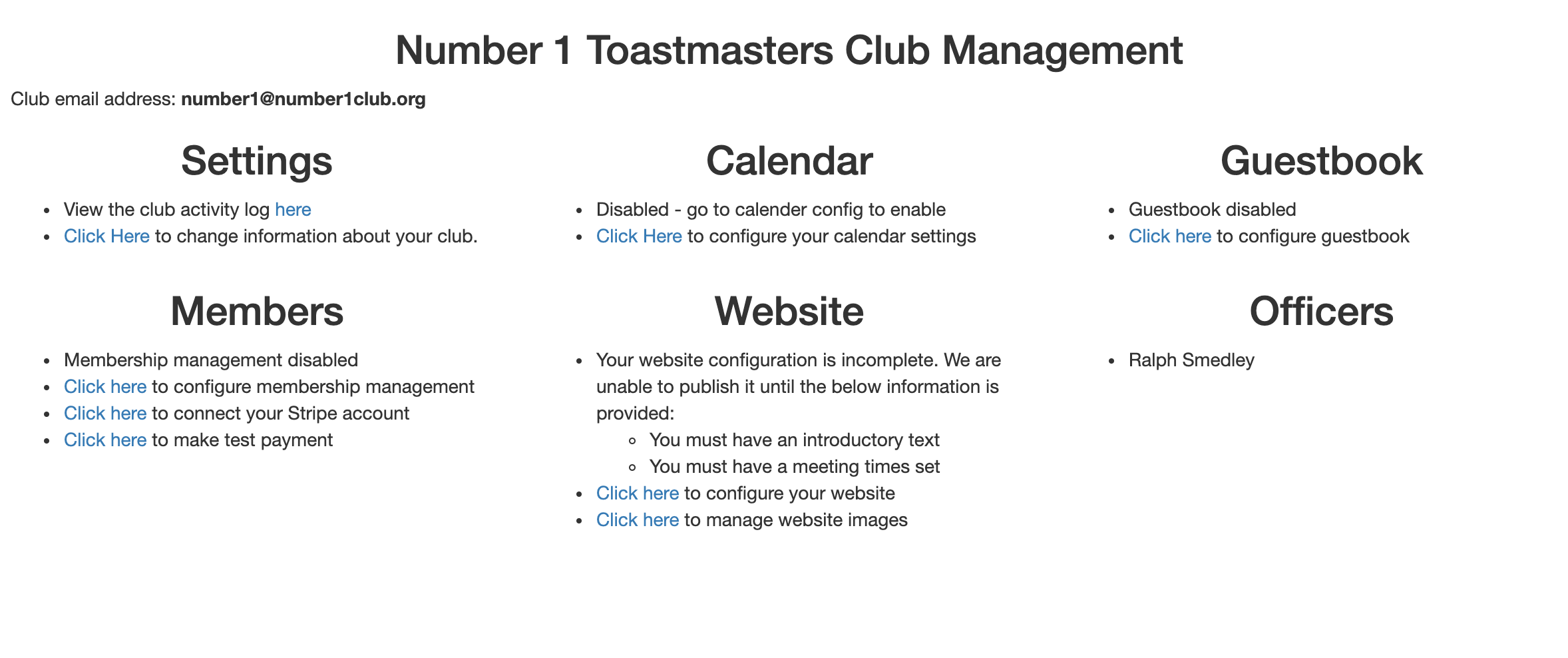 Your newly activated club's home page
Troubleshooting
"This club is already registered on ToastHost"
Your club has already been activated. See Finding a Club to request access as a member or officer.
I can't see an "Activate Club" button
Activation is only offered to the club's registered Toastmasters International management email. Make sure you're signed in with that address. If you're not sure which address Toastmasters International holds for your club, check with your existing club leadership or Toastmasters International.
I can't find my club in the search
- Try searching by club number instead of name.
- Very new clubs may still show as Prospective until they charter.
- If it doesn't appear at all, the Toastmasters International directory data may not yet include it. Try again later.
What's Next?
Now you can explore the various features to configure your club. From your club home page, you can:
- Enable the guestbook for visitors
- Publish a club website
- Manage your members
- Set up meeting agendas
For detailed guides, see the Officer Guide: