Role Proposal
Documentation in progress
This page is being expanded with additional screenshots and step-by-step guidance.
Overview
Role proposal is the officer-initiated counterpart to Role Signup. Use it when you want to invite a specific member to take a role at a specific meeting without assigning them outright.
A proposal works like this:
- You pick an unfilled role slot and propose it to one member
- ToastHost emails the member with a link to Accept or Decline (no login required)
- If they accept, ToastHost assigns them to the role and notifies you and your club's VP Education (VPE)
- If they decline (or the proposal expires), the slot stays open and you're notified
Proposals have an officer-set expiry (24h / 48h / 72h presets, or a custom number of hours up to 168h / 1 week). The expiry is automatically capped at 4 hours before the meeting starts — proposals cannot land less than 4 hours out.
Direct assignment vs proposal
- Assign directly when you've already coordinated with the member offline. The role is filled the moment you assign it.
- Propose when you want the member to opt in explicitly. They get an email; you get a clear record of their response.
Where to find role proposals
Role proposals live on the Role Signup tab of the meeting page.
- Desktop: open the meeting, select the Role Signup tab, find an unfilled slot, and look for the Propose… button next to Search or add guest….
- Mobile: open the meeting, scroll to the Role Signup section inside the Overview tab. The Propose… button appears on each unfilled slot.
Note
The Role Signup tab/section only appears when the meeting is Scheduled and the meeting has at least 1 agenda item. See Role Assignments → Prepare a meeting for role signup.
Send a proposal
Step 1: Open the meeting and find the role
- Open the meeting
- Go to Role Signup
- Find an unfilled slot for the role you want to propose
Step 2: Open the propose dialog
- Click Propose… on the unfilled slot
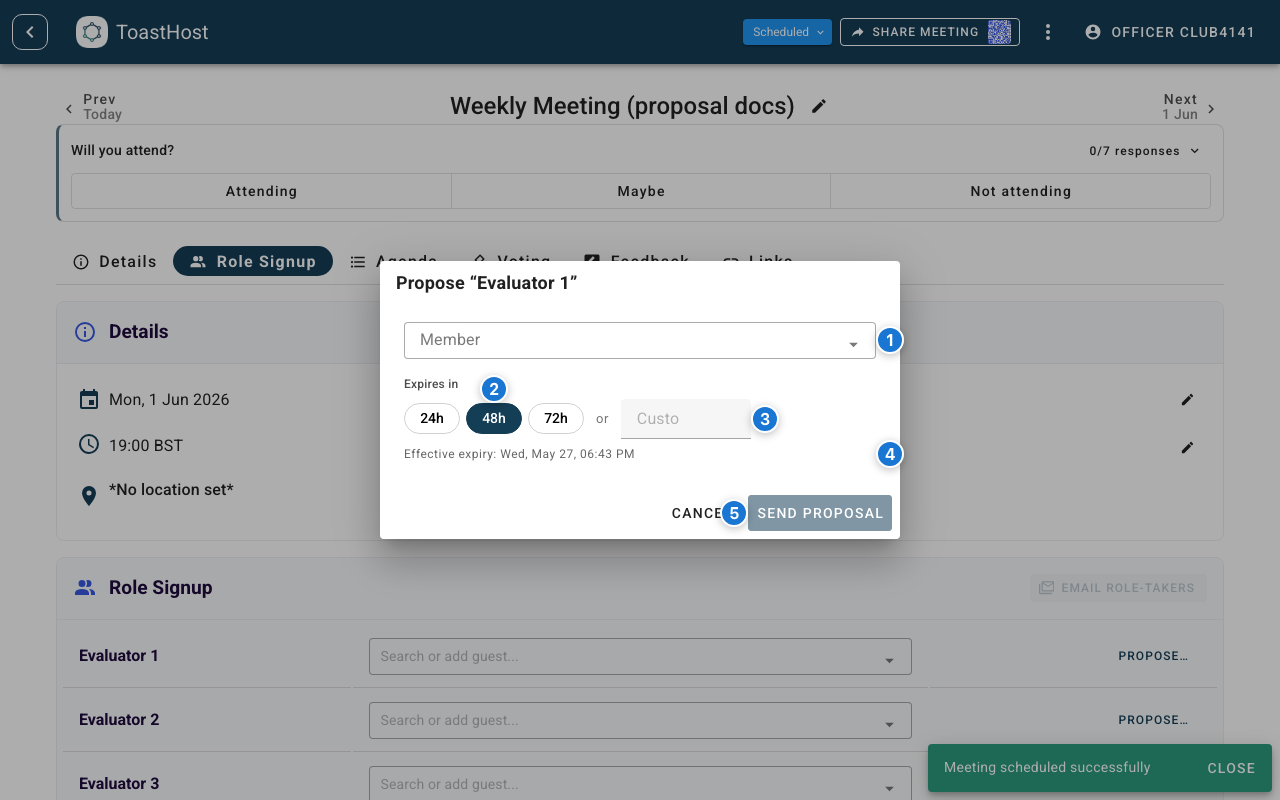
Callouts in the screenshot:
- Member selector — pick the member you want to propose this role to
- Expiry preset chips — quick picks for 24h, 48h, or 72h (default: 48h)
- Custom hours input — enter any whole number of hours up to 168 (1 week)
- Effective expiry — shows the exact date and time the proposal will close. A note appears here when the expiry is capped at 4 hours before the meeting starts.
- Send proposal — closes the dialog, sends the email, and adds the proposal to the slot
Step 3: Send
- Pick a Member
- Pick an expiry (or accept the default 48h)
- Click Send proposal
ToastHost emails the member immediately and the proposal appears on the slot in a Pending state.
Late proposals are blocked
If the meeting starts in less than 4.5 hours, the dialog shows a warning and the Send proposal button is disabled. Assign the member directly instead.
Read a proposed slot
Once a proposal is out, the slot shows a proposed-slot row under the role on the Role Signup tab. As an officer you see proposals for every member; members only see their own.
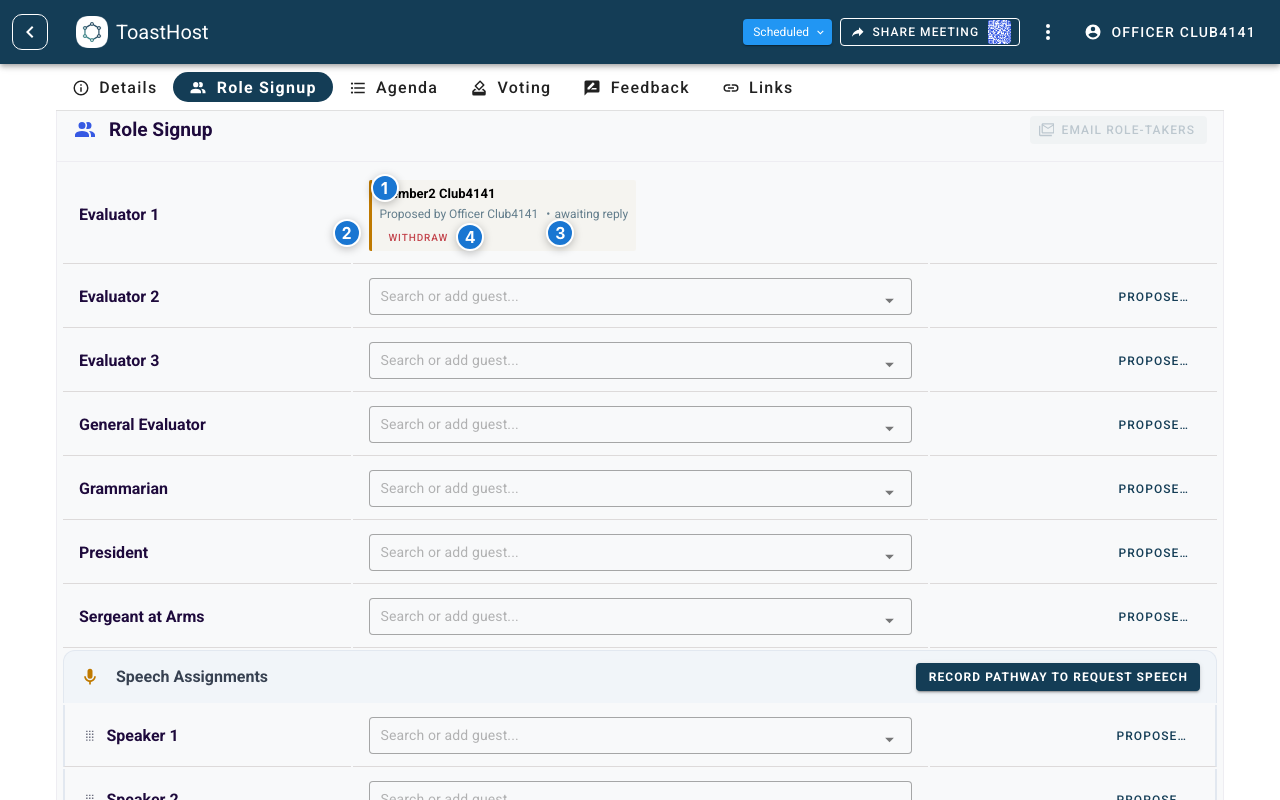
Callouts in the screenshot:
- Proposee — the member you proposed the role to
- Proposer — your name (or the officer who sent the proposal)
- Status —
Pending responsewhile waiting for the member,Accepted/Declined/Expired/Withdrawnonce resolved - Withdraw — cancel the proposal before the member responds
Withdraw a proposal
You can withdraw a proposal any time before it resolves (i.e. before the member accepts or declines and before it expires).
- Open the meeting → Role Signup
- Find the proposed slot row
- Click Withdraw
The slot reopens immediately and the member is notified by email that the proposal was withdrawn.
Retry a failed notification
If ToastHost can't deliver the proposal email (bounced address, transient SES error, etc.), the proposed slot row shows a Notification failed status. In that state the row exposes a Retry send button next to Withdraw.
- Open the meeting → Role Signup
- Find the proposed slot row marked Notification failed
- Click Retry send
If the address is permanently bad, withdraw the proposal and either assign the role directly or contact the member another way.
Tips
- Default to 48h for proposals sent several days ahead; shorten to 24h if the meeting is close
- Propose only when the member has a real choice — for known commitments, assign directly
- Watch for Notification failed rows the day after sending; bad addresses tend to stay bad
Common Questions
What happens when a proposal expires?
The proposal moves to Expired, the slot reopens, and both you and the member's VPE get an email. The expiry sweep runs on a background schedule.
Can I propose the same role to two members at once?
No — only one pending proposal per slot. If you want a backup, wait for the first to resolve (or withdraw it) and then propose again.
Does the member need a ToastHost account to accept?
No. The email contains a one-time link that opens the proposal page without login. Their response is tied to the link token.
What if the member accepts and then changes their mind?
They can change their response from Accepted to Declined (and vice versa) via the same email link, until the proposal expires. After that, contact your officer to reassign.
How does this differ from approving a role request?
A role request is initiated by the member (Role Signup). A role proposal is initiated by you. The two flows coexist — a member can request a role even if you haven't proposed it, and you can propose a role even if no one has requested it.
Related Topics
- Role Proposal (member view)
- Role Assignments (direct assignment + reviewing requests)
- Agenda Planning
- Running Meetings