Schedule Speeches
The Schedule Speeches tab gives the Vice President Education one planning surface for pending speech requests and upcoming speaker slots.
Use it when you want to place member requests into future meetings without opening each meeting one at a time.
Open Schedule Speeches
- Go to your club.
- Open Meetings.
- Click the Schedule Speeches tab.
Note
The Schedule Speeches tab is officer-only and appears when agenda features are enabled for the club.
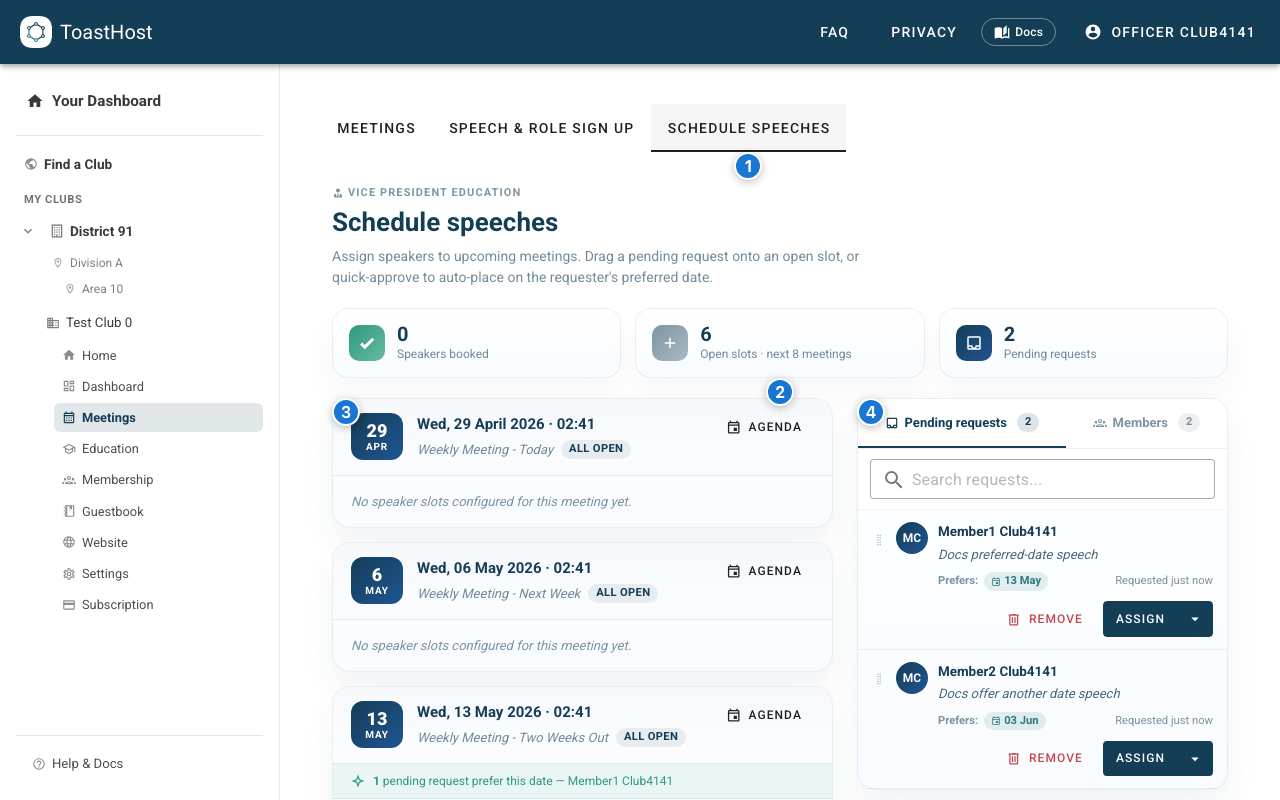
Callouts in the screenshot:
- Schedule Speeches tab opens the officer scheduling view.
- Summary cards show speakers booked, open speaker slots, and pending requests.
- Meeting stream shows upcoming meetings and their speaker slots.
- Pending requests panel lists speech requests that still need scheduling.
Assign a pending request
Each pending request card shows the member, speech title, project details when available, preferred dates, and request age.
To assign a request:
- Find the request in the Pending requests panel.
- Click the Assign button to place it on the first available matching preferred date.
- Or click the Assign to meeting menu button to choose a specific meeting.
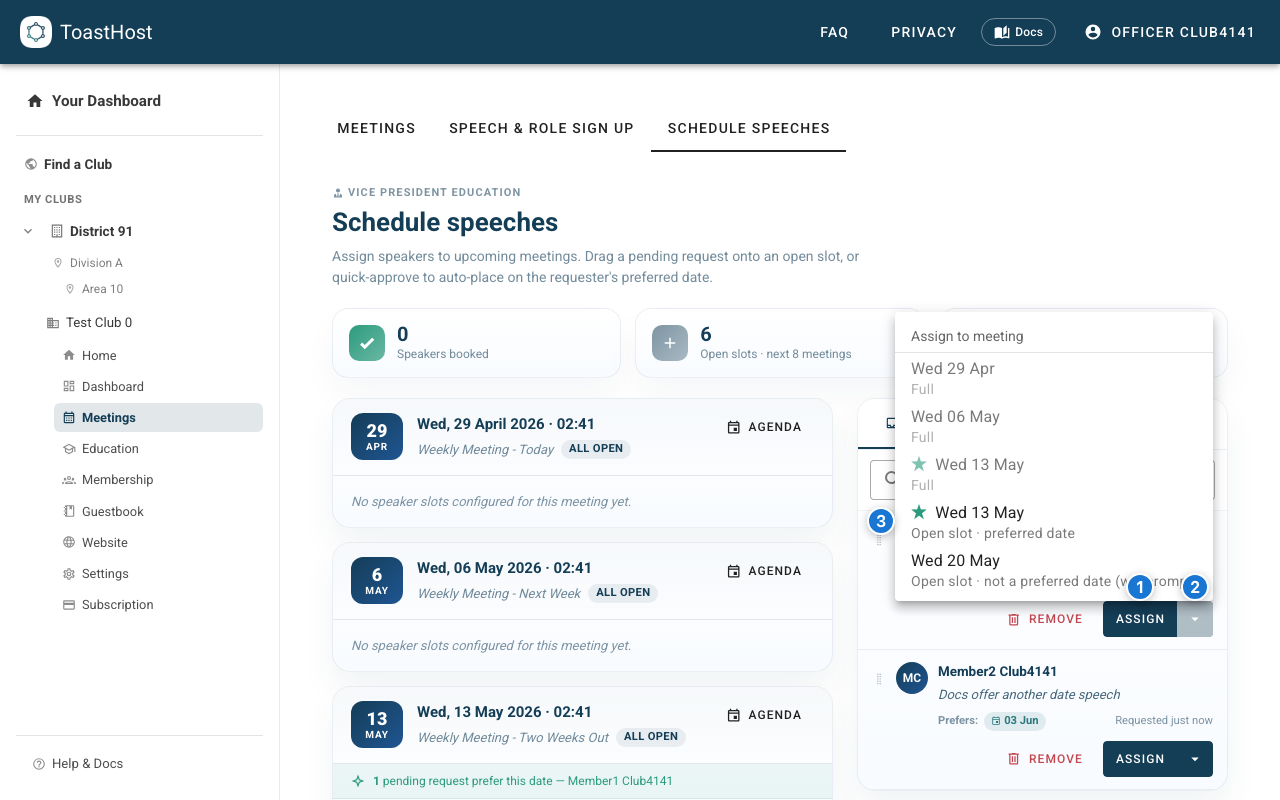
Callouts in the screenshot:
- Assign button places the request into the next available open slot on a preferred date.
- Assign to meeting menu button opens the meeting choices.
- Meeting choice shows whether the meeting is a preferred date and has an open slot.
Offer another date
If you choose a meeting that is not one of the member's preferred dates, ToastHost asks you to confirm before scheduling.
- Choose a meeting from the Assign to meeting menu.
- Review the date being added to the request.
- Click the Add date and schedule button.
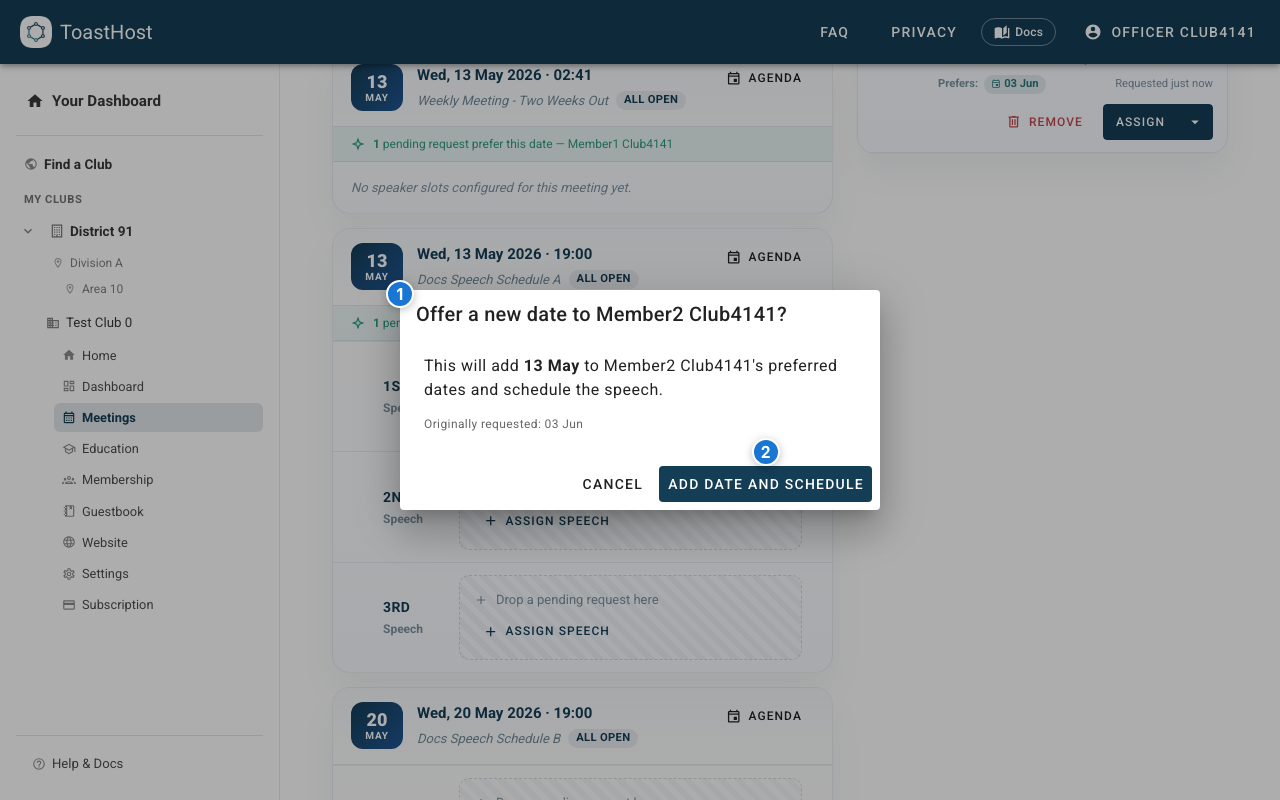
Callouts in the screenshot:
- Offer a new date dialog explains the date that will be added to the request.
- Add date and schedule button updates the preferred dates and assigns the speech.
Assign a speech manually
You can fill an open speaker slot even when no member submitted a request.
- Find an open speaker slot.
- Click the Assign speech button.
- Choose a speaker or enter a guest name.
- Enter the speech title.
- Click the Assign speech button in the dialog.
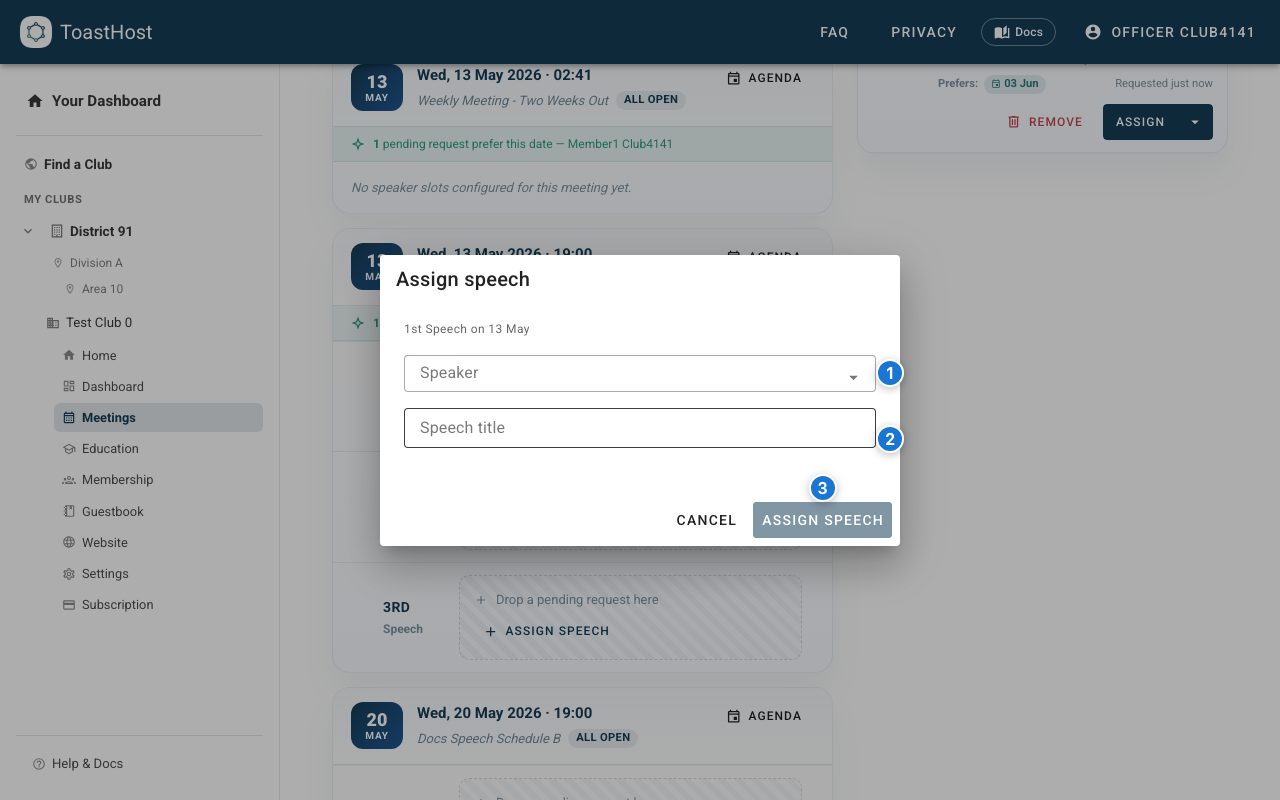
Callouts in the screenshot:
- Speaker field selects a member or allows a guest name.
- Speech title field records the title on the agenda speaker slot.
- Assign speech button saves the manual assignment.
Review members before scheduling
Use the Members tab when you want to balance speaking opportunities across the club.
The roster shows each member's recent speaking history, pending request indicator, expired membership indicator when applicable, and upcoming booked speech dates.
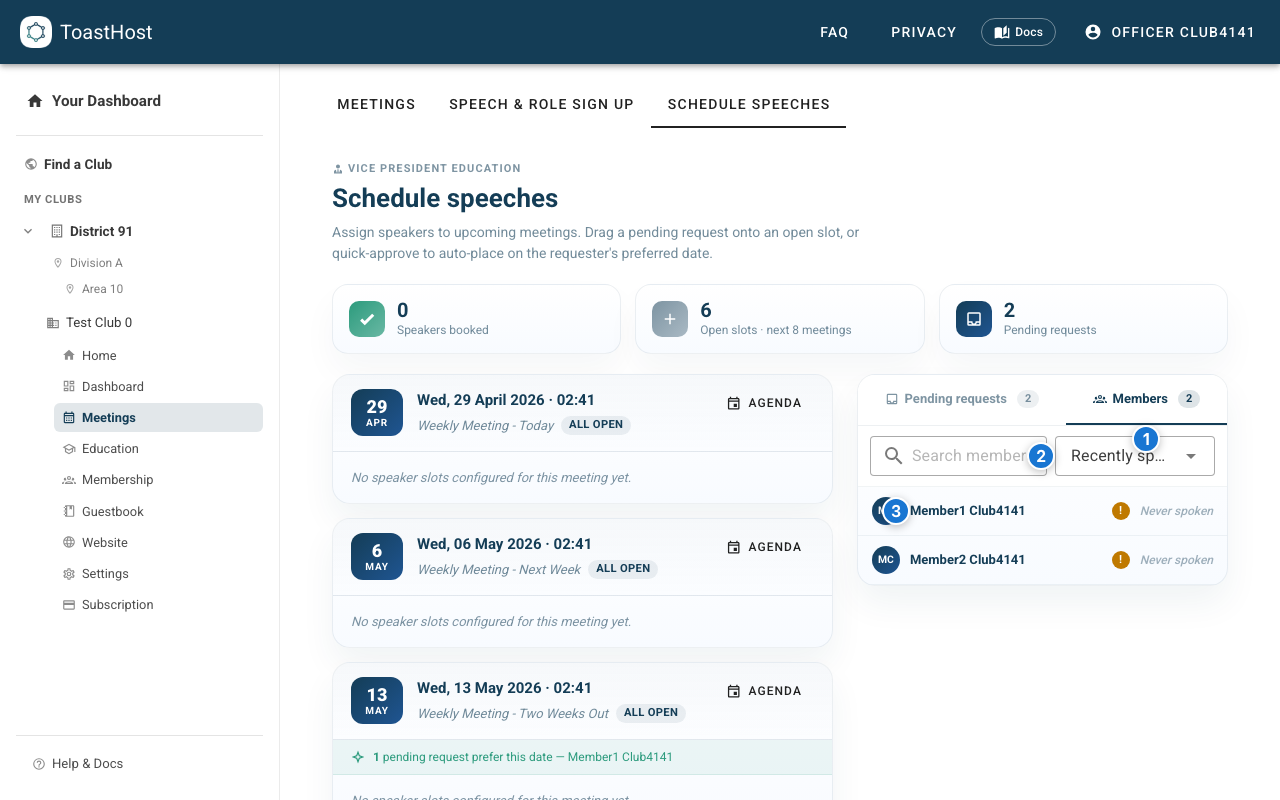
Callouts in the screenshot:
- Members tab switches from requests to the member roster.
- Sort dropdown changes the roster order, such as recently spoke, stalest first, pending first, or A-Z.
- Member row shows speaking freshness plus pending or booked speech indicators.
Manage scheduled slots
In the meeting stream:
- Use the Agenda button on a meeting card to open the full meeting agenda.
- Drag filled speech rows to reorder prepared speeches within a meeting.
- Click the Clear button on a filled speaker slot to remove the speaker.
- If a cleared slot came from a pending request, ToastHost returns the request to the pending queue so it can be rescheduled.
Finished meetings and request cleanup
When a meeting is finished, ToastHost records completed speeches and clears scheduled requests linked to that meeting. This keeps members from being blocked by old scheduled requests after the speech has already happened.
If a member says they cannot request a project again after the meeting finished, check that the speech was either completed on the finished meeting or removed from the old scheduled slot.