Pathways Chart
Overview
The Pathways chart gives officers a club-wide view of Pathways enrollments, level progress, pending requests, and recent speaking activity.
How to Access
- Sign in as a club officer.
- Open Education in the sidebar.
- Stay on the Pathways tab.
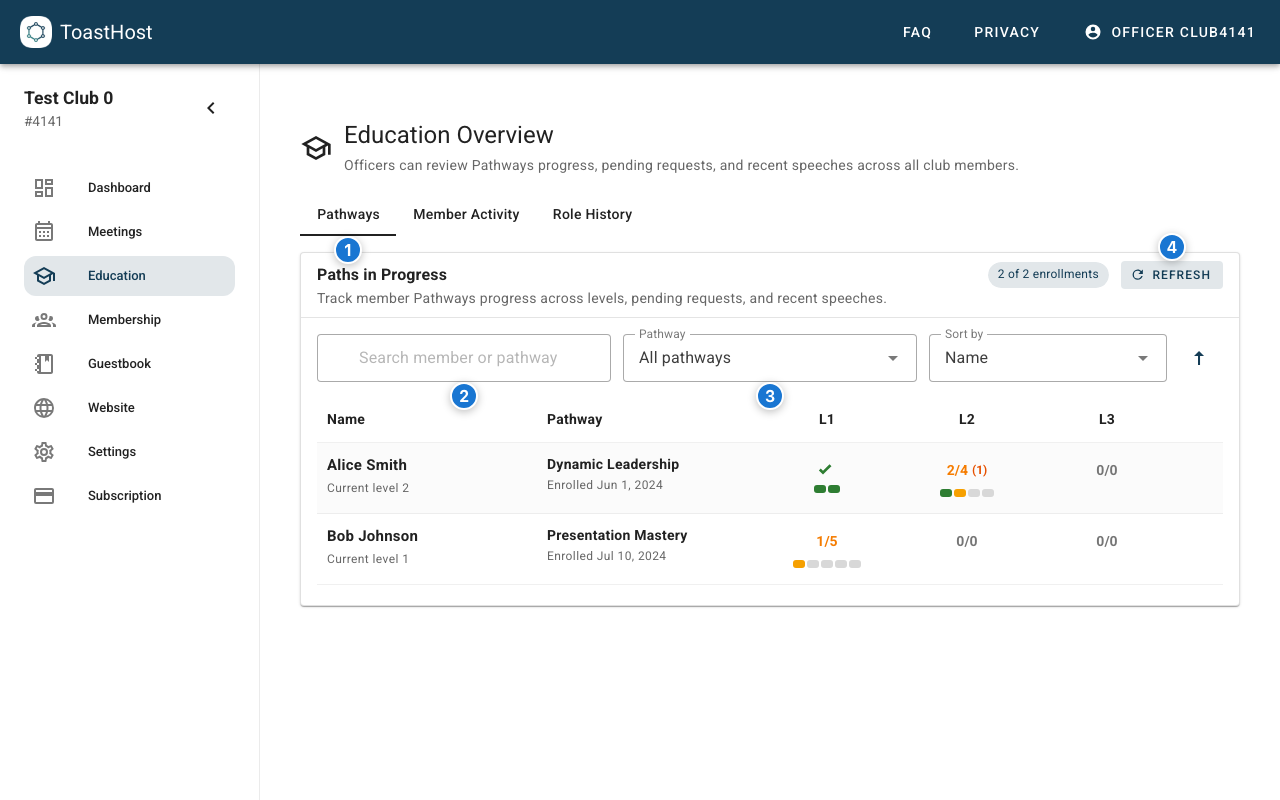
Callouts in the screenshot:
- The Pathways tab (club-wide chart).
- Search for a member or pathway.
- Filter the chart by a specific pathway.
- Refresh the chart (for example, after importing data).
Understanding the Display
Each row represents a member's Pathways enrollment. The columns show:
- Member name and current level
- Pathway name and enrollment date
- Levels L1-L5 (progress segments and pending requests)
- Last Spoke (most recent recorded speech date)
Level Progress
Each level cell shows:
- A completion count (or a checkmark when the level is complete)
- A pending count in parentheses when there are pending requests
- Progress segments (completed, in progress, or not started)
To see what makes up the level (required, electives, education, role quota), click the level count:
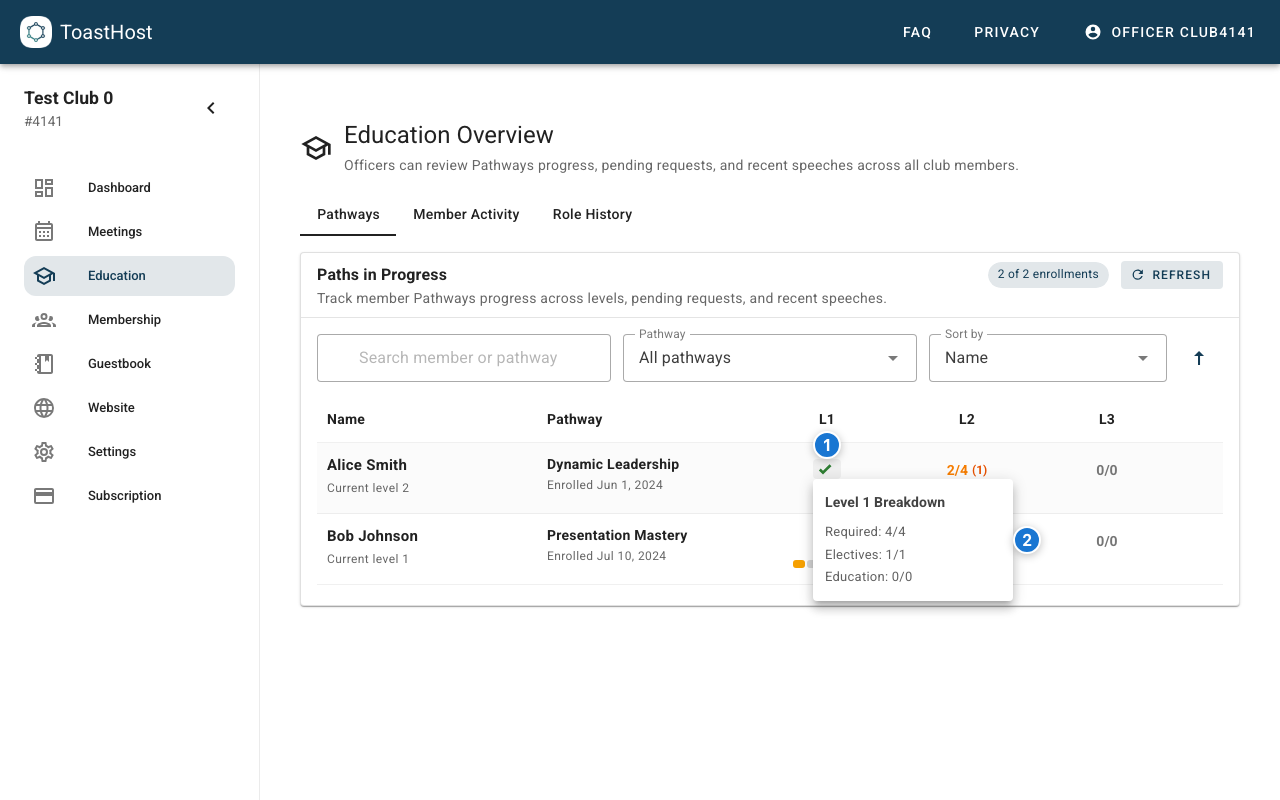
Callouts in the screenshot:
- Click a level's count to open its breakdown.
- The breakdown shows required/elective/education/role quota progress and pending requests.
Filtering and Sorting
You can refine the chart with:
- Search member or pathway to narrow the list.
- Pathway filter to show a single pathway.
- Sort by to order by name, pathway, current level, or last spoke date.
Using the Chart
Use the chart to:
- Spot members with pending requests who may need help getting projects scheduled.
- See who is actively progressing through levels (and who may be stalled).
- Balance meeting content by encouraging a mix of projects across the club.
Row Actions Menu
Each member row has an actions menu with two officer-only options.
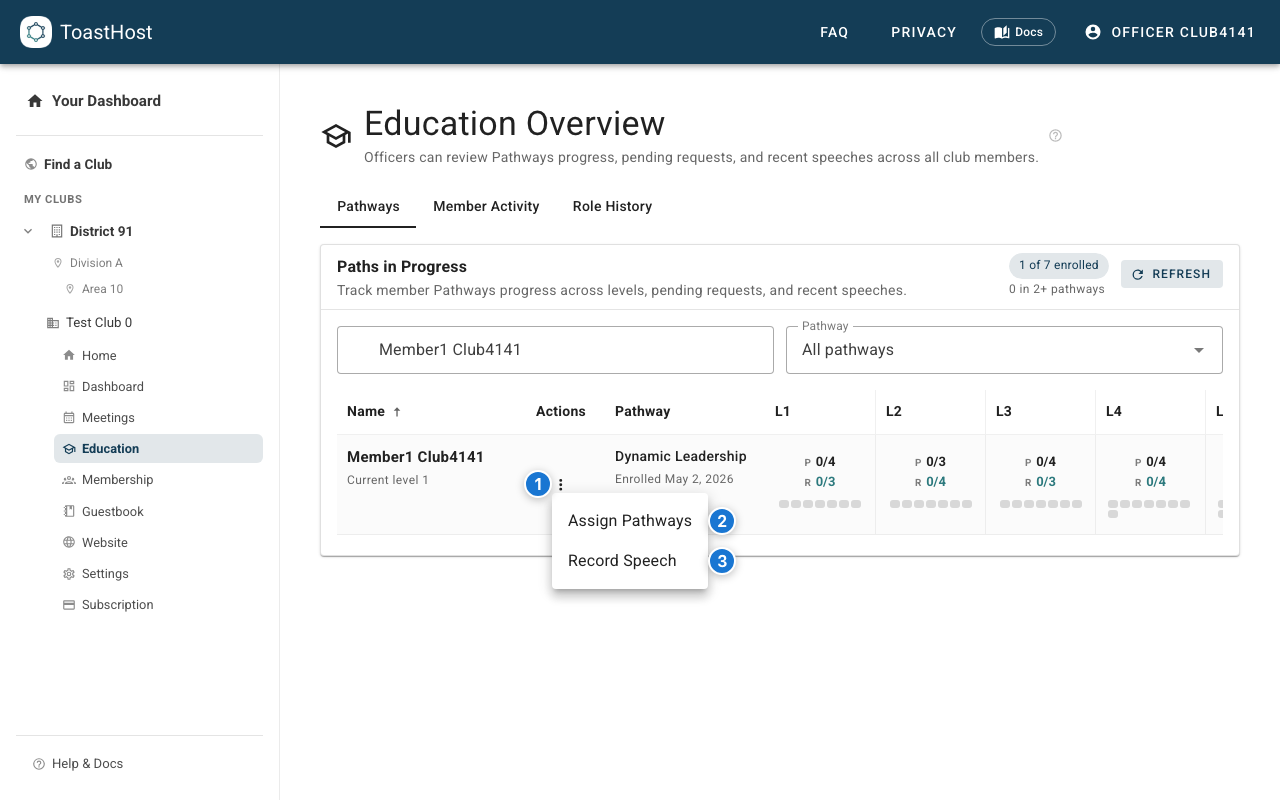
Callouts in the screenshot:
- Open the member row's Actions menu.
- Assign Pathways opens a dialog where you can enroll the member in one or more pathways. See Assign a Pathway to a Member.
- Record Speech opens a dialog to record a manually completed Pathways speech. See Record a Manual Speech.
Assign a Pathway to a Member
Officers can enroll a club member in any number of pathways directly from the chart. This is useful during onboarding (a new member who hasn't picked a pathway yet) and any time a member starts a new pathway alongside their existing ones.
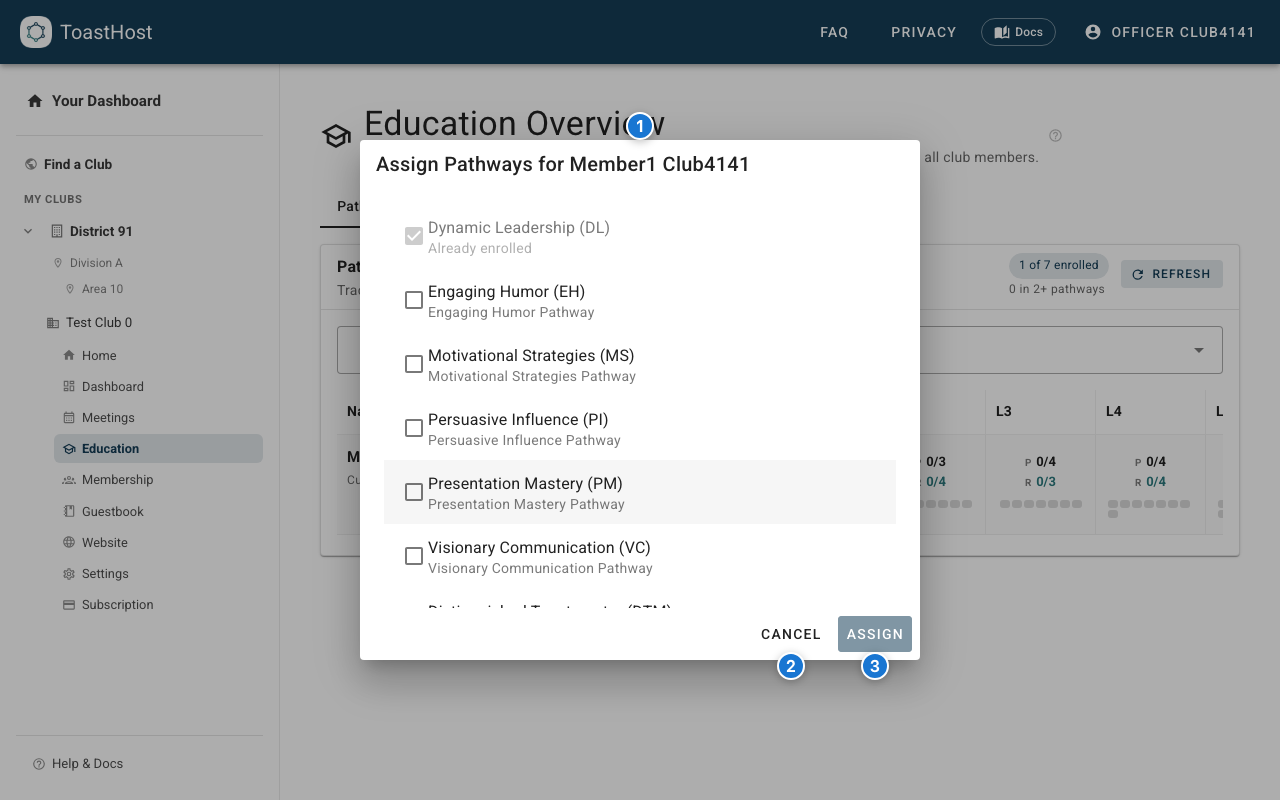
Callouts in the screenshot:
- The Assign Pathways dialog lists every pathway. Pathways the member is already enrolled in show as checked and greyed out so you can see them at a glance without being able to re-add them.
- Cancel closes the dialog without changes.
- Assign enrolls the member in every pathway you ticked. The chart refreshes automatically and a confirmation appears.
Notes:
- This action is additive — selecting a pathway adds an enrollment, but the dialog never removes existing enrollments.
- You can assign multiple pathways at once.
Record a Manual Speech
If a member completed a Pathways speech or project and it was not captured through the normal meeting workflow, officers can record it directly from the chart.
If you open Record Speech for a member who isn't enrolled in any pathway yet, the dialog shows an empty state instead of the form:
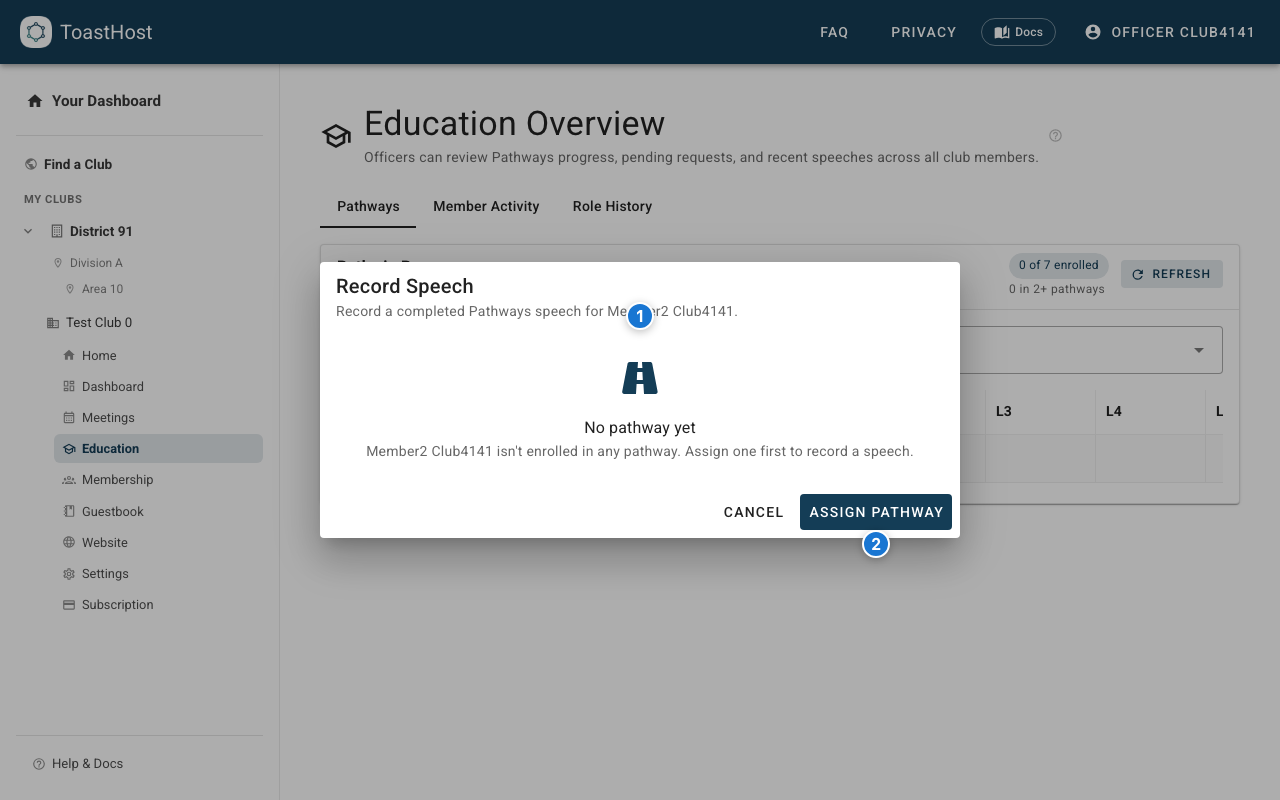
Callouts in the screenshot:
- ToastHost explains that the member needs a pathway before a speech can be recorded.
- Click Assign Pathway to open the Assign Pathways dialog. If you assign exactly one pathway, the Record Speech dialog reopens automatically with that pathway pre-selected so you can finish recording the speech in one flow.
Once the member has at least one pathway, the dialog shows the recording form:
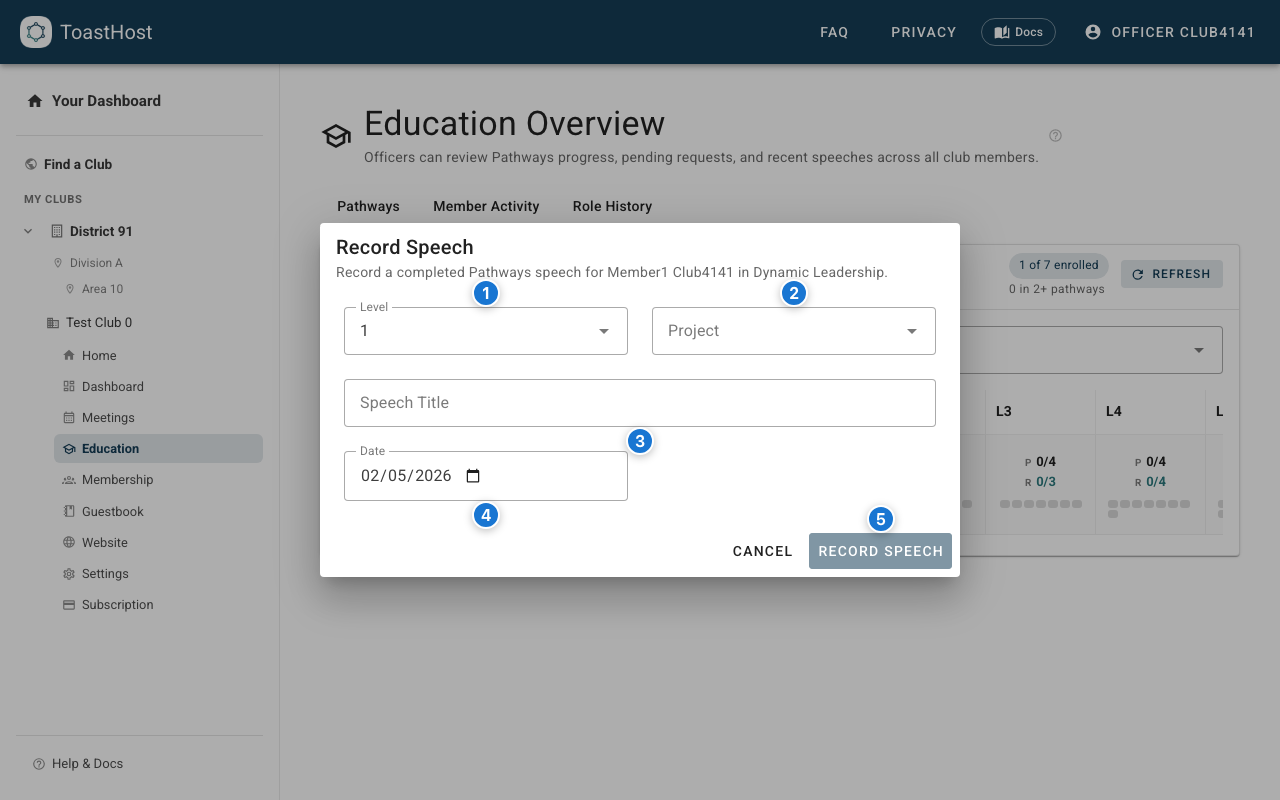
Callouts in the screenshot:
- Choose the Level selector for the completed speech.
- Choose the Project selector within that level.
- Enter the Speech Title field.
- Set the Date field.
- Click the Record Speech button to save.
After the entry is saved, ToastHost refreshes the chart so the member's Last Spoke date and level progress reflect the new completion.
Tips
- Review the chart regularly (for example, monthly) to keep progress moving.
- If you recently imported history (for example, EasySpeak), click Refresh to reload the latest chart data.
Common Questions
Who can see this chart?
Only club officers (and admins) can view the Education workspace.
Why is the chart empty?
Your club may have no recorded Pathways enrollments yet, or the feature may be disabled for the club.
How is progress tracked?
The chart is built from ToastHost's recorded Pathways enrollments, completions, and pending requests for your club.
Related Topics
- Your Pathways (member view)
- Member Activity