Website Setup
Note
This page describes the current Website Configuration screen (updated January 2026). Additional screenshots will be added as the UI evolves.
Overview
Your club website is the public “shop window” for your club: meeting times, location details, and a short introduction for guests.
ToastHost can host your club website for you (including custom domains), or you can use ToastHost purely as a club management platform and host your site elsewhere.
Prerequisites
- You have a ToastHost account
- You are signed in as a club officer
How to Access
- Sign in as a club officer
- Navigate to Club Setup > Website in the sidebar
- Use the Website Settings tab to edit your content, or the Manage Images tab to upload/delete images
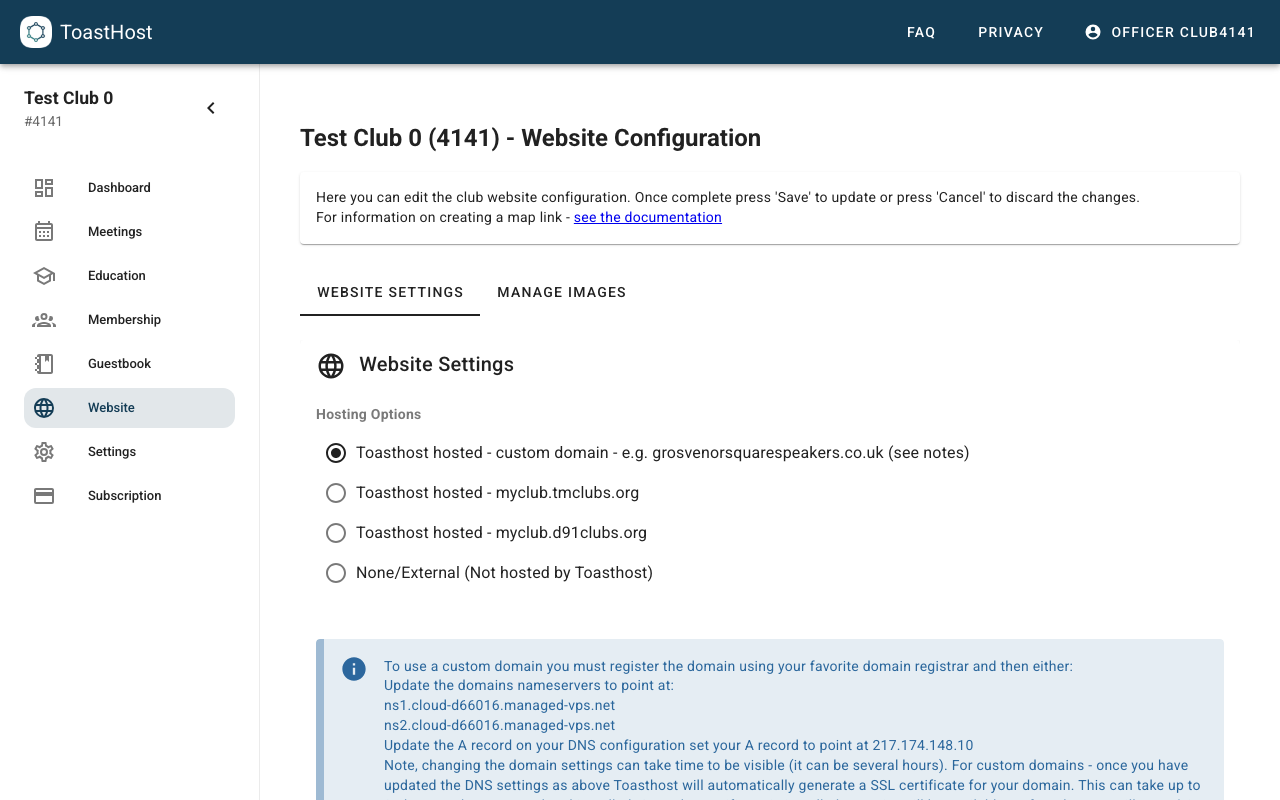
Website Settings tab
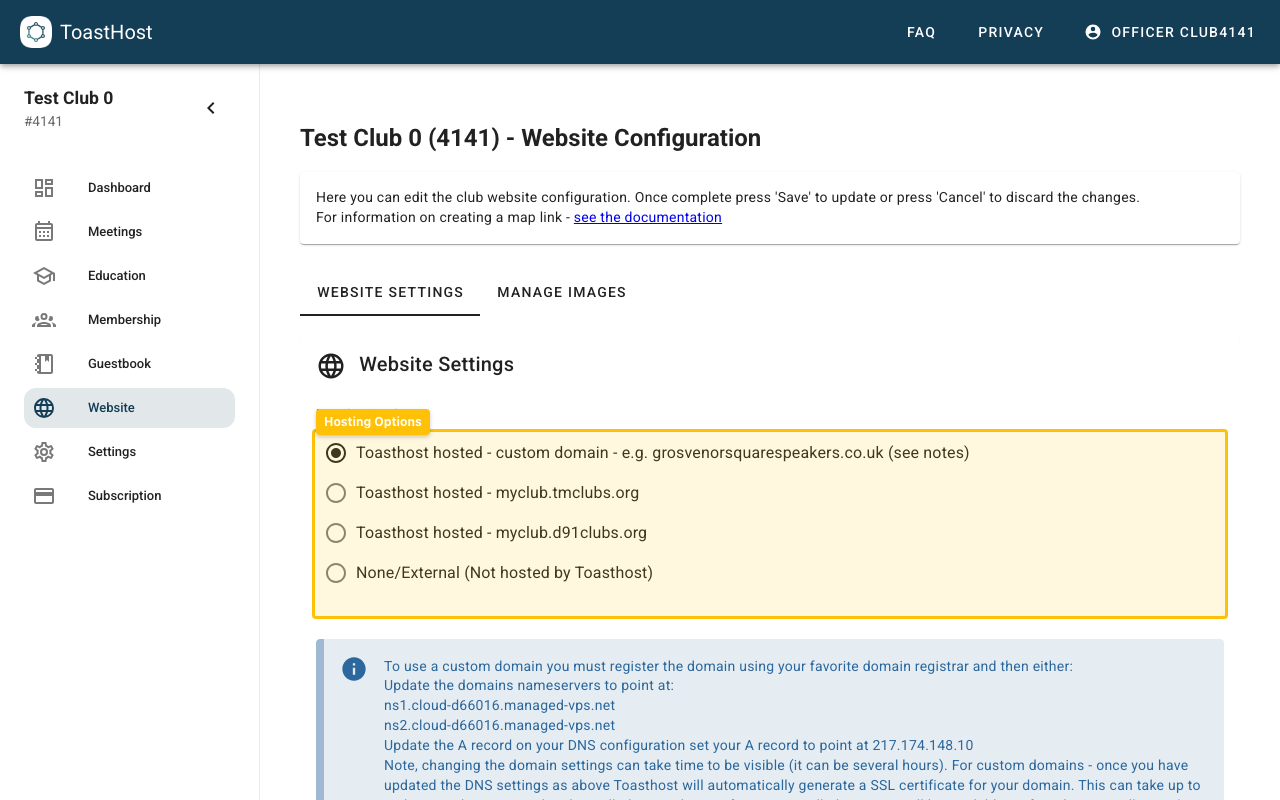
Hosting options
Choose how your website is hosted:
- Toasthost hosted – custom domain: use your own domain (for example,
exampleclub.org) - Toasthost hosted –
tmclubs.orgsubdomain: use amyclub.tmclubs.orgaddress - Toasthost hosted –
d91clubs.orgsubdomain: use amyclub.d91clubs.orgaddress - None/External: your website is hosted outside ToastHost
Tip
If you choose custom domain, read the on-screen notes carefully. DNS changes and SSL certificate provisioning can take time.
Required fields
ToastHost validates a few fields before you can save:
- Short Meeting times text (required)
- Club website meta description (required, 50–160 characters)
- Website Introduction Text (required)
Introduction text and Markdown preview
The introduction supports Markdown formatting (for example headings, lists, bold/italic). As you type, ToastHost shows a live Preview next to the editor.
Tip
Use short paragraphs and bullet lists. Most visitors will read this on a phone.
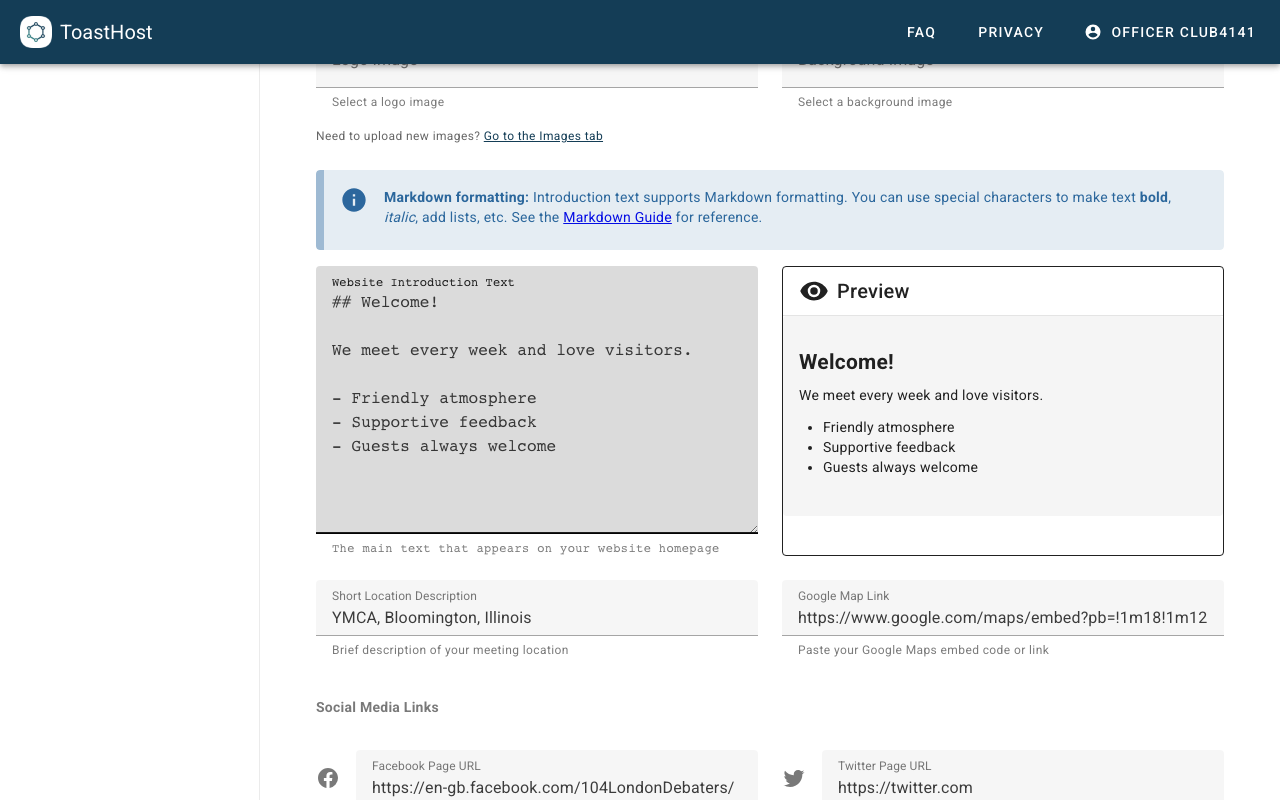
Adding a map
If your club meets in-person (or hybrid), add a map so guests can find you easily.
- Open
https://maps.google.comand search for your venue - Use Share to get either:
- an embed snippet (HTML), or
- a shareable link
- Paste the value into Google Map Link
Note
The Google Map Link field accepts either an embed snippet or a link. If you paste an embed snippet, ToastHost can display a map directly on your site.
Social media links
If your club uses social platforms, add links so guests can learn more:
- Facebook Page URL
- Twitter Page URL
- Instagram Page URL
- Meetup Page URL
- LinkedIn Page URL
- YouTube Page URL
- Eventbrite Page URL
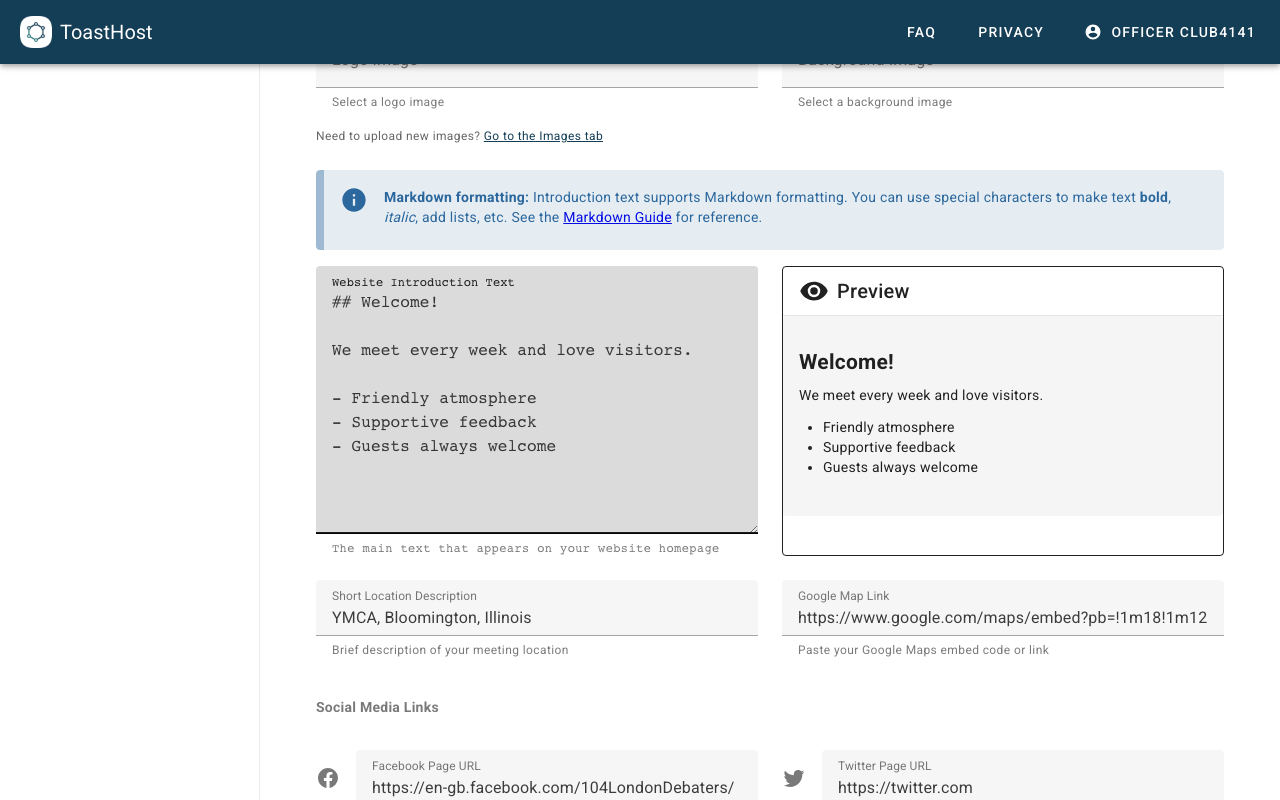
Manage Images tab
Use Manage Images to upload and delete images used by your website.
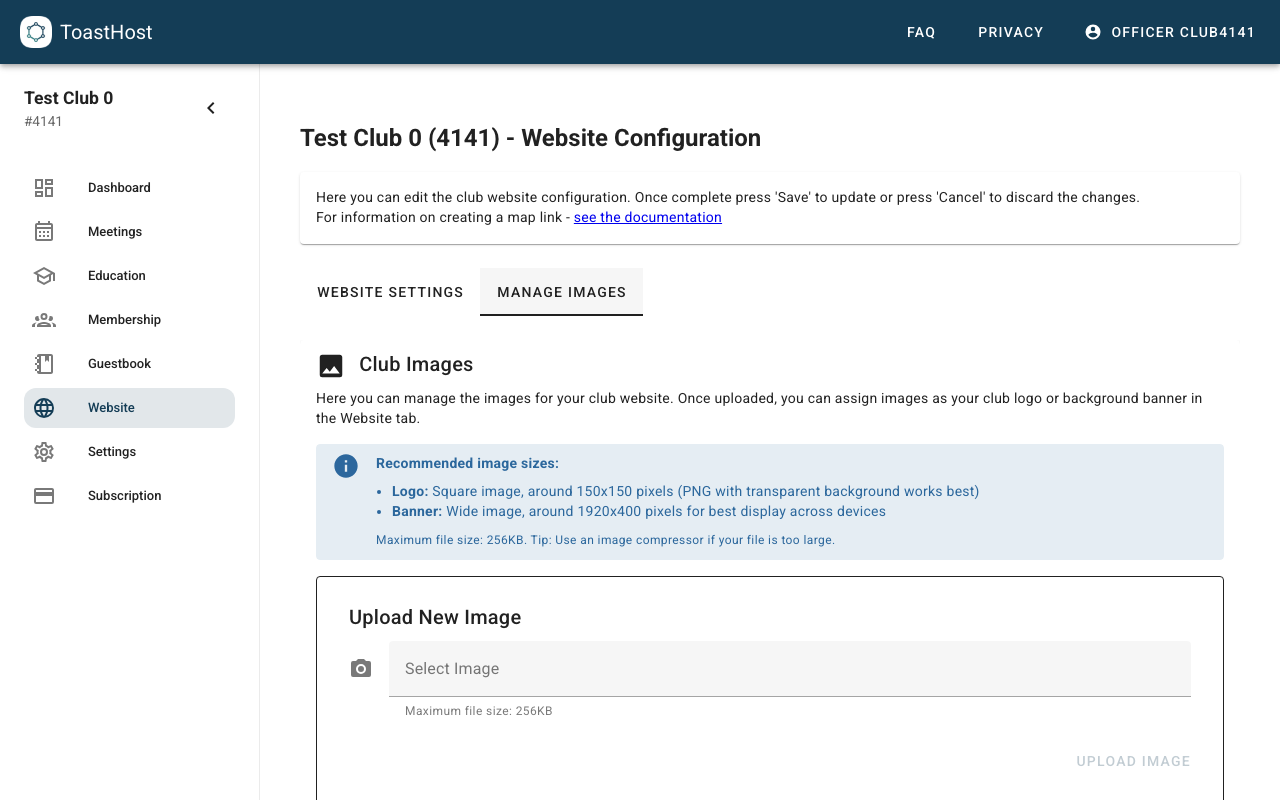
Upload images
- Maximum file size: 256KB
- Recommended sizes:
- Logo: square image (around 150×150)
- Banner/background: wide image (around 1920×400)
After uploading an image, switch back to Website Settings and select it as your Logo Image or Background Image.
Embed images in your introduction text (optional)
If you want images to appear inside your introduction text, you can reference an uploaded image using Markdown.
Example:

Replace YOUR_IMAGE_NAME.png with the exact filename from the images list.
Tips
- Keep your meta description readable and specific (it appears in search results)
- Keep meeting times short (day + time is usually enough)
- Compress images if they exceed 256KB
Common Questions
Why is Save Configuration disabled?
ToastHost may disable saving if:
- Required fields are missing or invalid, or
- Your club does not have access to website hosting features (you will see a read-only badge at the top of the page)
Can I use my own domain?
Yes. Choose the custom domain hosting option and follow the on-screen DNS instructions.
How do I add a map?
Add your map to Google Map Link (see Adding a map).