Member Activity
Overview
ToastHost's Member Activity screen helps officers spot members who may be disengaging by showing attendance, roles, and speeches across a rolling 12-month window.
Use it to answer questions such as:
- Who has not attended recently?
- Who is active but not speaking?
- Which members have no recent meeting participation at all?
How to Access
- Sign in as a club officer.
- Open Education in the sidebar.
- Select the Member Activity tab.
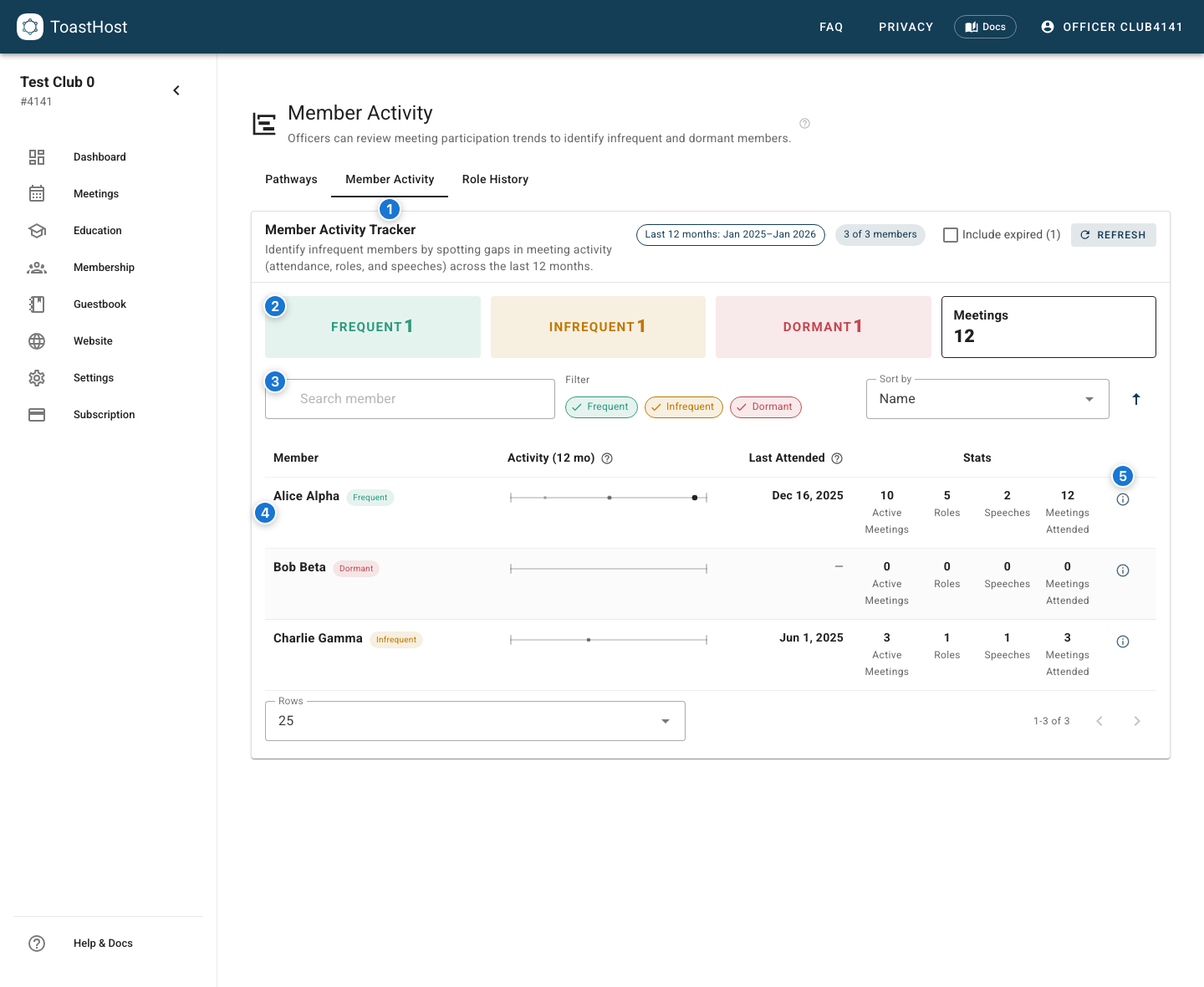
Callouts in the screenshot:
- The Member Activity tab.
- Summary cards and the current 12-month period.
- Search, filter, sort, refresh, and Include expired controls.
- A member row with the activity timeline, last attended date, and participation stats.
- The detail button for opening a member's full activity view.
Understanding the Tracker
Each row represents one member. The tracker shows:
- An activity level badge: Frequent, Infrequent, or Dormant
- A 12-month activity timeline
- Last Attended
- Participation stats for Active Meetings, Roles, Speeches, and Meetings Attended
Activity Levels
Activity level is based on the member's Last Attended date:
- Frequent: attended within the last 3 months
- Infrequent: last attended 3-6 months ago
- Dormant: last attended more than 6 months ago, or has never attended in the period
Timeline and Stats
The timeline shows dates where the member had recorded activity:
- Brightest dots are speeches
- Medium dots are roles
- Light dots are attendance-only dates
- Left is older activity; right is more recent activity
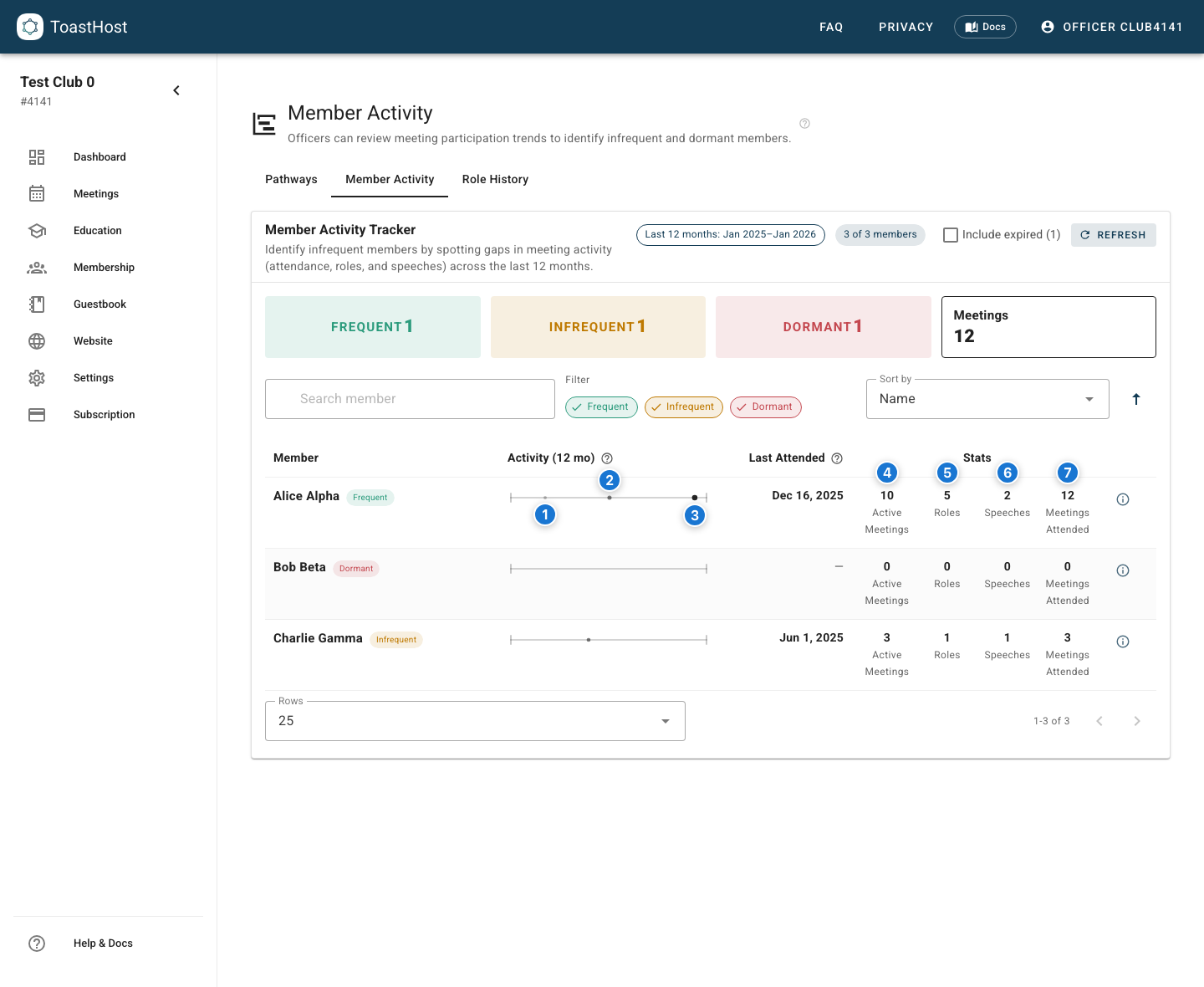
Callouts in the screenshot:
- An attendance-only dot.
- A role dot.
- A speech dot.
- Active Meetings counts meetings where the member had a role or speech.
- Roles counts the total roles filled in the period.
- Speeches counts the total speeches given in the period.
- Meetings Attended counts all attended meetings, including attendance without a role.
The stat columns mean:
- Active Meetings: meetings where the member had a role or speech
- Roles: total roles filled in the period
- Speeches: total speeches given in the period
- Meetings Attended: total meetings attended, including attendance without a role
Filtering and Sorting
Use the controls above the table to narrow the list:
- Click the summary cards to focus on one activity level
- Use Search member to find a specific person
- Use the filter chips to show or hide activity levels
- Use Sort by and the direction toggle to reorder the table
- Enable Include expired when you need to include expired members in the roster view
- Click Refresh after new attendance or participation data has been imported or recorded
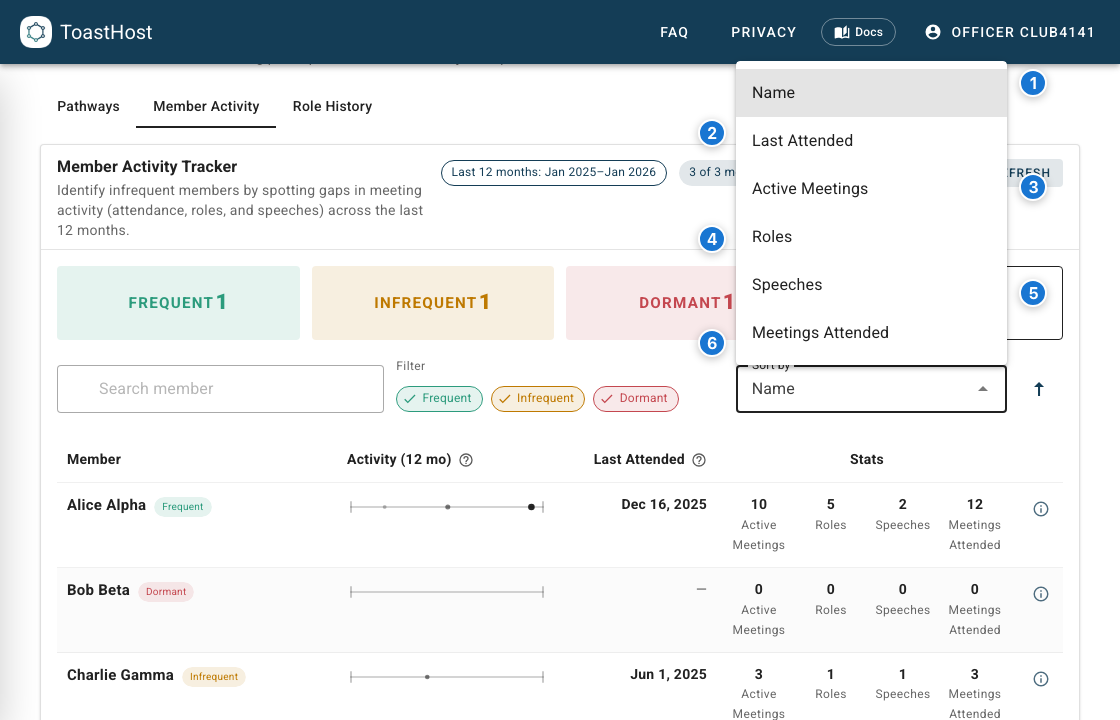
Callouts in the screenshot:
- Name sorts alphabetically by member name.
- Last Attended sorts by the most recent meeting attended.
- Active Meetings sorts by meetings where the member had a role or speech.
- Roles sorts by the total roles filled in the tracked period.
- Speeches sorts by the total speeches given in the tracked period.
- Meetings Attended sorts by all attended meetings, including attendance without a role.
The direction toggle reverses whichever sort you choose.
Member Detail View
Click the info button on any row to open the detail modal:
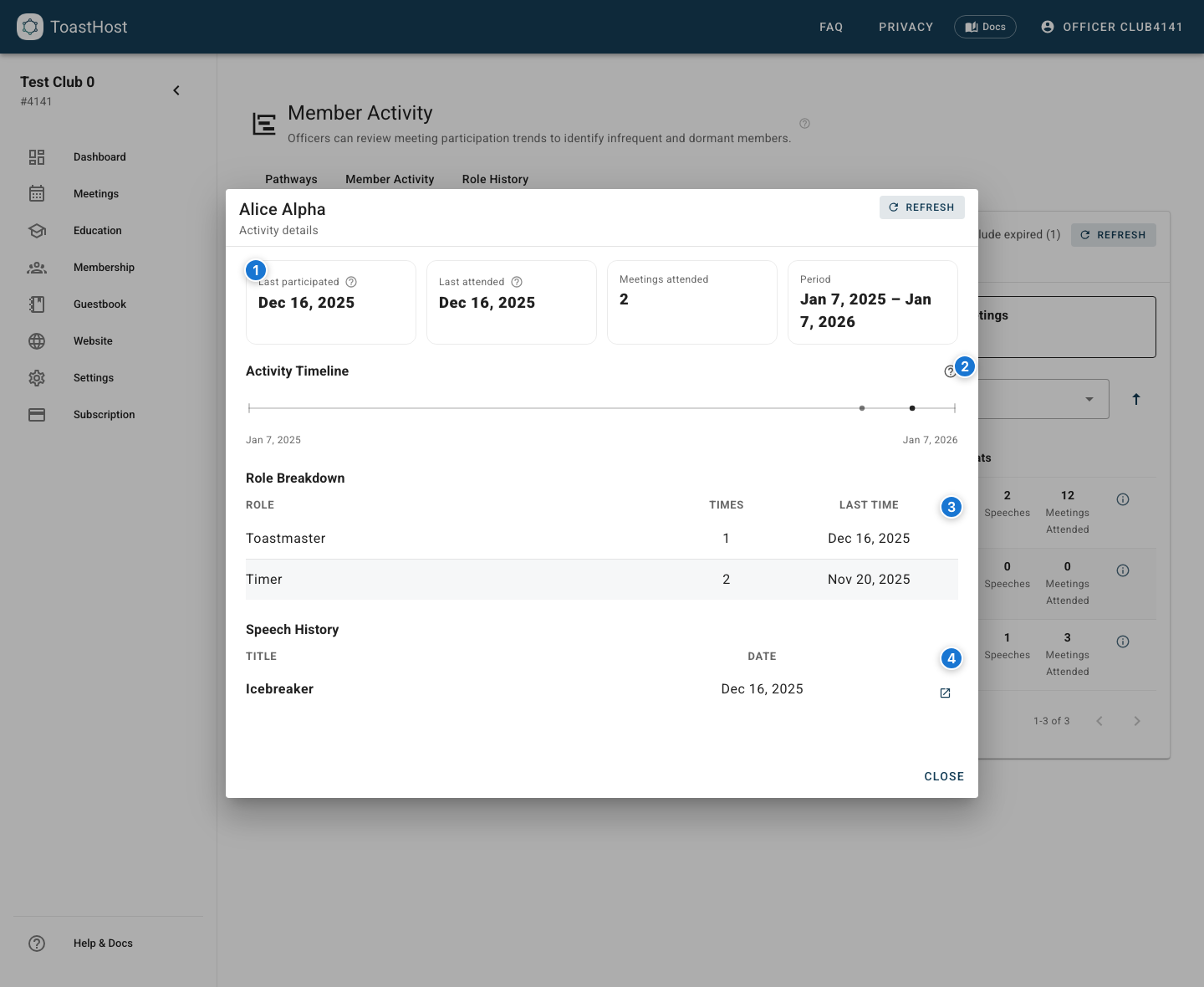
Callouts in the screenshot:
- Summary values for Last participated, Last attended, Meetings attended, and the tracked period.
- The member's detailed 12-month activity timeline.
- Role breakdown showing how often each role was filled and the last date it was done.
- Speech history for the tracked period, including meeting-link actions when a ToastHost meeting is available.
Last Participated vs Last Attended
- Last participated means the last date the member completed a role or speech.
- Last attended includes meetings they attended even if they did not have a role.
Detail Sections
The modal includes:
- Activity Timeline for the same 12-month period shown in the main table
- Role Breakdown with counts and most recent dates
- Speech History with titles, dates, and meeting links when available
Tips
- Review the tracker regularly to catch infrequent and dormant members early.
- Compare Last attended with the speech and role counts to see whether someone is showing up but not being scheduled.
- Use the detail modal before assigning roles if you want a quick view of a member's recent participation pattern.
Common Questions
Who can see this screen?
Club officers and admins can access the Education workspace when the feature is enabled for the club.
Why is a member marked dormant?
Dormant means ToastHost has no attendance in the last 6 months for that member in the tracked window, or no attendance at all in the period.
Does this include attendance without a role?
Yes. That is why Last Attended and Meetings Attended can be more recent or higher than role/speech activity alone.
Does this page export reports?
No. The current screen is an on-screen tracker with filtering, sorting, and drill-down details.