Pathways Chart
Overview
The Pathways chart gives officers a club-wide view of Pathways enrollments, level progress, pending requests, and recent speaking activity.
How to Access
- Sign in as a club officer.
- Open Education in the sidebar.
- Stay on the Pathways tab.
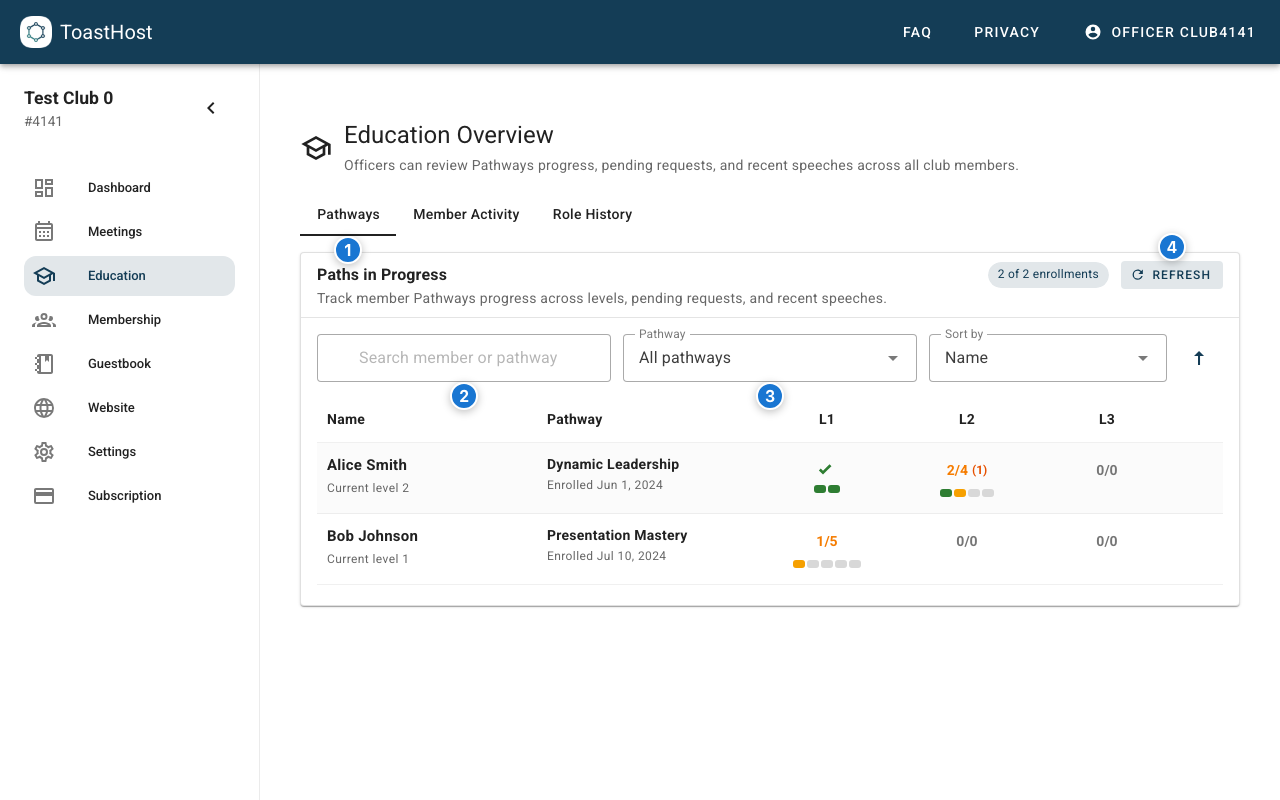
Callouts in the screenshot:
- The Pathways tab (club-wide chart).
- Search for a member or pathway.
- Filter the chart by a specific pathway.
- Refresh the chart (for example, after importing data).
Understanding the Display
Each row represents a member's Pathways enrollment. The columns show:
- Member name and current level
- Pathway name and enrollment date
- Levels L1-L5 (progress segments and pending requests)
- Last Spoke (most recent recorded speech date)
Level Progress
Each level cell shows:
- A completion count (or a checkmark when the level is complete)
- A pending count in parentheses when there are pending requests
- Progress segments (completed, in progress, or not started)
To see what makes up the level (required, electives, education, role quota), click the level count:
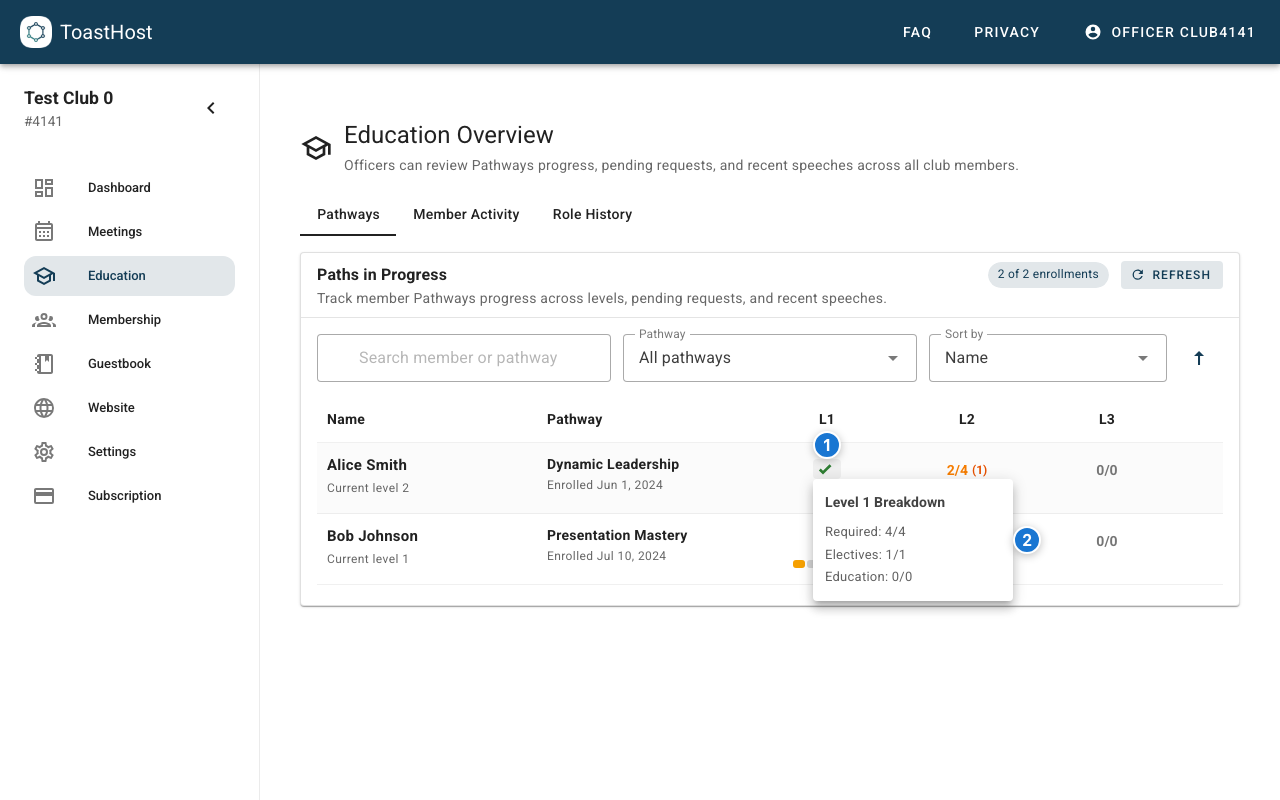
Callouts in the screenshot:
- Click a level's count to open its breakdown.
- The breakdown shows required/elective/education/role quota progress and pending requests.
Filtering and Sorting
You can refine the chart with:
- Search member or pathway to narrow the list.
- Pathway filter to show a single pathway.
- Sort by to order by name, pathway, current level, or last spoke date.
Using the Chart
Use the chart to:
- Spot members with pending requests who may need help getting projects scheduled.
- See who is actively progressing through levels (and who may be stalled).
- Balance meeting content by encouraging a mix of projects across the club.
Tips
- Review the chart regularly (for example, monthly) to keep progress moving.
- If you recently imported history (for example, EasySpeak), click Refresh to reload the latest chart data.
Common Questions
Who can see this chart?
Only club officers (and admins) can view the Education workspace.
Why is the chart empty?
Your club may have no recorded Pathways enrollments yet, or the feature may be disabled for the club.
How is progress tracked?
The chart is built from ToastHost's recorded Pathways enrollments, completions, and pending requests for your club.
Related Topics
- Your Pathways (member view)
- Member Activity