Role History
Overview
Role History gives officers a club-wide matrix of who has filled meeting roles, how often they have done each role, and when they last served.
Unlike a date-range report, this page is designed for quick roster review while planning meetings and balancing opportunities across the club.
How to Access
- Sign in as a club officer or admin.
- Open Education in the club workspace.
- Select the Role History tab.
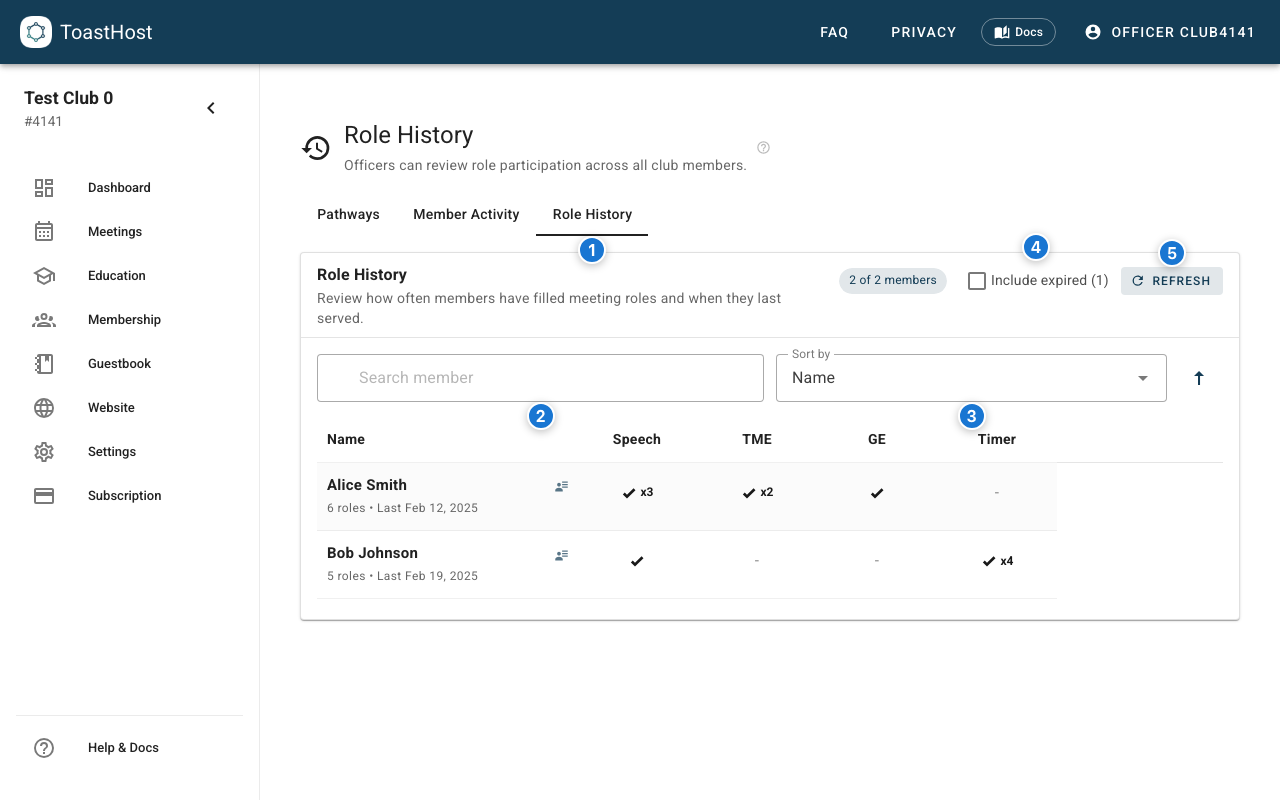
Callouts in the screenshot:
- The Role History tab in the Education workspace.
- Search for a member by name.
- Sort the chart by name, total roles, or last role date.
- Include expired members when you need the full historical roster.
- Refresh the chart after importing or correcting participation data.
Understanding the Chart
Each row represents a current club roster member. Each role column appears only when that role type exists in your club's recorded role history.
The first column shows:
- The member's name
- Their total completed role count
- The most recent date they filled any recorded role
Role cells show:
-when there is no recorded completion for that role- A checkmark when the member has completed the role once
- A multiplier such as
x3when the member has completed the role multiple times
Hover or tap a populated cell to see the latest completion date.
Search, Sorting, and Filters
Use the controls above the chart to narrow the roster and inspect different patterns:
- Search member filters rows by member name.
- Sort by lets you order the chart by
Name,Total Roles, orLast Role Date. - The direction button switches between ascending and descending order.
- Include expired appears only when the membership lookup finds expired members in the roster data.
- Refresh reloads the chart and membership status data.
Member Details and Meeting Links
Each member row includes a summary button that opens a role-by-role breakdown for that member.
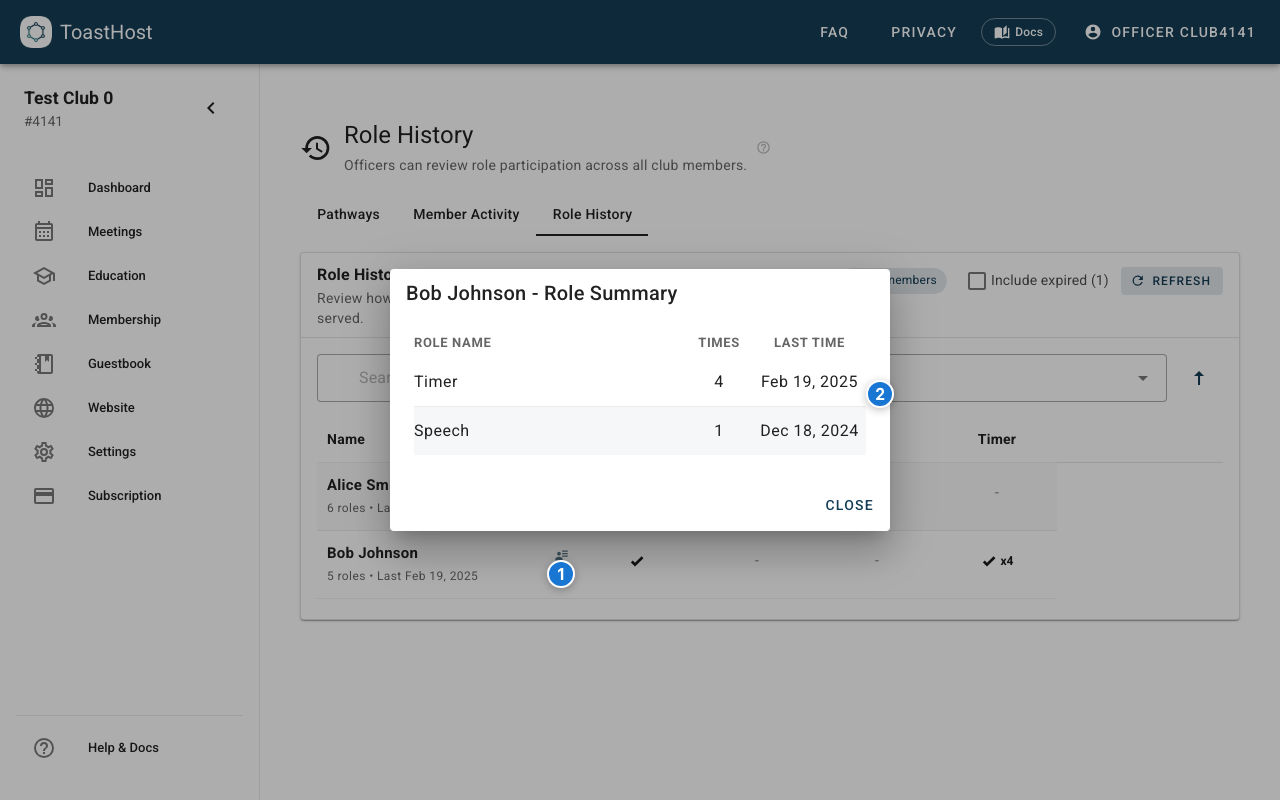
Callouts in the screenshot:
- Click the member summary icon in a row.
- Review the member's role summary table, including counts and latest completion dates.
Populated cells can also help you inspect the source meeting:
- If the latest completion came from a native ToastHost meeting, clicking the cell opens that meeting.
- If the latest completion came from an EasySpeak import, the cell still shows the latest date in the tooltip, but it does not navigate to a meeting page.
How Counts Are Calculated
Role History aggregates completed speeches and meeting roles for members on the current club roster.
Important details:
- Counts are deduplicated by the club's local meeting date, not by raw participation rows.
- When native ToastHost data and EasySpeak import data overlap on the same day for the same canonical role, the chart counts that day once.
- When both sources overlap, ToastHost prefers the native meeting as the latest linked meeting.
- Similar role labels are merged into canonical role types where applicable, so equivalent Toastmaster labels appear together as
TME.
Using Role History
Use the chart to:
- Avoid assigning the same members to the same roles repeatedly
- Spot members who have not had a recent speaking or leadership opportunity
- Check who last filled a role before finalizing an agenda
- Review imported EasySpeak history after migration
Common Questions
Who can view Role History?
Only club officers and admins can open the Role History chart.
Why does the chart not show every possible role column?
The page only renders role columns that exist in the recorded history returned for your club.
Why is a member missing from the default view?
Expired members are hidden by default when membership status data is available. Turn on Include expired to show them.
Why doesn't a role cell open a meeting?
Cells only navigate when the latest recorded completion points to a native ToastHost meeting. Imported EasySpeak history remains visible but is not linked to a ToastHost meeting page.