Agenda Planning
Documentation in progress
This page is being expanded with detailed instructions. Check back soon for complete content!
Overview
Agenda planning allows you to structure your meeting with segments, timing, and role assignments. A well-planned agenda keeps meetings on track and ensures all participants know what to expect.
How to Access
- Navigate to the meeting you want to plan
- Go to the Agenda tab
- Add, modify, or reorder agenda items
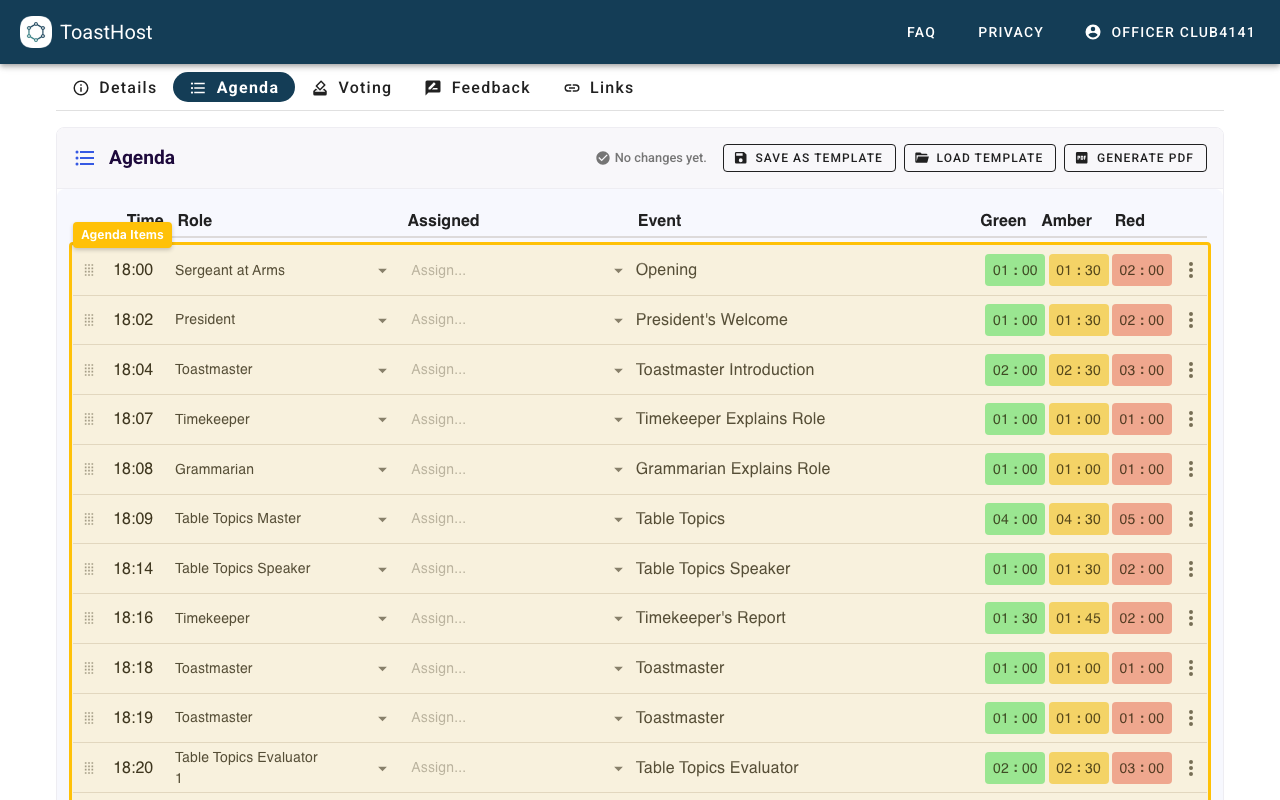
Building an Agenda
Adding Segments
Common meeting segments include:
- Opening - Call to order, welcome, announcements
- Functionary Introductions - Timer, Grammarian, etc.
- Prepared Speeches - Individual speech slots
- Table Topics - Impromptu speaking segment
- Evaluations - Feedback on prepared speeches
- General Evaluator Report - Overall meeting feedback
- Awards/Voting - Best speaker announcements
- Closing - Closing remarks, next meeting info
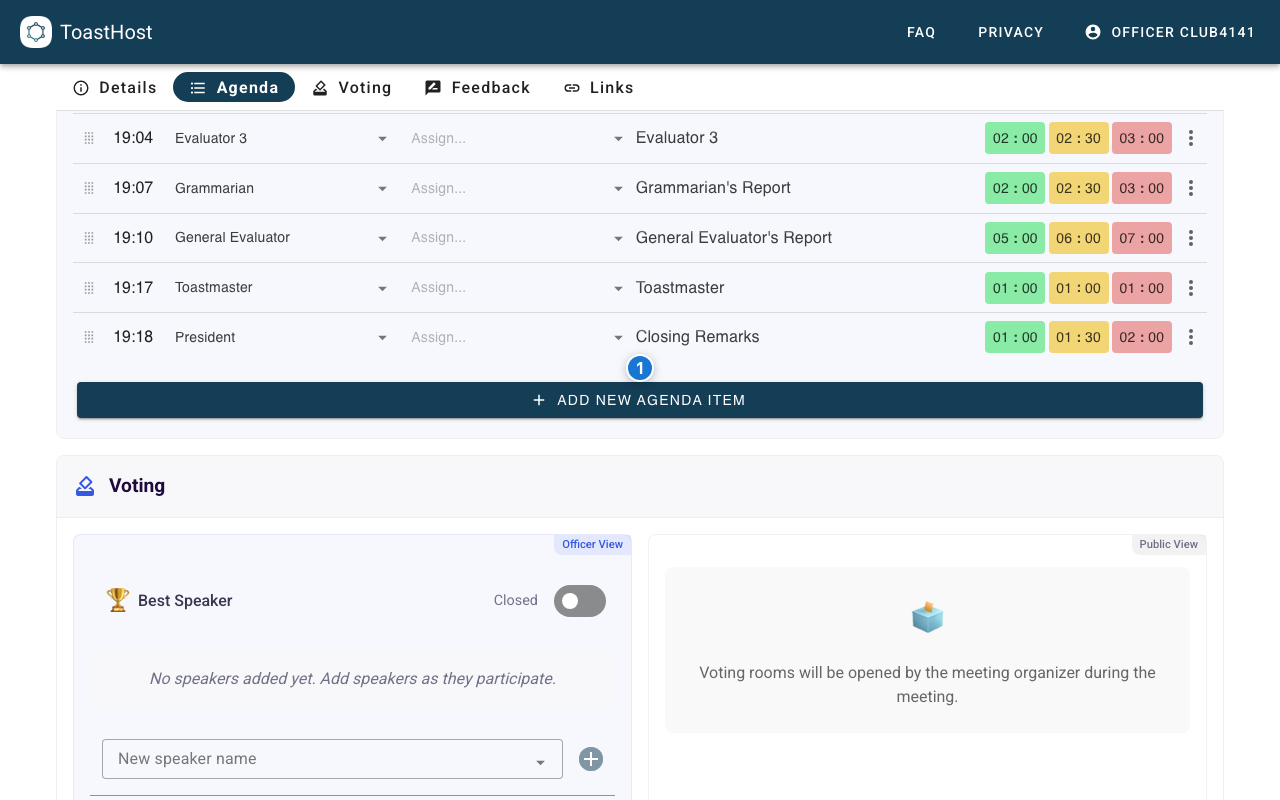
To add a new segment:
- Scroll to the bottom of the agenda
- Click Add New Agenda Item
- Use the agenda item's actions menu for Advanced Edit to set the role and event name
Setting Timing
For each segment, set:
- Minimum time - Green light on timer
- Target time - Yellow light
- Maximum time - Red light
- Buffer time - Extra time beyond the Red mark (useful for applause and transitions)
Buffer Time (Advanced Edit)
Buffer time adds extra time after the Red mark. This extra time is included in the agenda's calculated start times and total meeting duration.
To set buffer time:
- Open the agenda item's actions menu (⋮)
- Select Advanced Edit
- In Time Marks, set Buffer Time
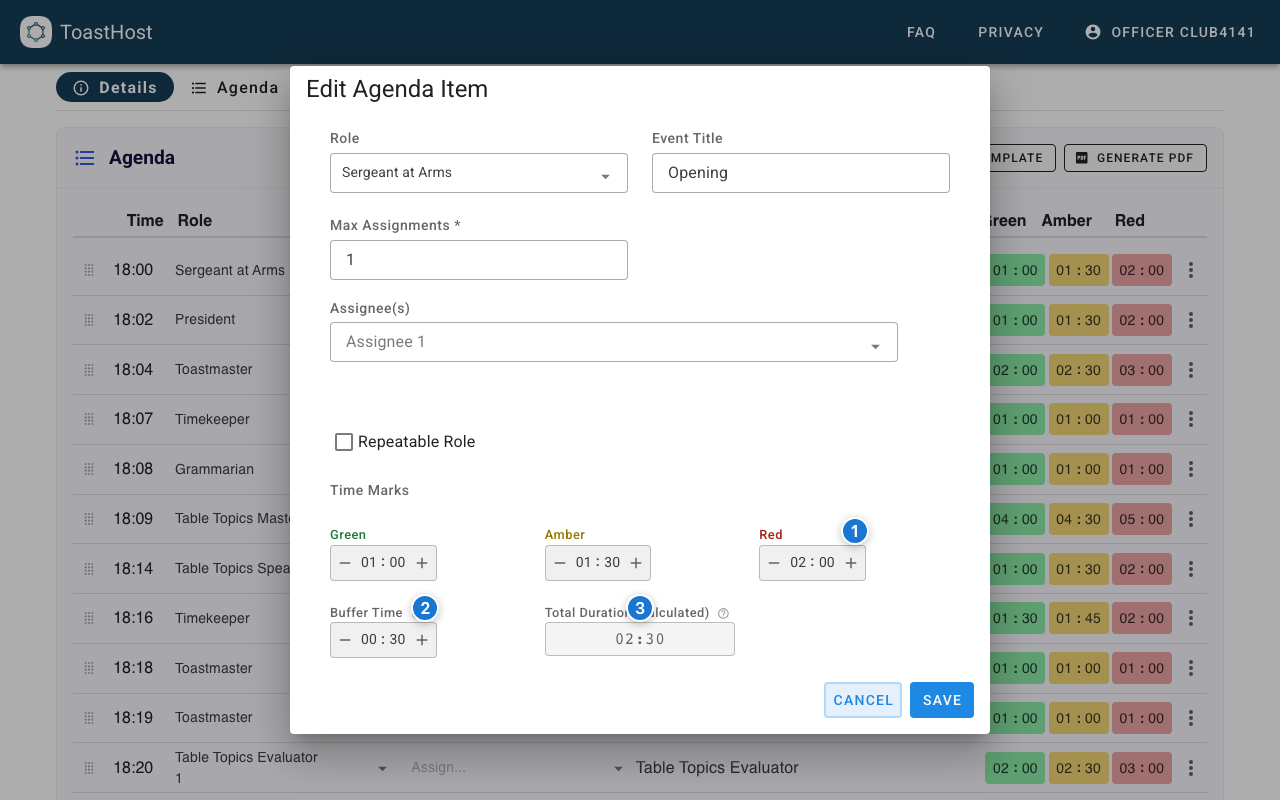
In the dialog:
- Red - The timer's maximum time for this segment
- Buffer Time - Extra time beyond Red (included in agenda timing calculations)
- Total Duration - Automatically calculated (Red + Buffer Time)
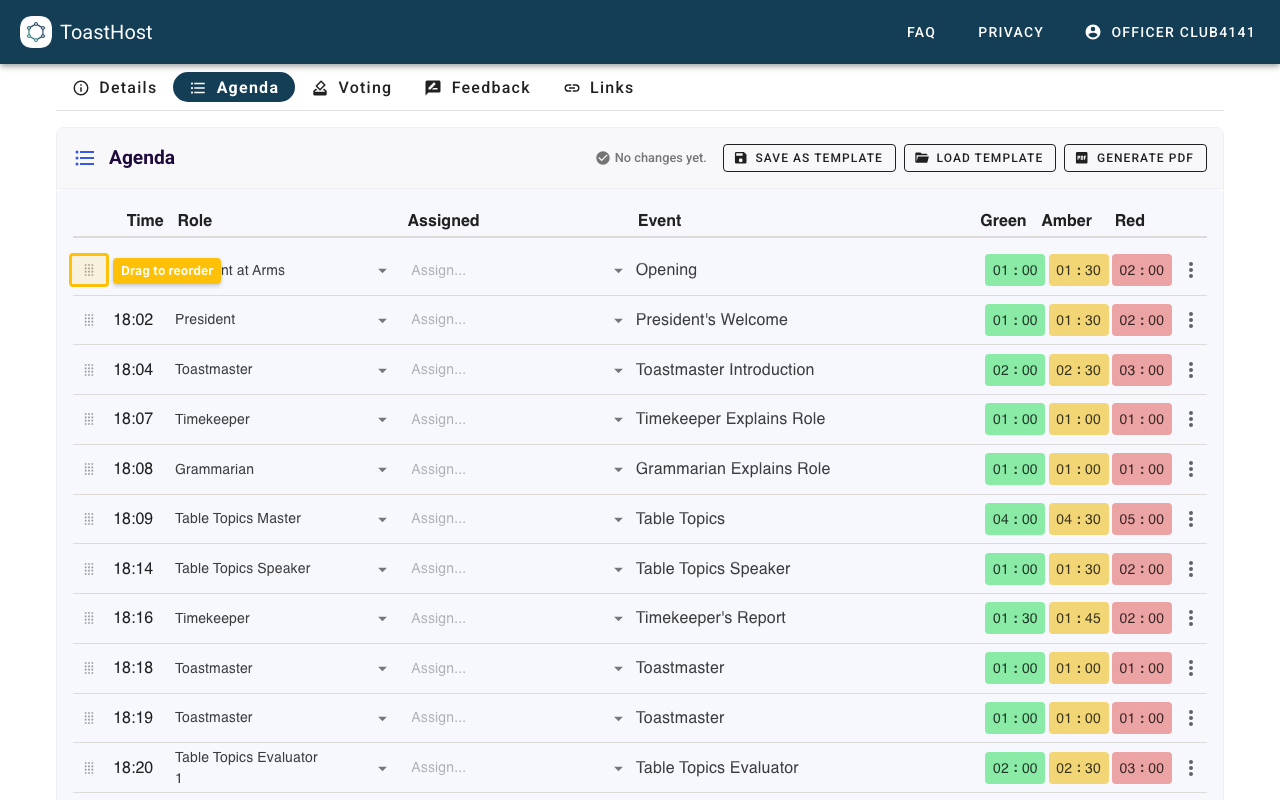
Reordering Segments
Drag and drop segments to change the order, or use up/down controls.
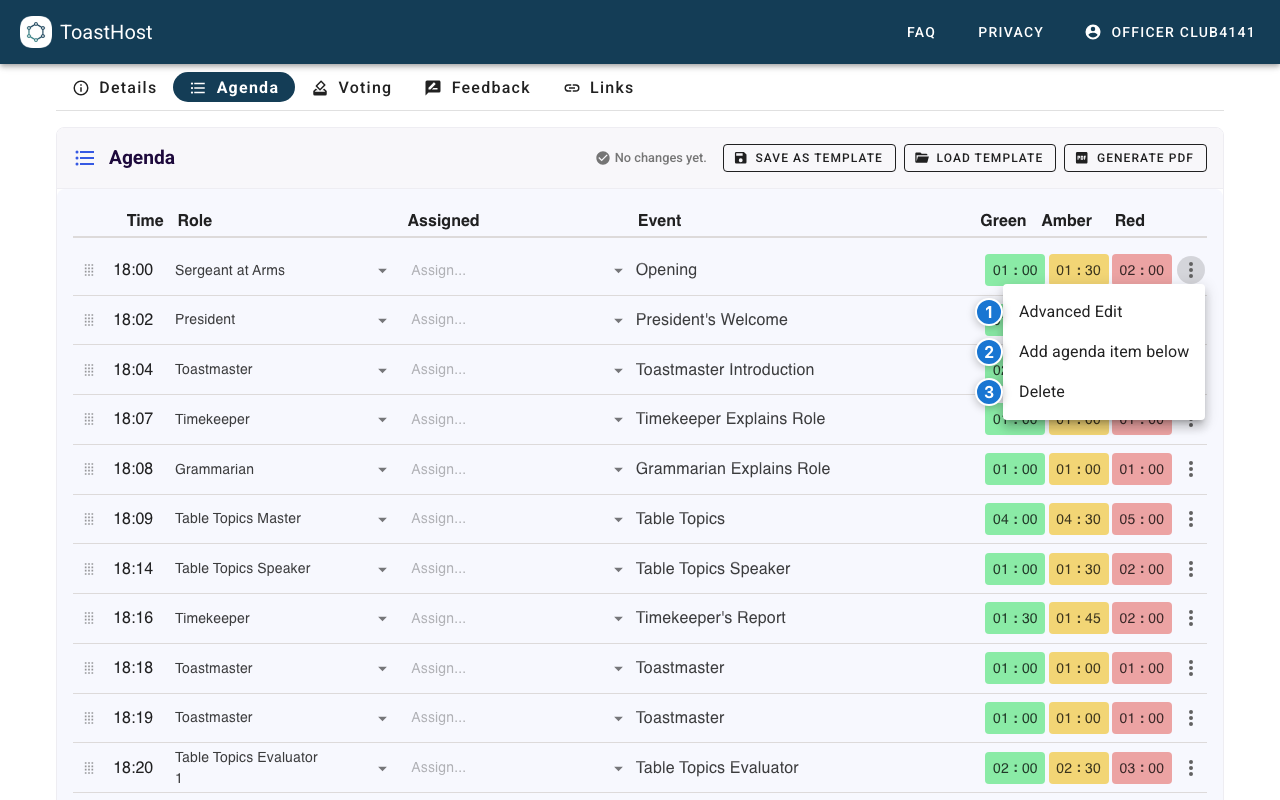
Agenda Item Actions Menu
Use the agenda item's actions menu (⋮) to:
- Advanced Edit - Change the role, event name, and other settings
- Add agenda item below - Insert a new item under the current one
- Delete - Remove the item (you will be asked to confirm)
Speech Slots
Adding Speech Slots
- Add a "Prepared Speech" segment
- Configure timing based on project requirements
- Assign a speaker (or leave open for signup)
Project-Specific Timing
Different Pathways projects have different time requirements:
- Ice Breaker: 4-6 minutes
- Standard speeches: 5-7 minutes
- Advanced speeches: varies by project
Tips
- Build in buffer time between segments
- Keep timing realistic
- Review agenda before each meeting
- Adjust based on expected attendance
Common Questions
How long should a meeting be?
Most club meetings are 60-90 minutes. Adjust your agenda accordingly.
Can I save an agenda as a template?
Yes, save a well-crafted agenda as a template for future use.
What if we run over time?
The timer helps keep track, but be prepared to adjust. Use Buffer Time in Advanced Edit to add planned slack for transitions or segments that often run long.