Creating Meetings
Documentation in progress
This page is being expanded with detailed instructions. Check back soon for complete content!
Overview
Create an interactive meeting so you can plan the agenda, assign roles, and share a meeting link with members and guests.
New meetings start as Draft and are only visible to club officers. When you're ready for members to see the meeting (and sign up for roles), schedule it.
How to Create a Meeting
Step 1: Access Meeting Creation
- Navigate to Meetings in the sidebar
- Click Create New Interactive Meeting
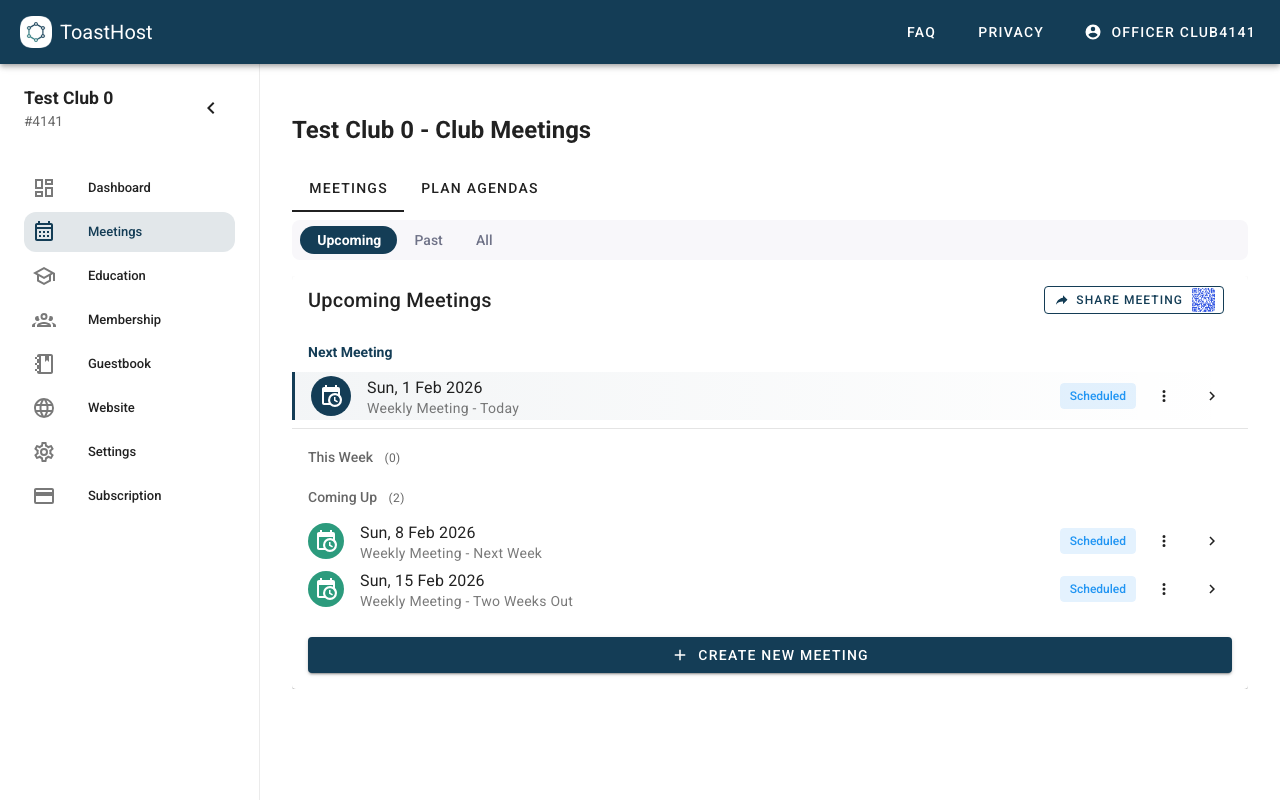
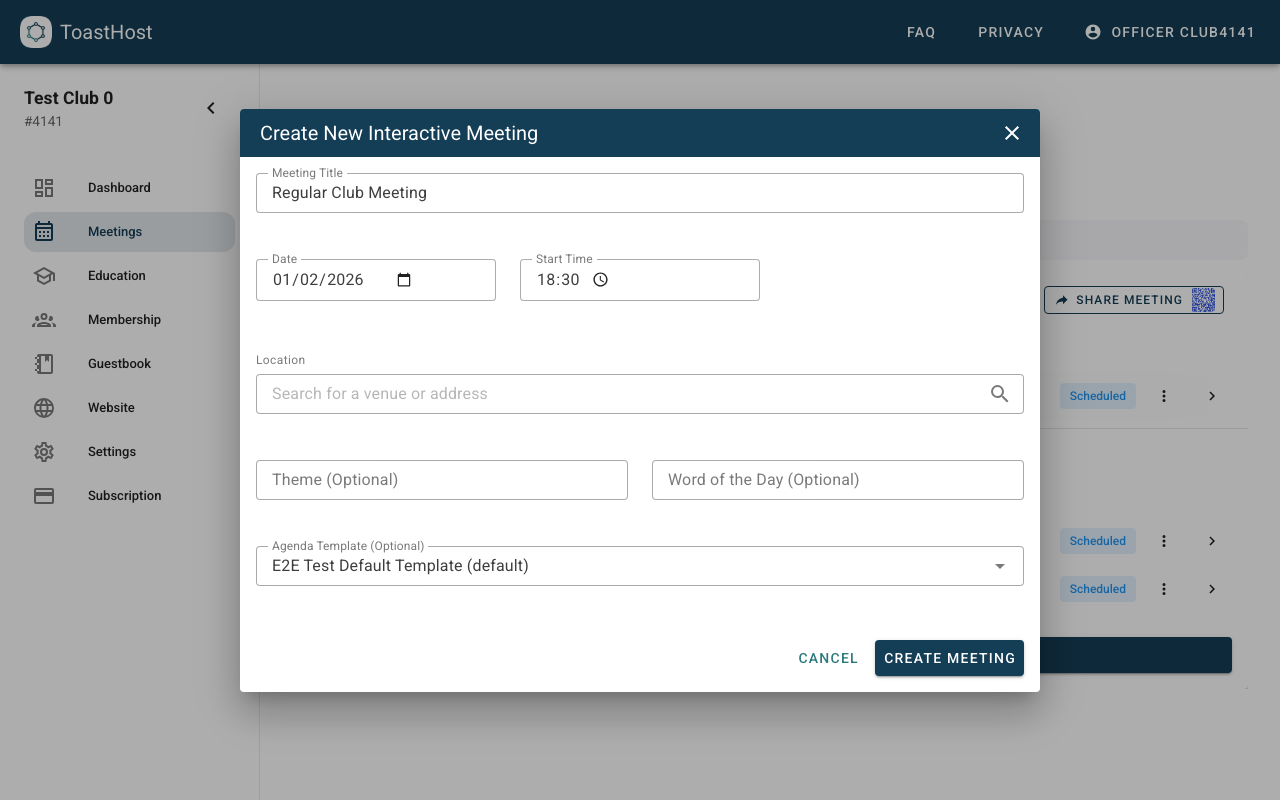
Step 2: Set Basic Details
Enter the meeting details:
- Meeting Title
- Date
- Start Time
- Location (optional) - Physical address or online meeting link
- Theme (optional)
- Word of the Day (optional)
Tip
If your club has configured a meeting schedule in Club Settings, ToastHost will suggest a default date and time for your next meeting. You can override these values for any meeting.
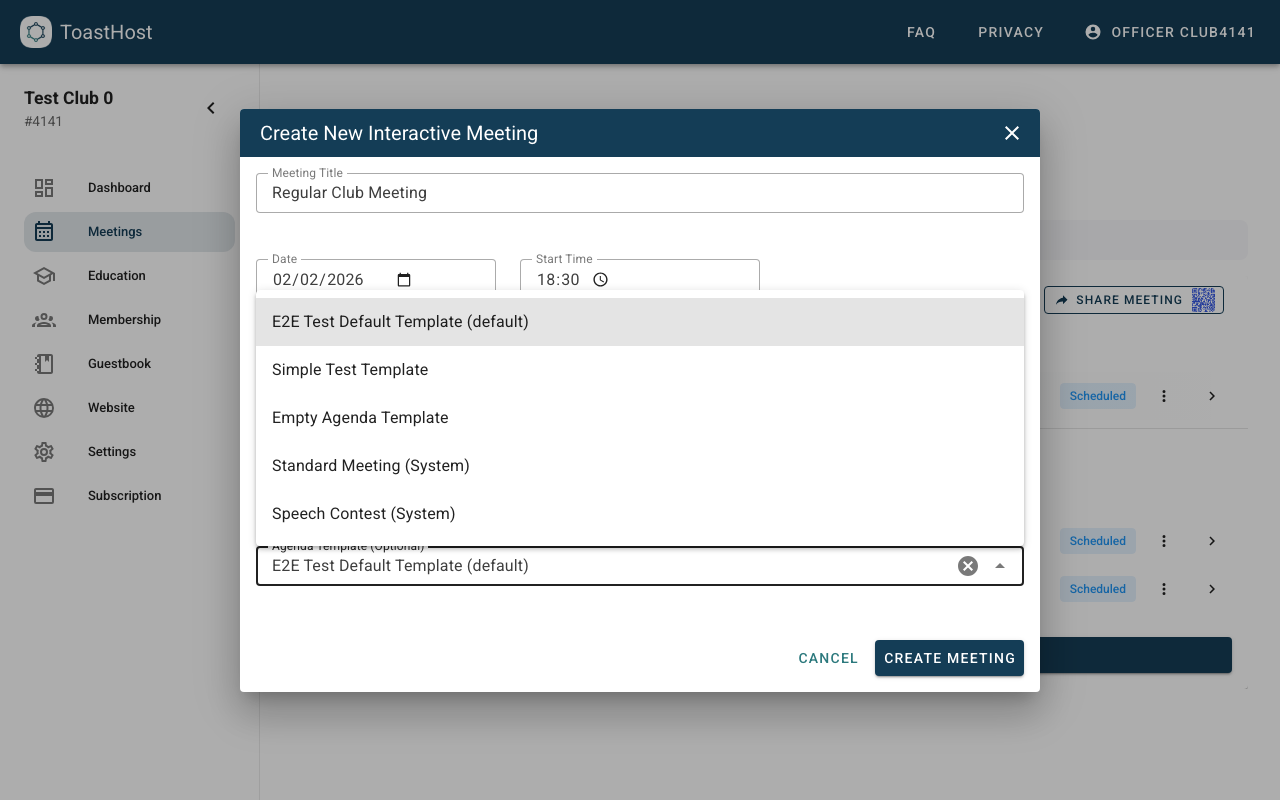
Step 3: (Optional) Choose an Agenda Template
Use Agenda Template (Optional) to start with an existing agenda structure.
- If your club has a default agenda template, it will be selected automatically.
- You can also choose a System template, or clear the field to use the default.
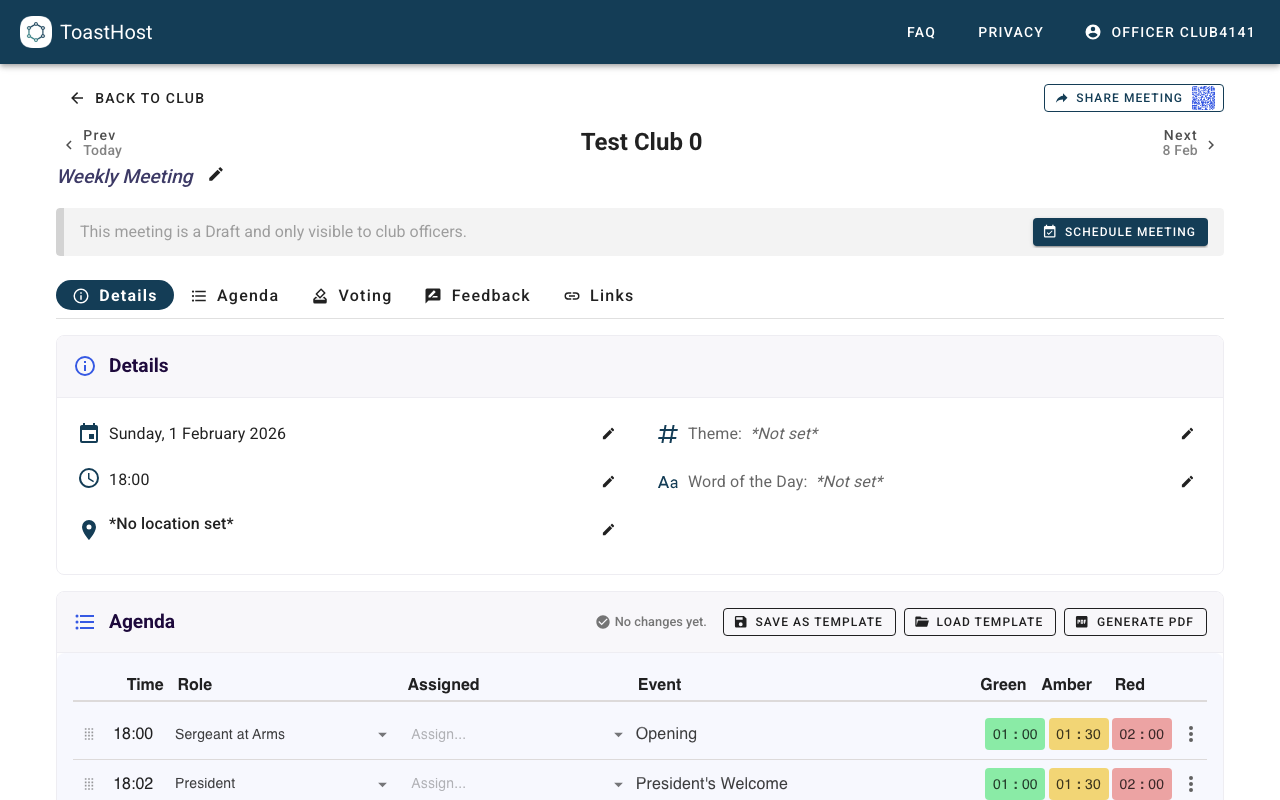
Step 4: Create and Schedule the Meeting
- Click Create Meeting
- Open the new meeting from the list to continue planning
- When you're ready, click Schedule Meeting to make it visible to members
Next Steps
After creating a meeting, you will typically:
Tips
- Create meetings 2-4 weeks in advance so members can sign up for roles.
- Schedule the meeting once the date/time and agenda are ready for members to see.
- Use an agenda template to keep timing and roles consistent week to week.
Common Questions
Can I edit a meeting after creating it?
Yes. Open the meeting and use the edit controls in the Details tab.
Can I delete a meeting?
Yes. Officers can delete meetings from the Meetings list. If ToastHost blocks deletion for a meeting state, you'll see an error message.