Data Import
Overview
Import your membership data into ToastHost from Toastmasters International's Club Central export (CSV).
Importing from Toastmasters International
The easiest way to keep your ToastHost member list in sync is by downloading membership data directly from Toastmasters International.
Step 1: Download from Club Central
- Log in to Toastmasters Club Central
- Navigate to Club Central > Membership Management
- Download or export the membership list as a CSV file
Step 2: Upload to ToastHost
- Go to the Membership page and select the Actions tab
- In the Data Import section, upload the CSV file you downloaded
- Click Upload Membership File
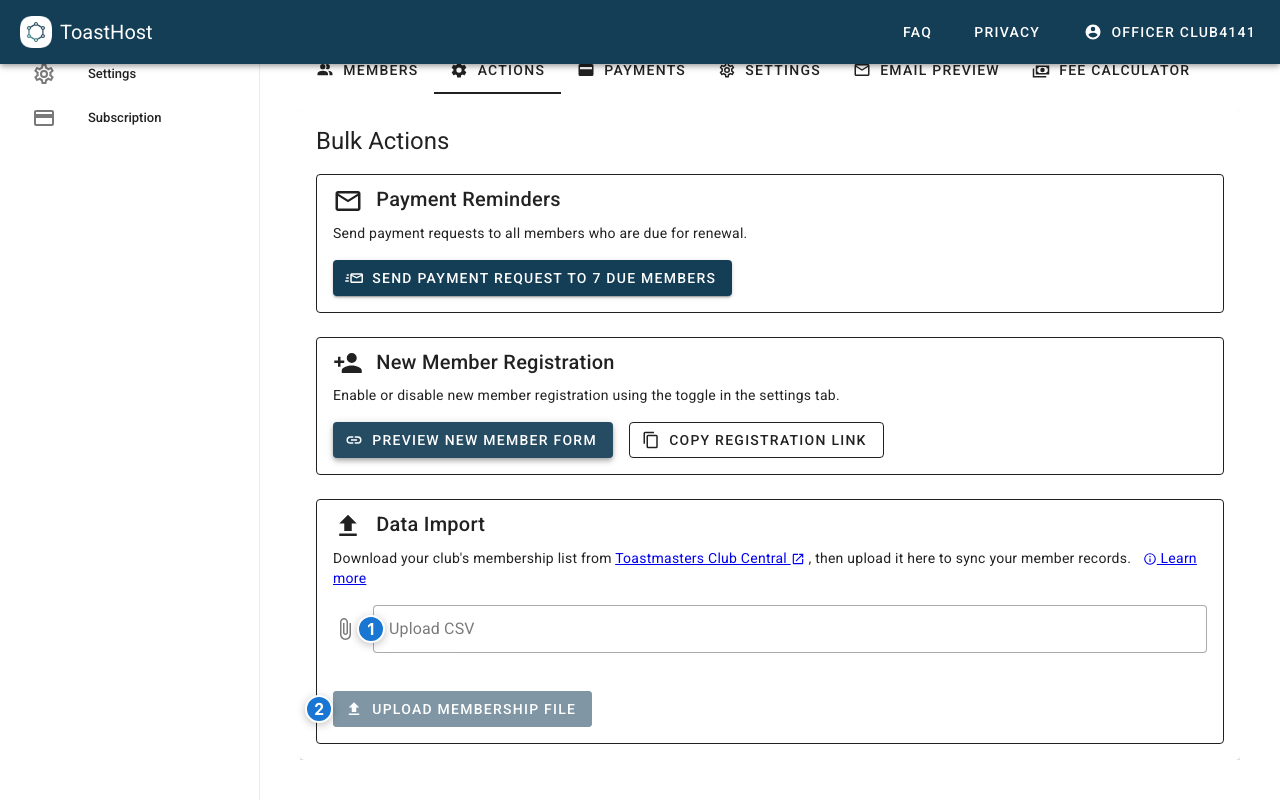
Callouts in the screenshot:
- Select the membership CSV export file.
- Upload the file to sync membership data.
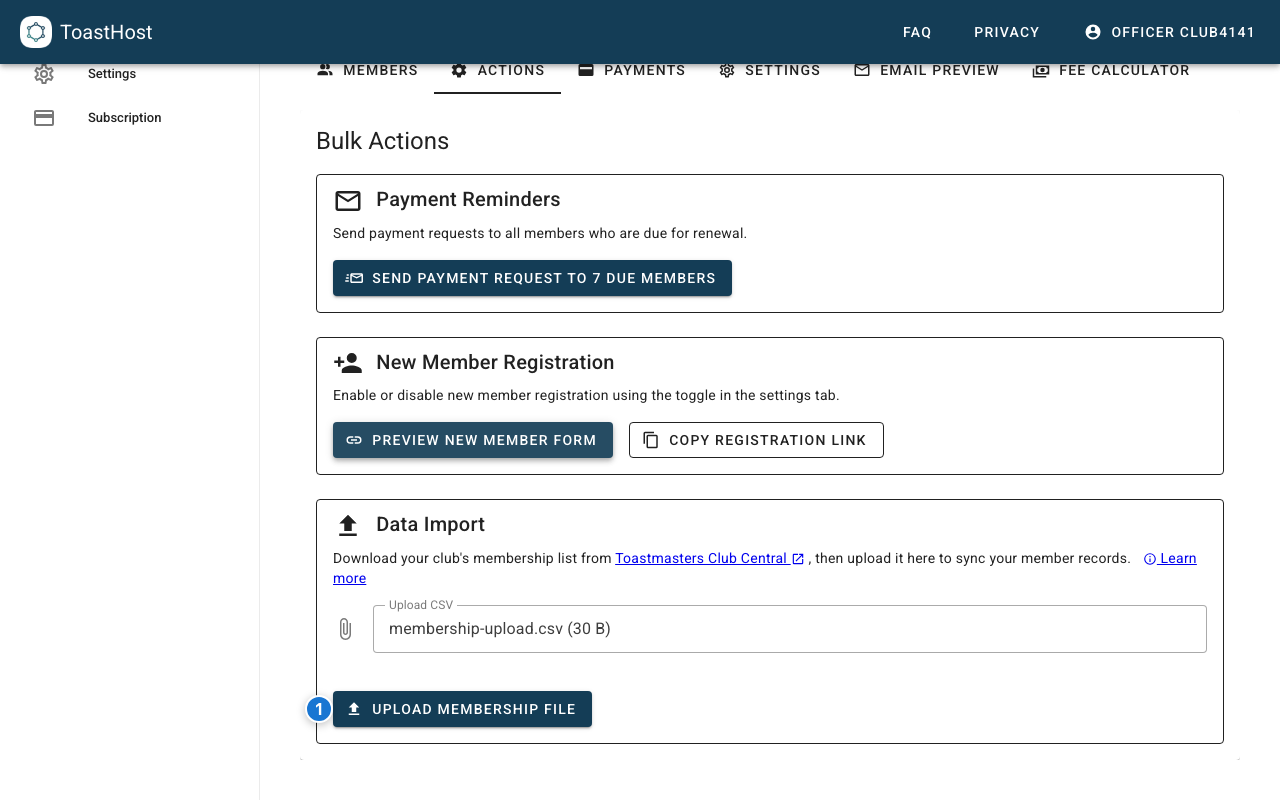
Callouts in the screenshot:
- Once a CSV is selected, Upload Membership File becomes available.
Step 3: Review Results
Check for:
- Import success count
- Any failed records
- Duplicate handling
Importing from Spreadsheets
If you maintain membership details in a spreadsheet, export to CSV and ensure it matches the Toastmasters Club Central membership export format before uploading.
Tips
- Clean your data before importing
- Remove duplicates from source data
- Back up your original data
- Import in test mode first if available
- Document any manual adjustments needed
Common Questions
Will import overwrite existing data?
Import typically adds new records. Duplicates are handled based on email matching.
What if some records fail?
Review the error report, fix issues in your source file, and re-import failed records.
Related Topics
- Member List
- EasySpeak Import — for importing speech and role history
- Getting Started
- Club Settings